죄송하지만 이 문서는 한국어로 제공되지 않습니다. 아래는 영어 버전입니다.
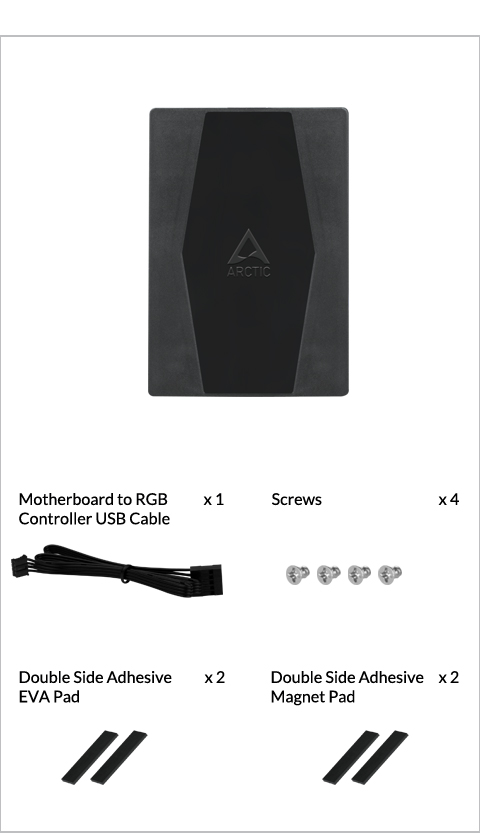
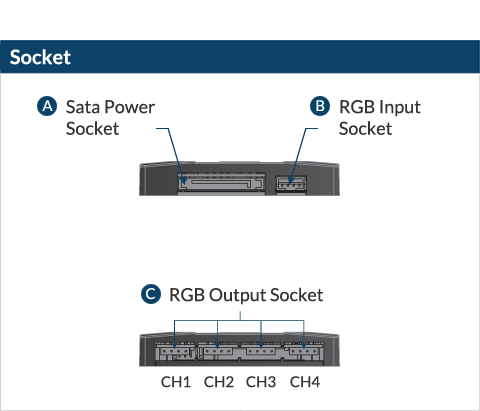
All RGB
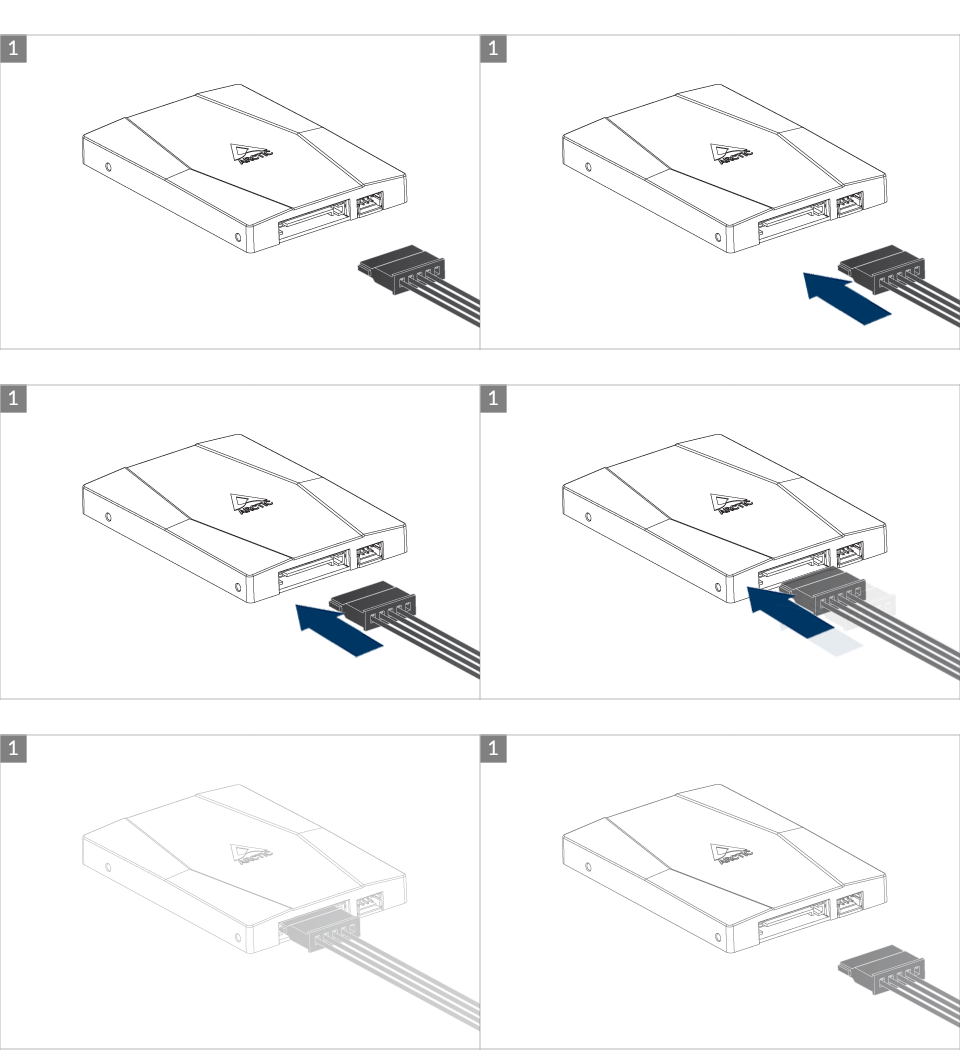
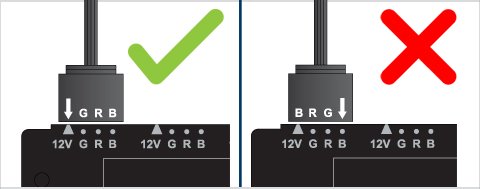
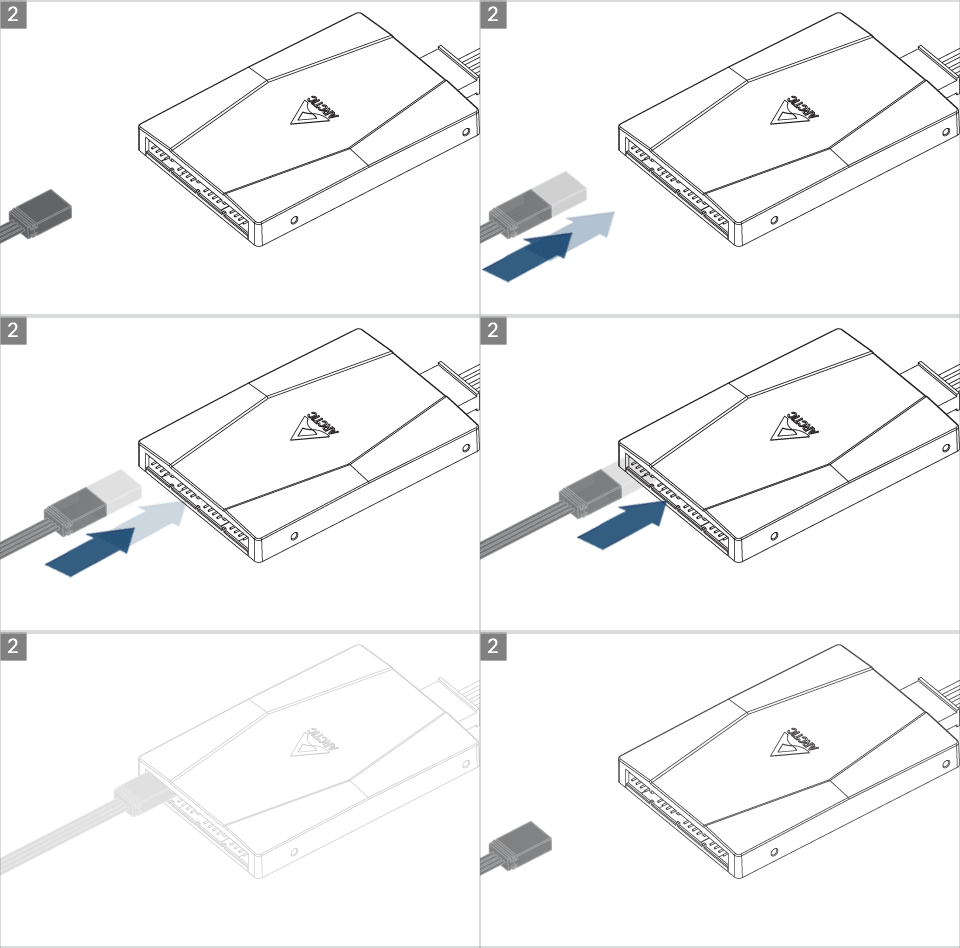
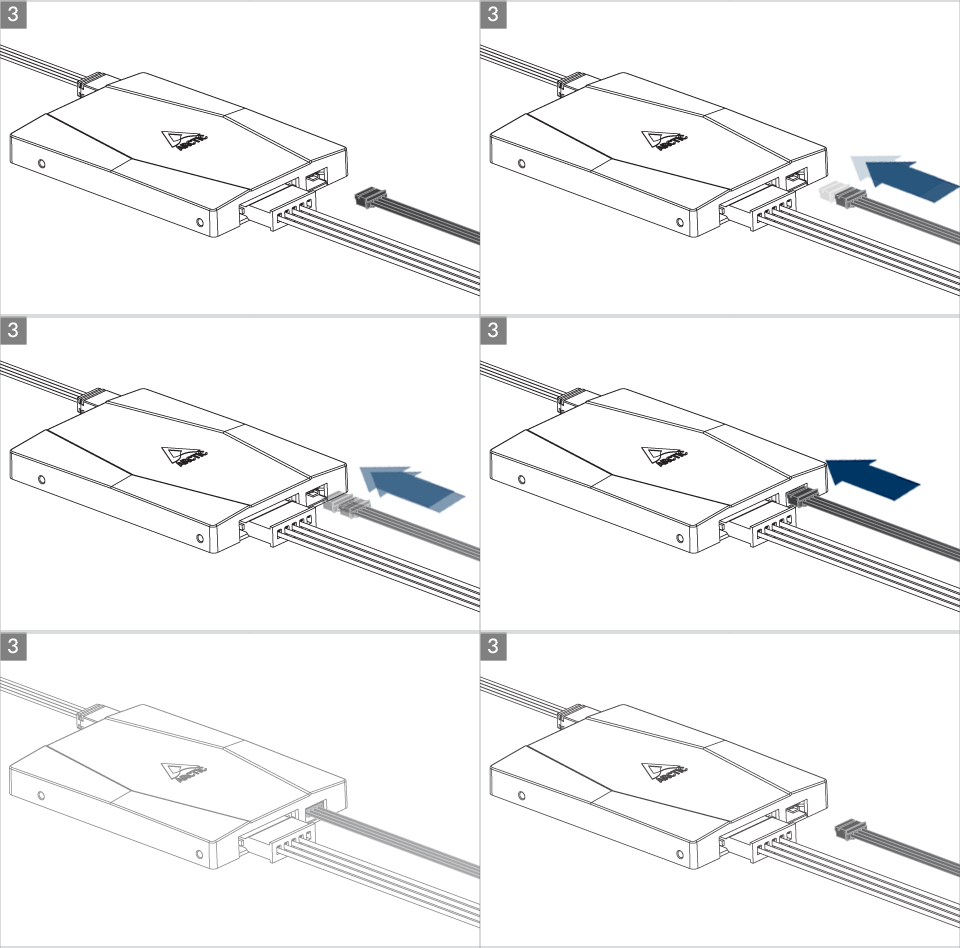

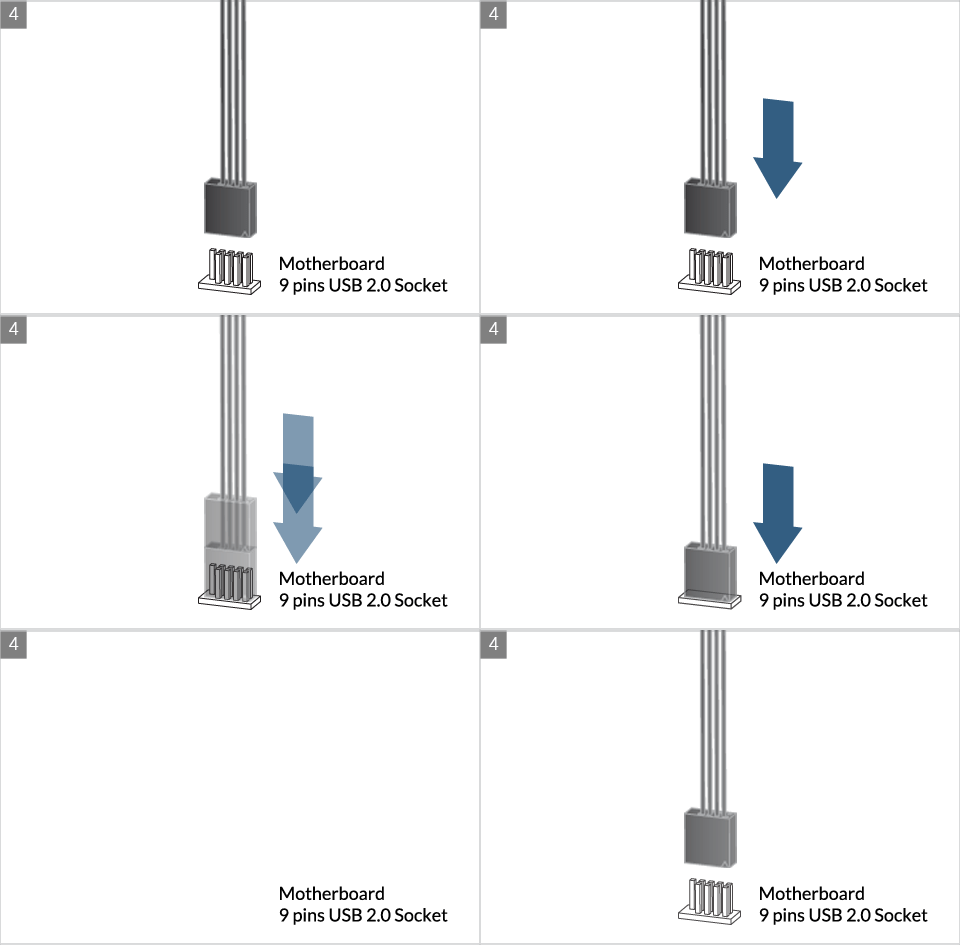
For P12 PWM PST RGB and Liquid Freezer II

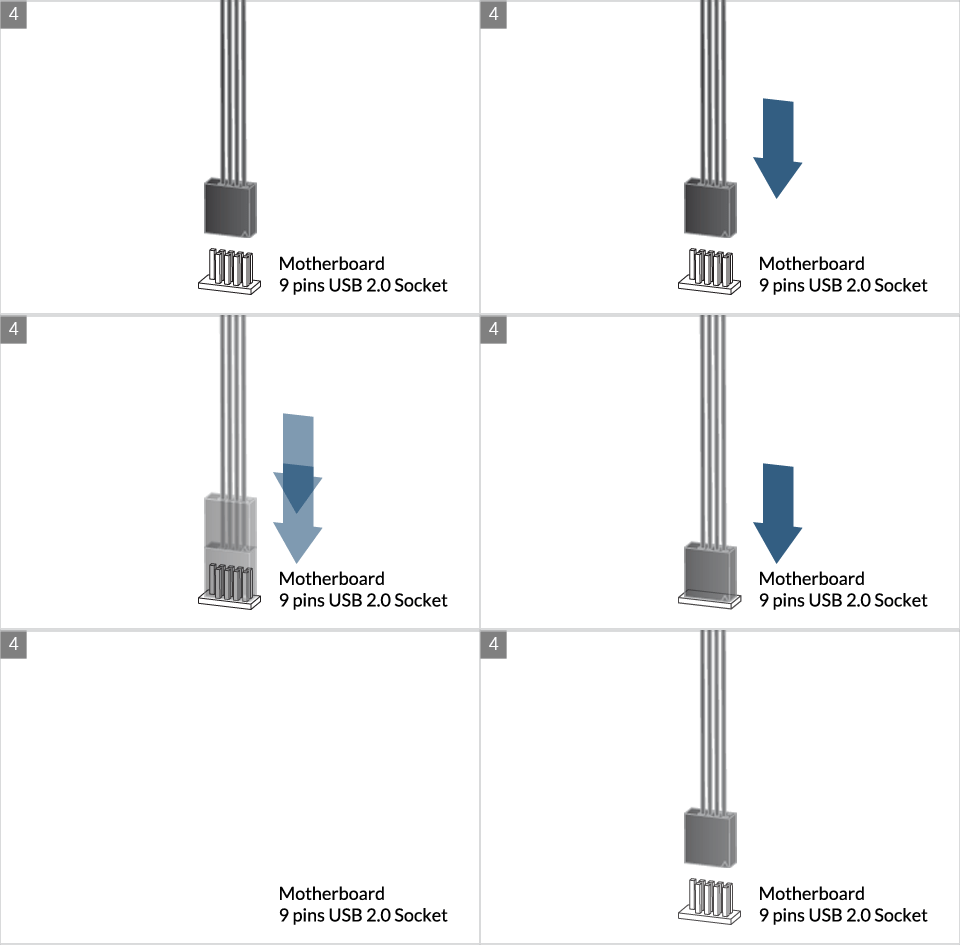
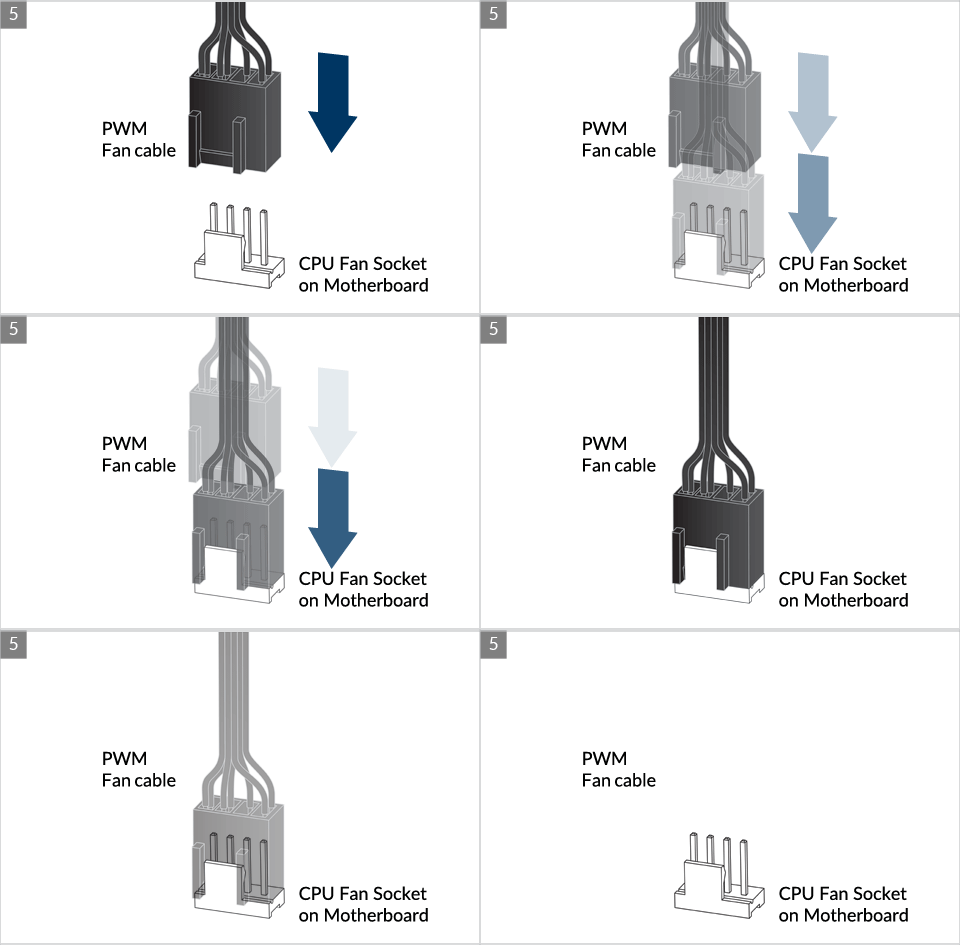
Software Installation
- Download the ARCTIC RGB Controller Master software by clicking the button below Download
- Unzip and launch "ARCTIC_RGB_Control_Master_Setup.exe"
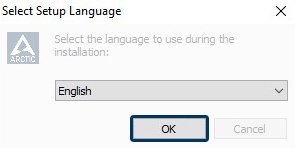
- Choose Language
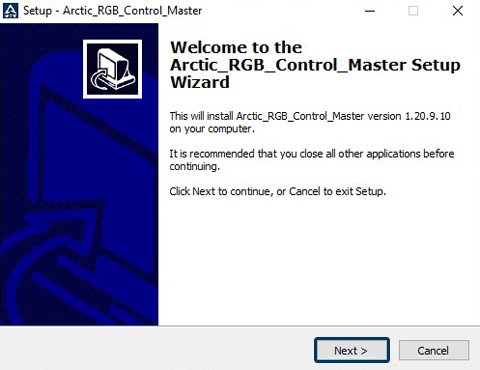
- Choose "Next>" Button
- Choose Destination Location
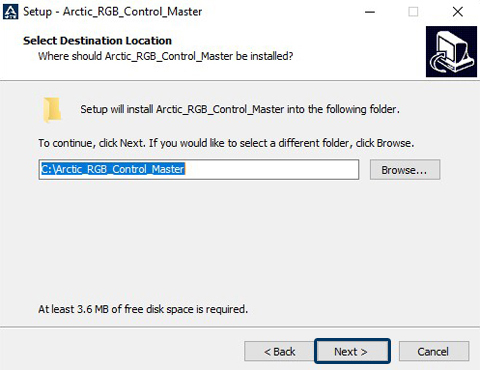
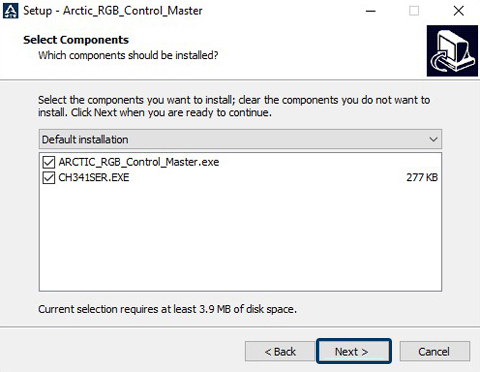
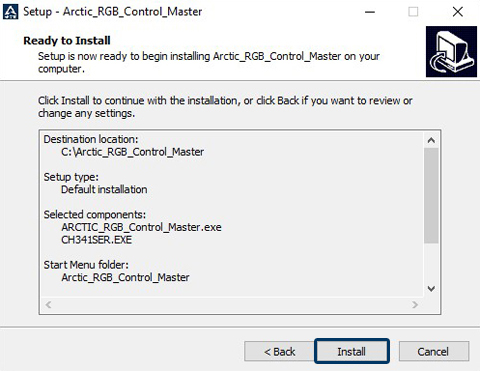
- Install “CH341SER.EXE” USB driver and “ARCTIC_RGB_Control_Master_Setup.exe”
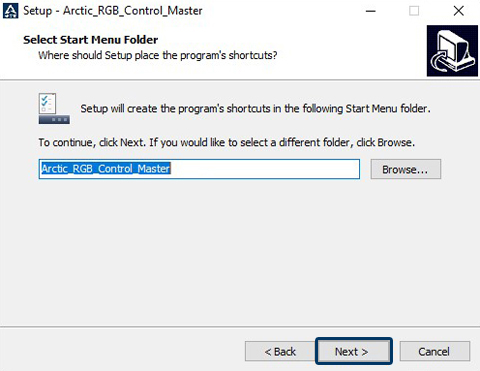
- Select Start Menu Folder
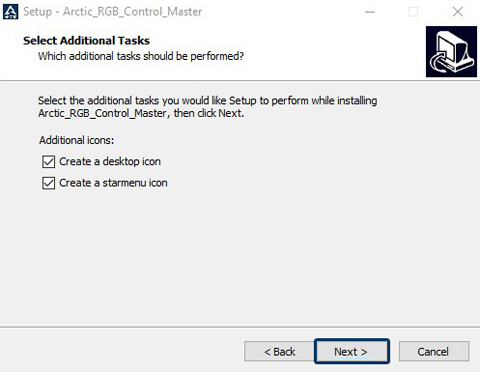
- Select Additional Tasks (Optional)
- Choose install location
- Click Finish and install “CH341SER.EXE”
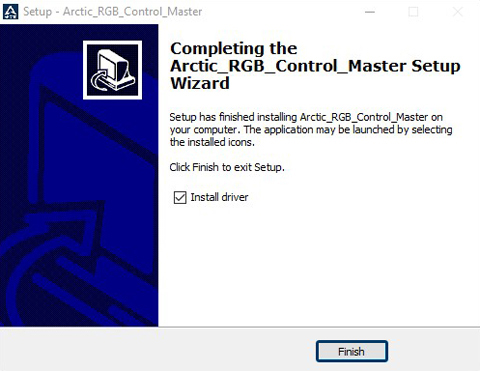
- Arctic RGB Control Master starts automatically
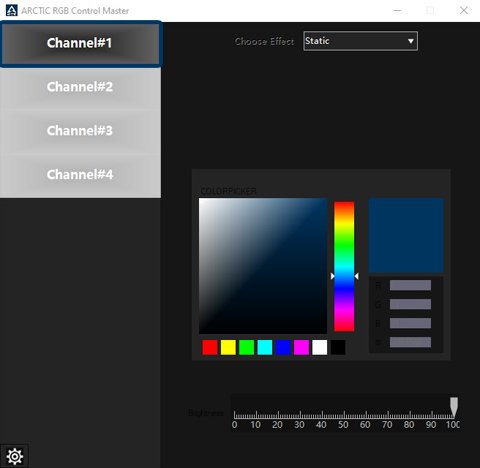
Control Panel
- When Windows started, the software will run automatically & the software icon will be shown in the taskbar (default), you can click the
 icon in the taskbar/Click the Arctic RGB Control master in the Windows start menu/Double click the icon on the desktop to enter the software
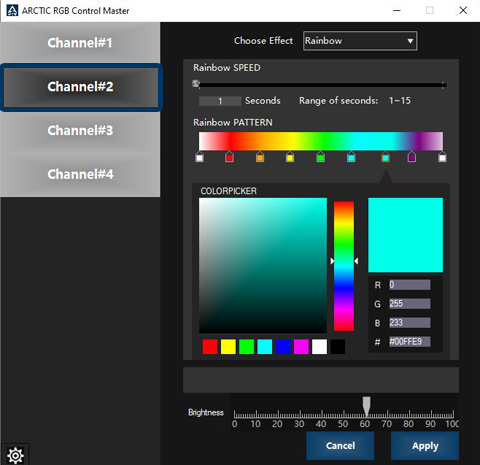
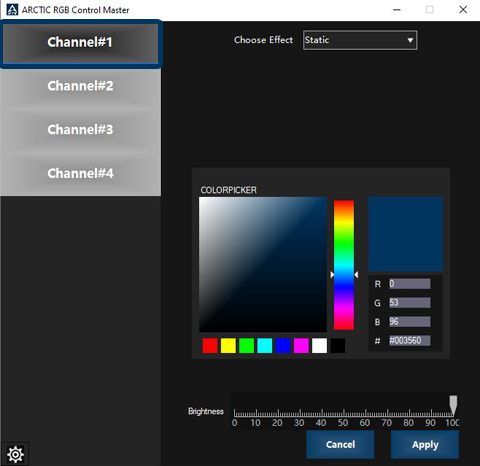
- The main control menu will show 4 channels and colour effect setting when the controller in operation.
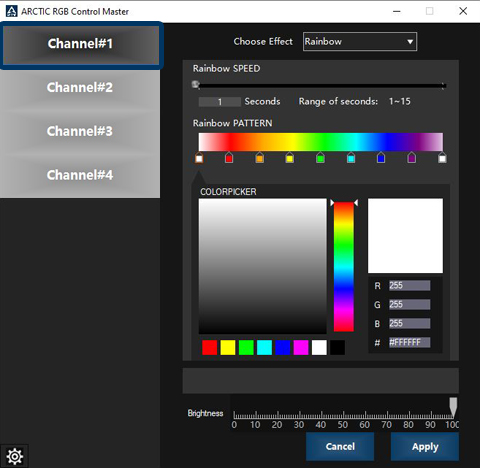
- Choose the channel then click the Apply button to activate the effect and colour control of the specific channel.
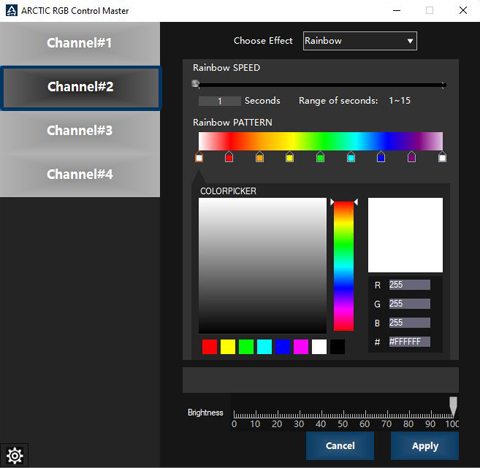
- Adjust Speed, Effect, Colour, Brightness, then click the Apply button to confirm the RGB setting.
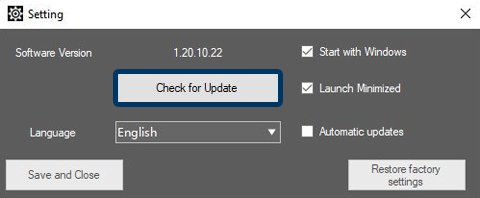
- Setting Menu
Click
 button to enter the setting menu.
- Software update:
- At each startup, Software will automatically check for updates online, it will prompt the user by providing an update button if there is an update.
- Click the Check for Updates button to check for the update manually.
- All settings are saved and will be retained after the restart by clicking the Save and Close button.
- Clear all settings by restore factory settings by clicking the Restore factory settings.
- Compatible with Windows 10, Windows 8.1, Windows 7.
- Support languages: English, Chinese (Traditional & Simplified).
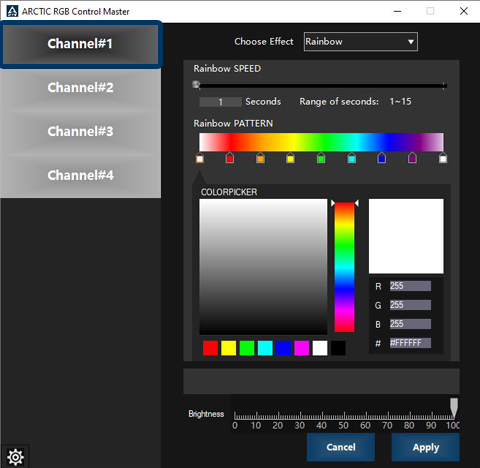
Light Effect Mode
- Rainbow
8 colours (white, red, orange, yellow, green, cyan, blue, violet) cyclically drift within max. 15 seconds
- Static
- Breathe
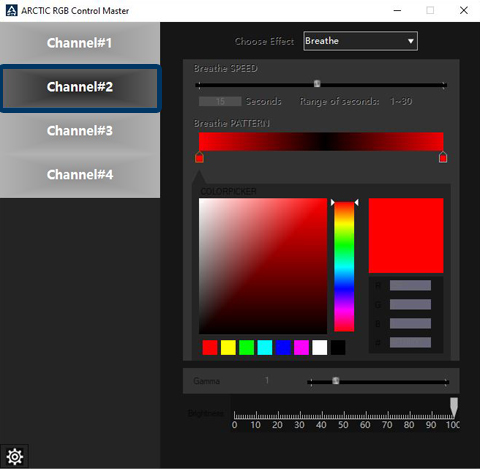
Define the time axis with different colours at different times:
- Between the colour points, it will fade to black, and then fade into the next colour.
- The timeline circulates by itself, so the beginning and the end correspond
seamlessly
- Left click on the timeline to add colour point
- Drag the colour point on the timeline to change its position.

- Drag the colour point away to delete the timeline.
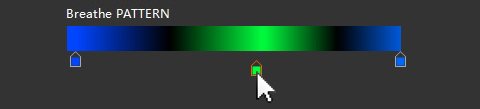
- Define the actual length of the timeline by adjust the time bar.

- Colour shift
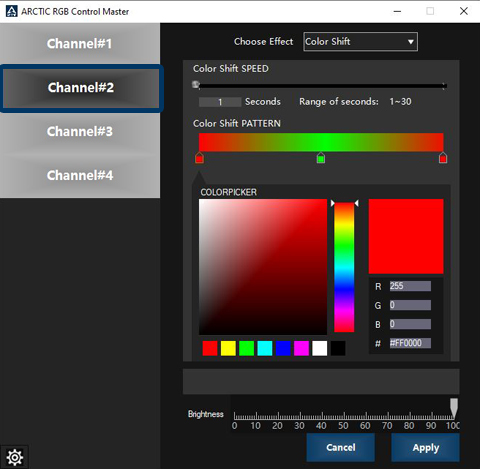
Define the time axis with different colours at different times:
- Between the colour points, it will fade from colour #1 to colour #2 without passing through black.
- The timeline circulates by itself, so the beginning and the end correspond
seamlessly

- Left click on the timeline to add colour point
- Drag the colour point on the timeline to change its position.
- Drag the colour point away to delete the timeline.
- Define the Colour Shift speed by adjusting the time bar.

- Music
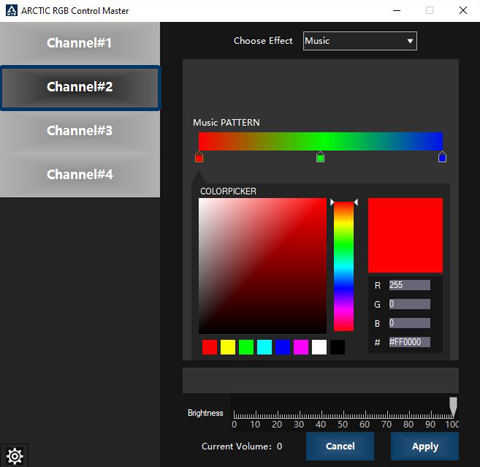
- Colour change according to the sound level

- Colour change according to the sound level
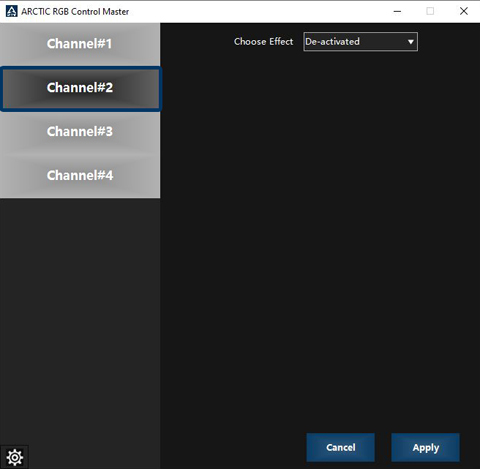
- Deactivated
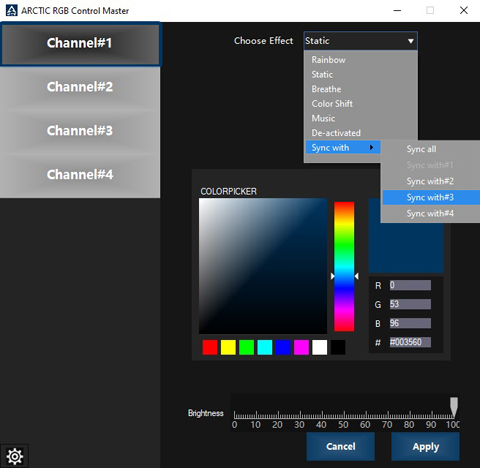
- Sync with
Sync the settings of the selected channel to another selected Channel.
Software Uninstallation
- Close the window of Arctic_RGB_Control_Master
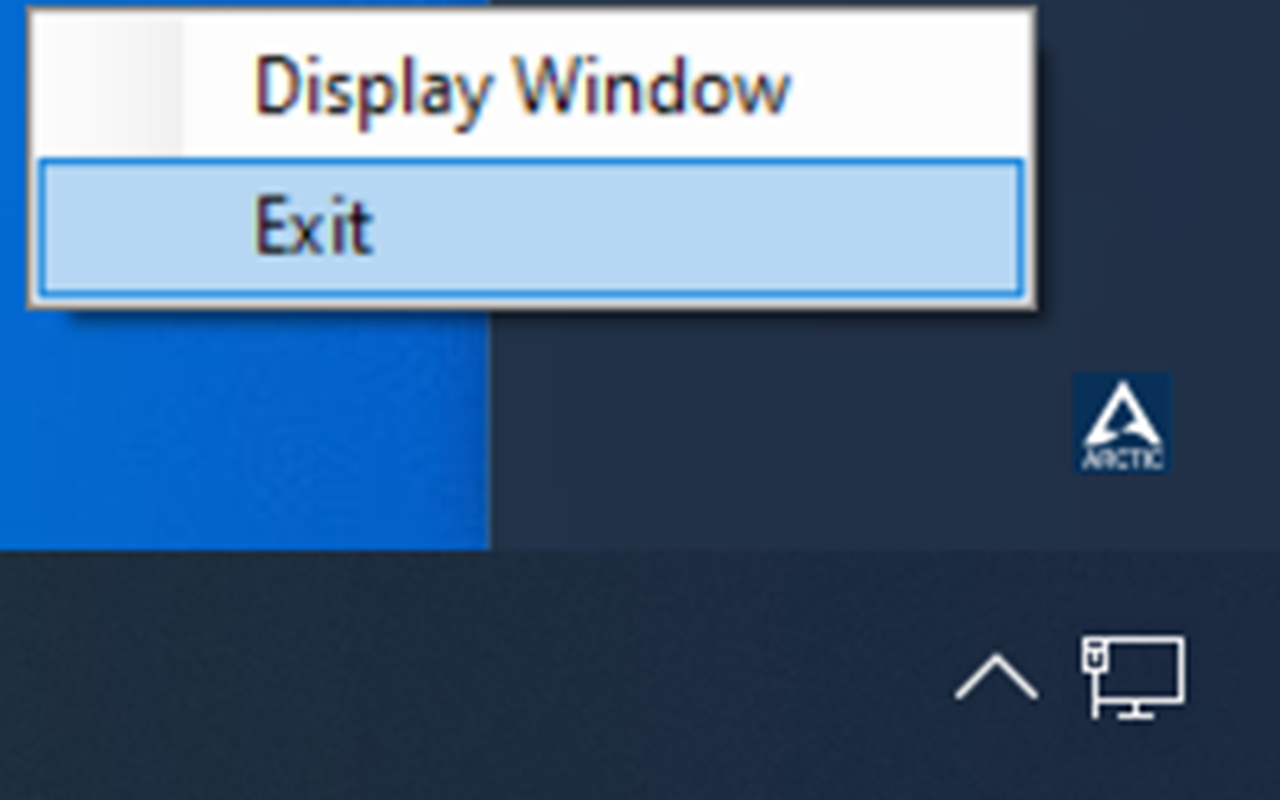
- Exit Arctic_RGB_Control_Master
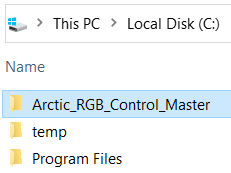
- Open the folder location (Default: C:\Arctic_RGB_Control_Master).
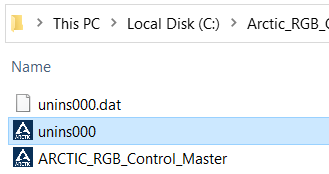
- Open the “unins000.exe”.
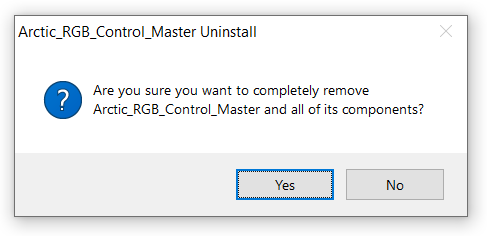
- Click “Yes”.
- Click “OK” and your uninstallation is done!
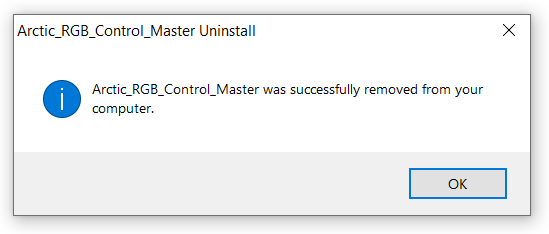
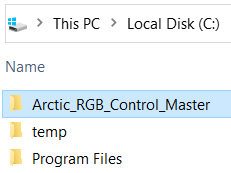
For those who did not exit the software before uninstallation may found some files left.
Exit the software (refer to 2.)
Delete the folder (Default: C:\Arctic_RGB_Control_Master).
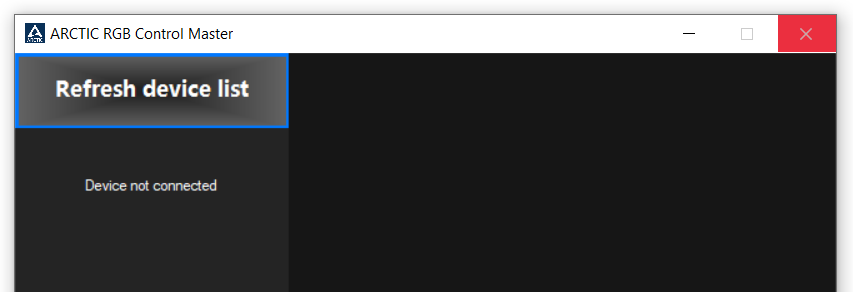
Device not connected when open Arctic RGB Control Master
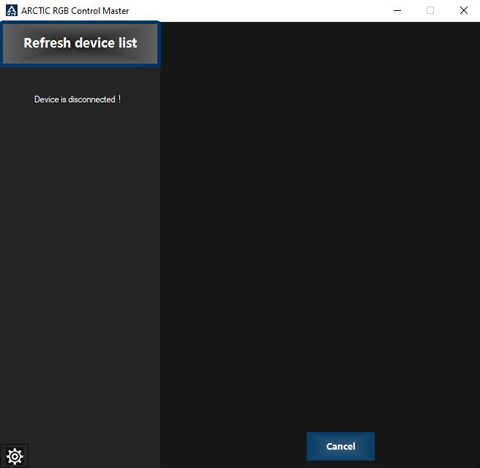
The controller is not connected to the motherboard 9 pins USB socket or “CH341SER.EXE” USB driver not installed.
The RGB Light Strip runs at Rainbow mode only.
The controller runs in Rainbow demo mode if it is not connected to motherboard 9 pins USB socket or “CH341SER.EXE” USB driver not installed.
No Light effect on the RGB Light Strip when everything gets connected.
The controller runs in Deactivated light effect mode when Arctic RGB Control Master is not running..


