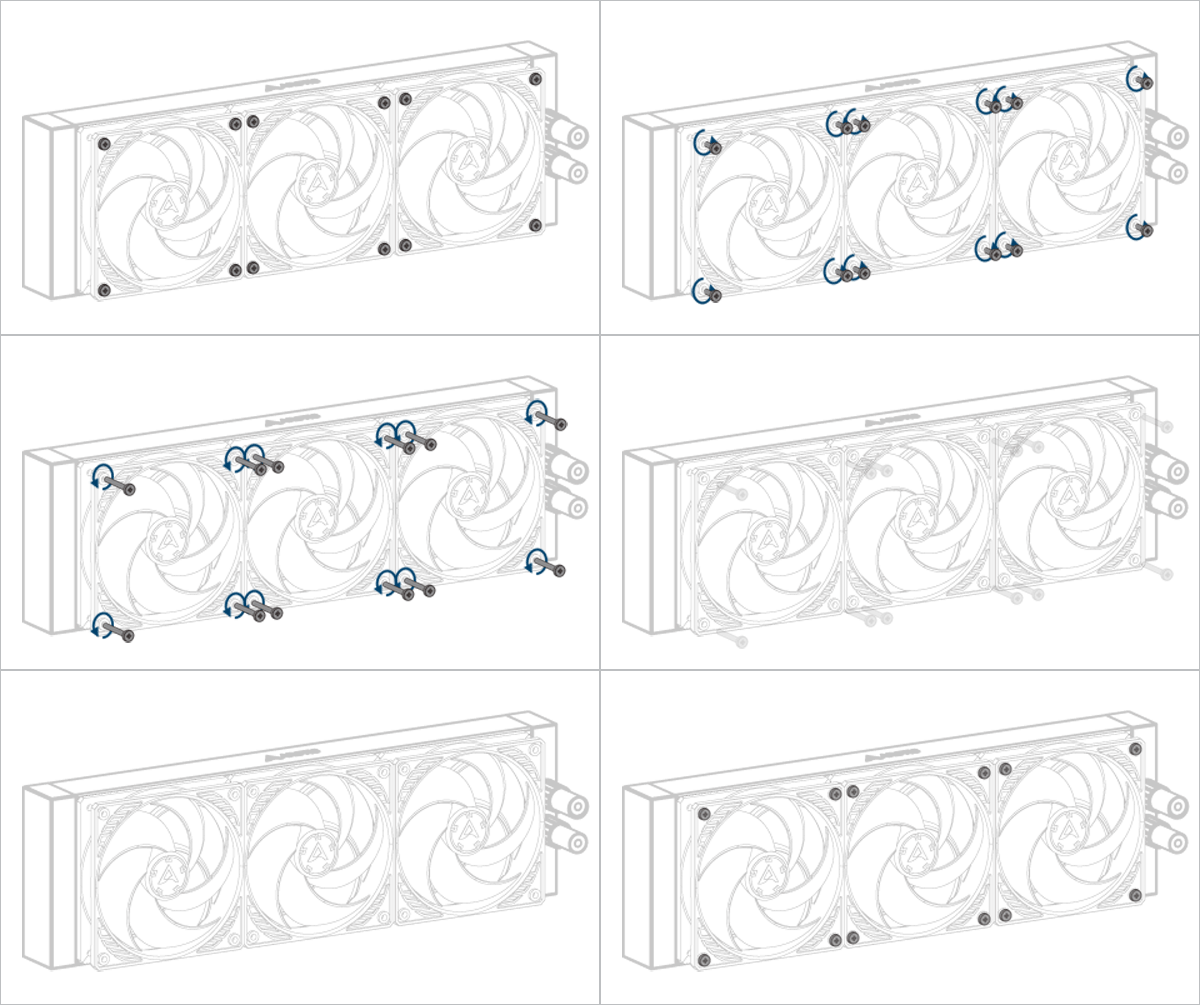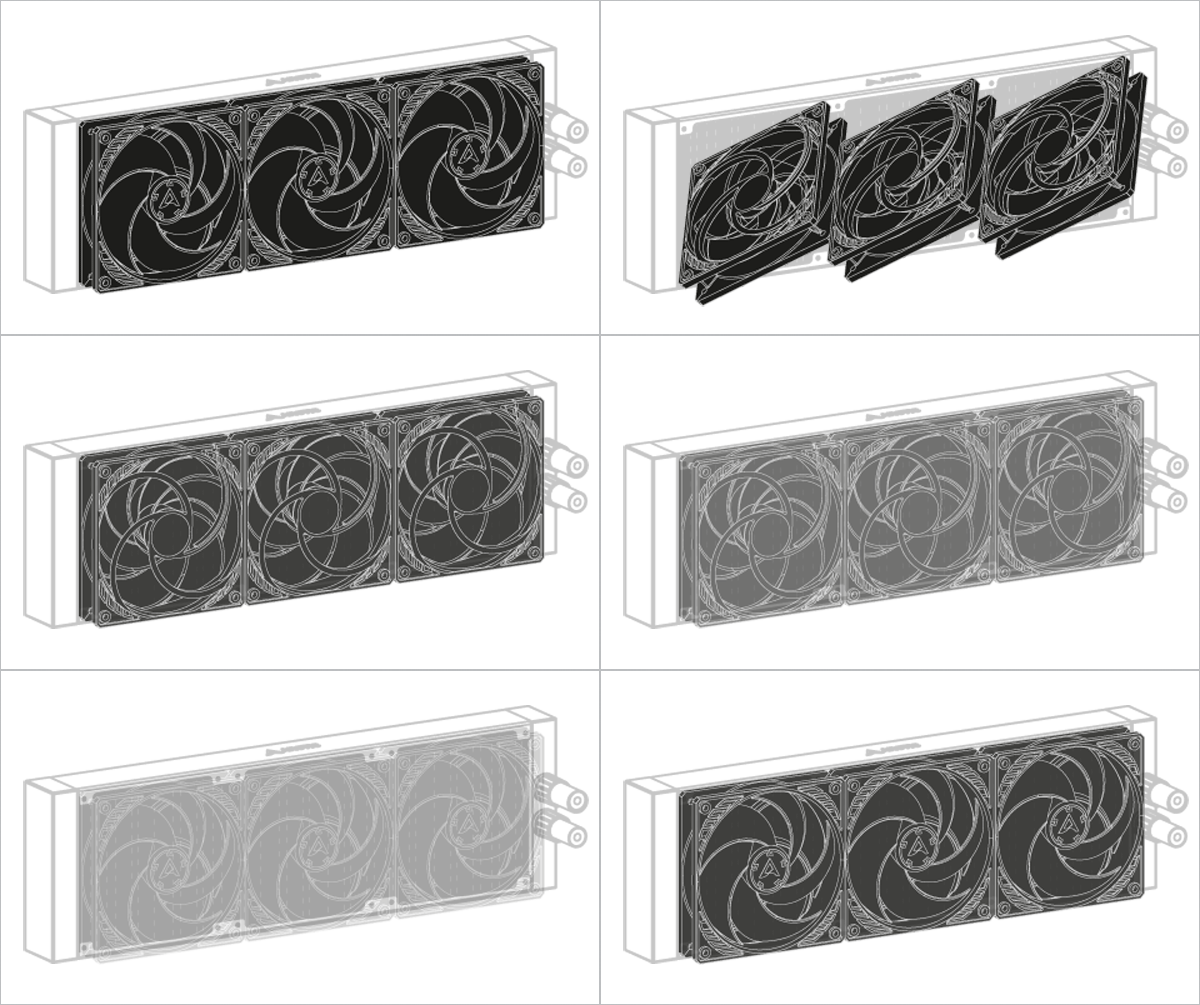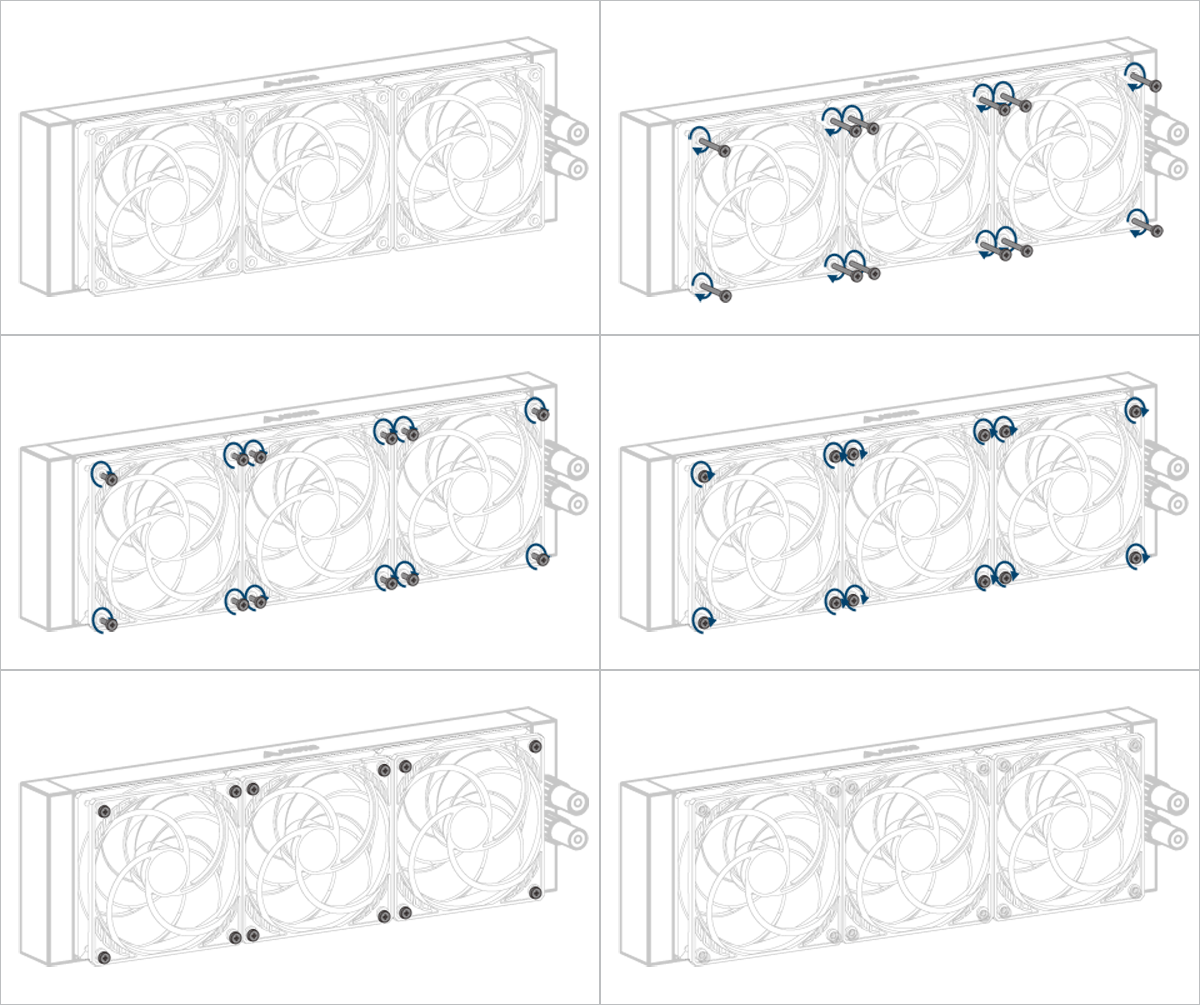
语言
English
Deutsch
Français
Español
Italiano
Русский
čeština
Polski
Português
中文
عربي
日本の
한국인
Türkçe
Svenska
Nederlands

很遗憾,本文档暂无中文版本,以下为英文版本。

To check the compatibility of your motherboard, please follow this link.

A printable quick start guide is available here.

Required Tools

PH2 Philips Head Screwdriver PH2 Philips Head Screwdriver

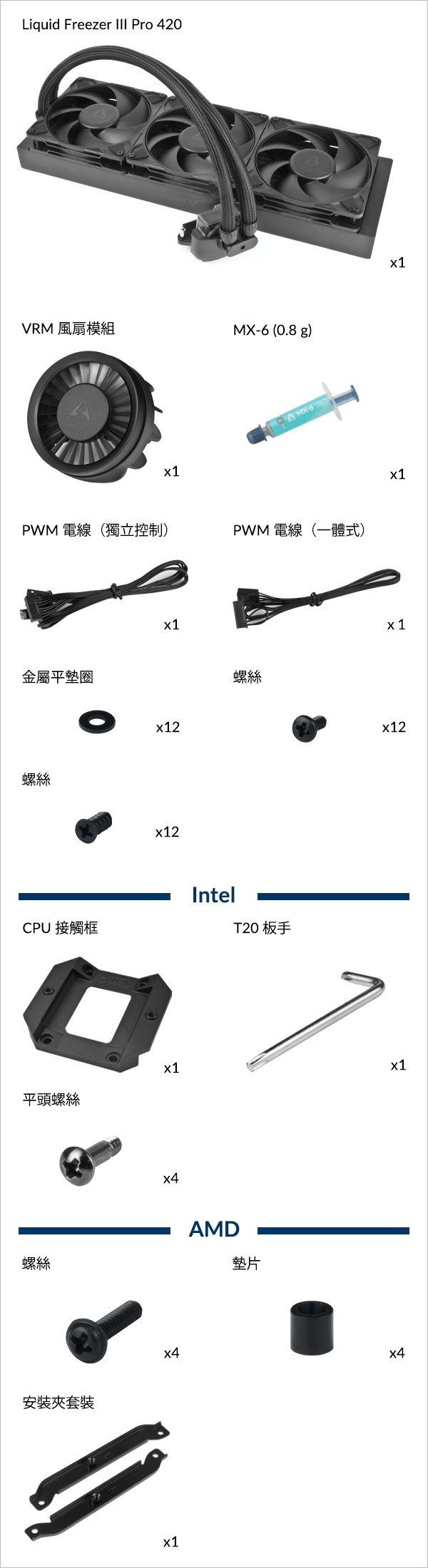
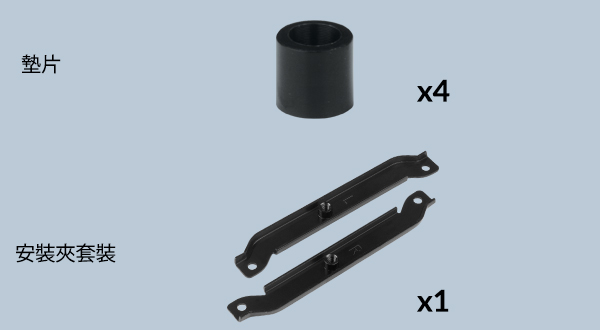
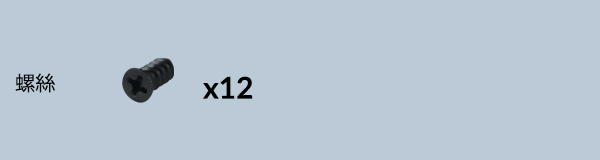
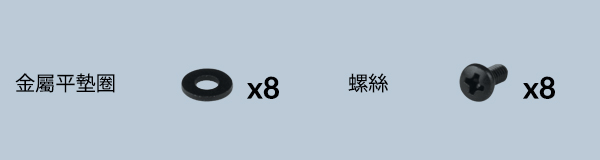
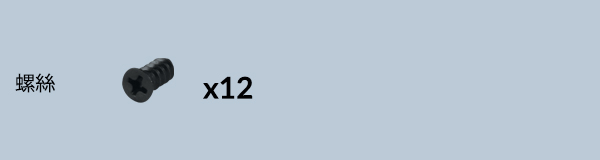
Packaging Content
Liquid Freezer III Pro 420
Choose Connector Cable

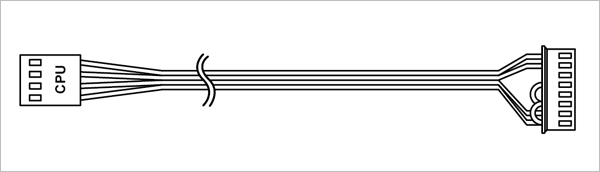
All-in-One

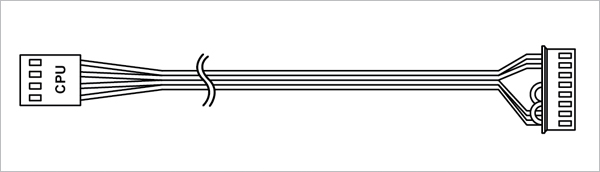
Single connector PWM cable for simultaneous control of pump, VRM and radiator fan speeds, as well as pump speed monitoring.

Liquid Freezer III Pro 420

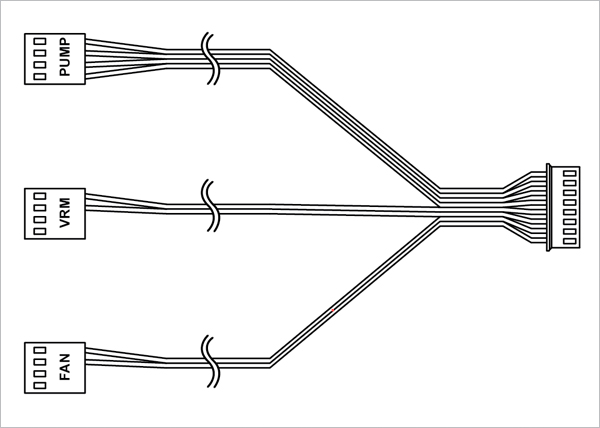
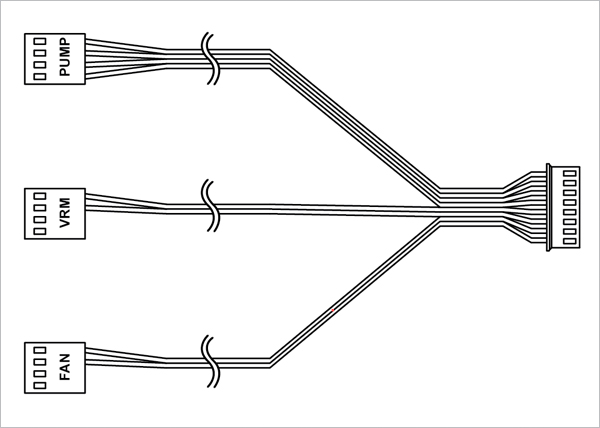
Individual control

PWM cable with three connectors for individual control and monitoring of pump / VRM fan / radiator fan speed.

Liquid Freezer III Pro 420

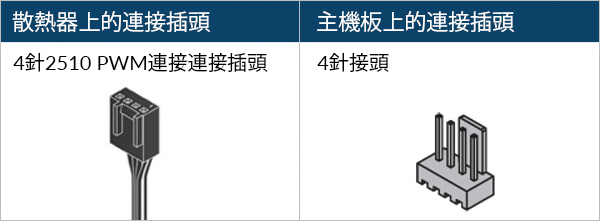
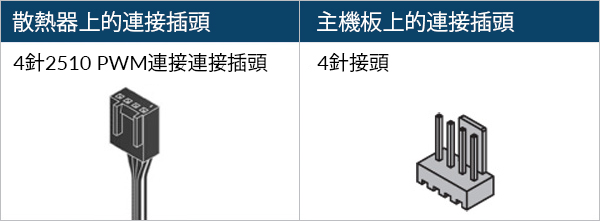
3x 4-Pin Header on motherboard required

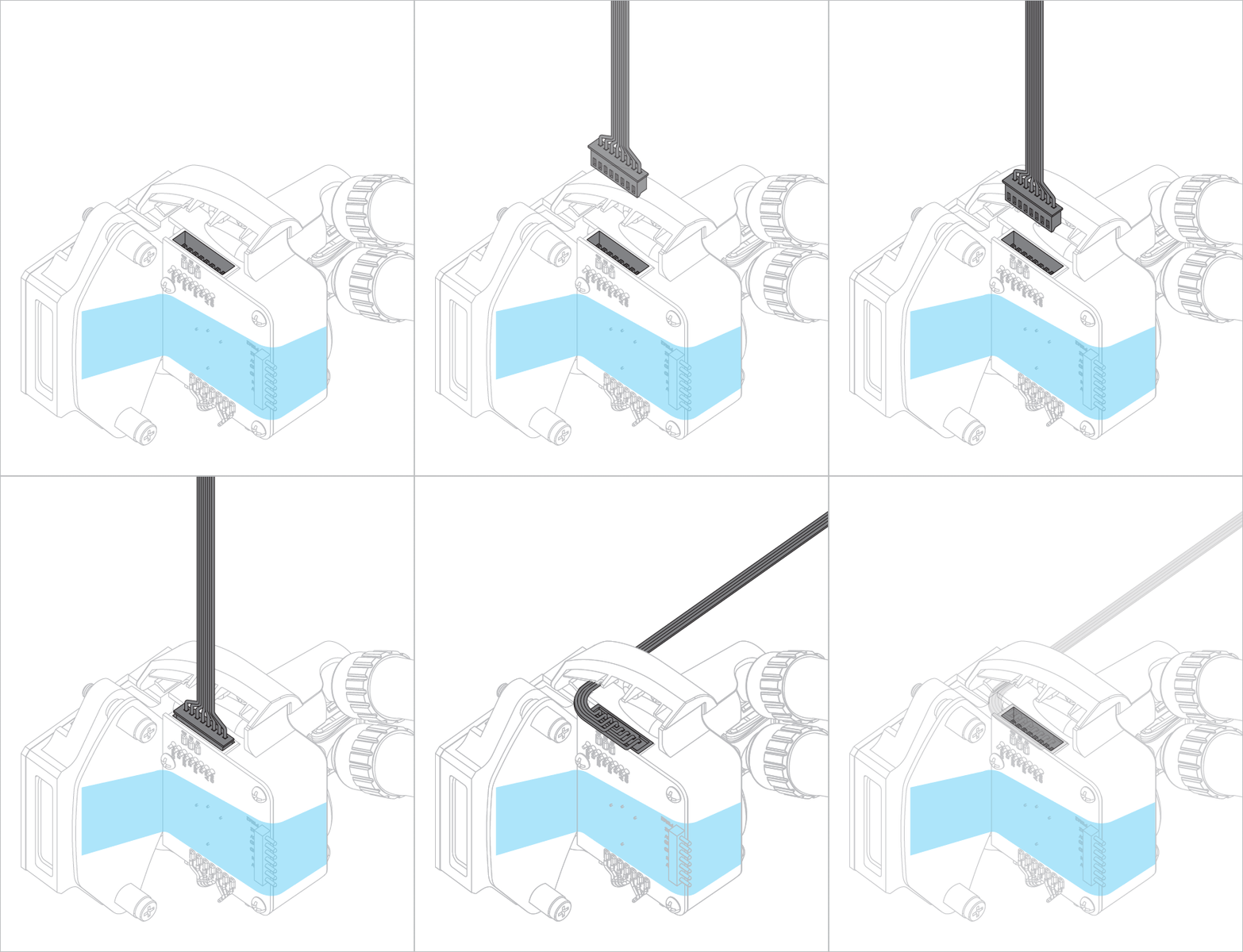
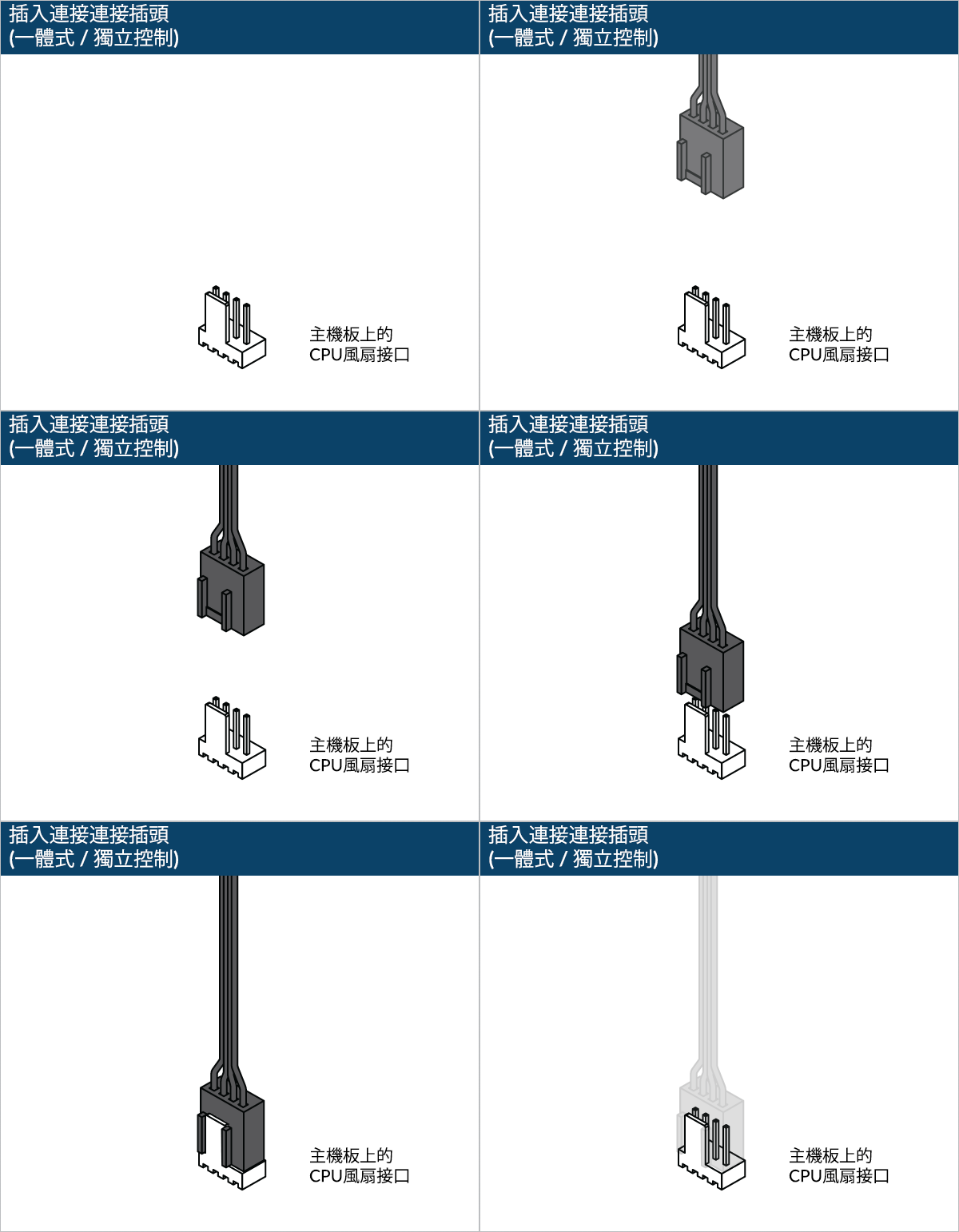
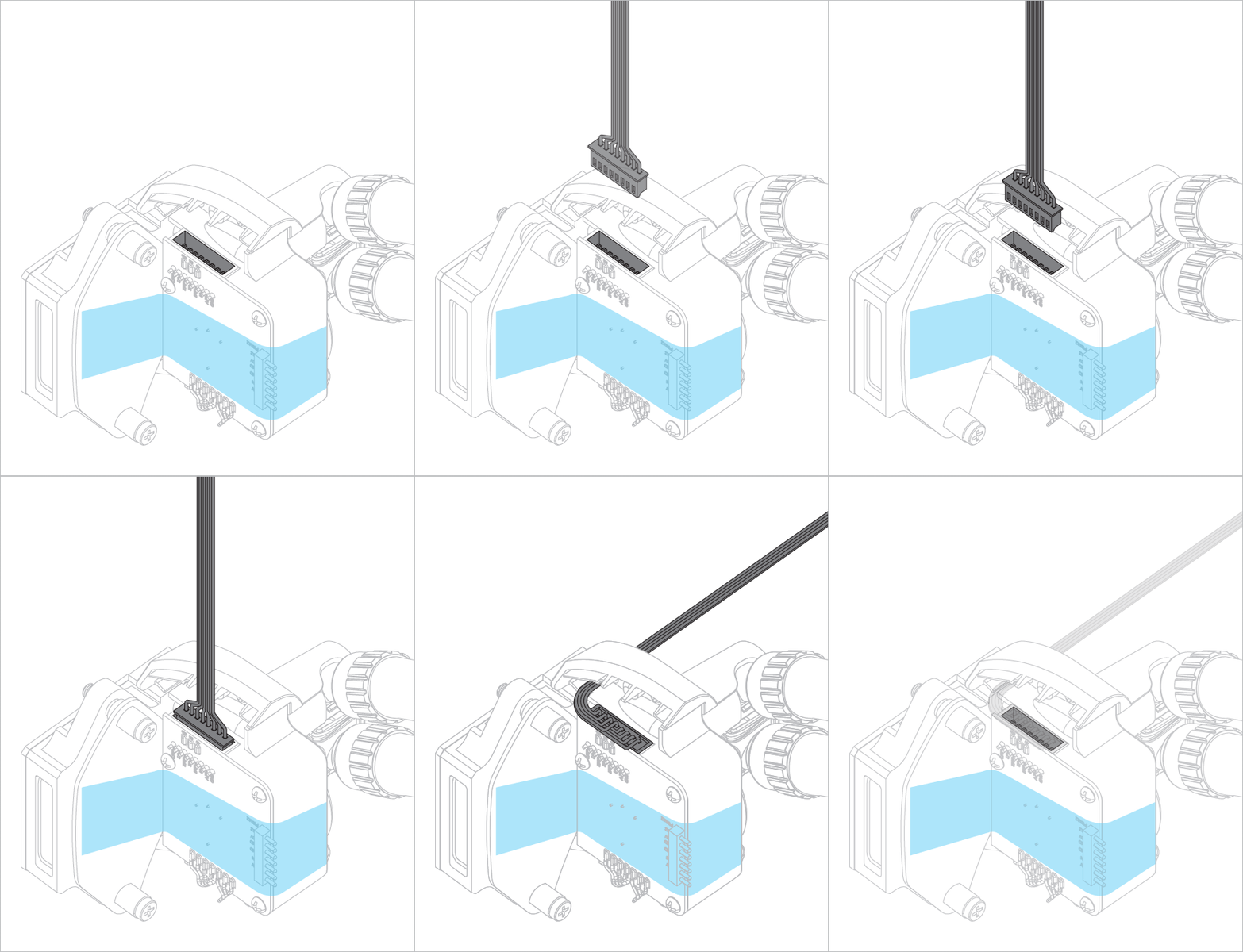
Connect the PWM control cable before mounting the cooler on the mainboard.

Liquid Freezer III Pro 420
Preparation
Liquid Freezer III Pro 420

How (not) to mount your water cooling AIO?

Steve from GamersNexus explains you the mistakes to avoid while assembling your water cooling AIO in your PC case.

The featured video is independently produced by GamersNexus, ARCTIC has been authorized to use by GamersNexus.

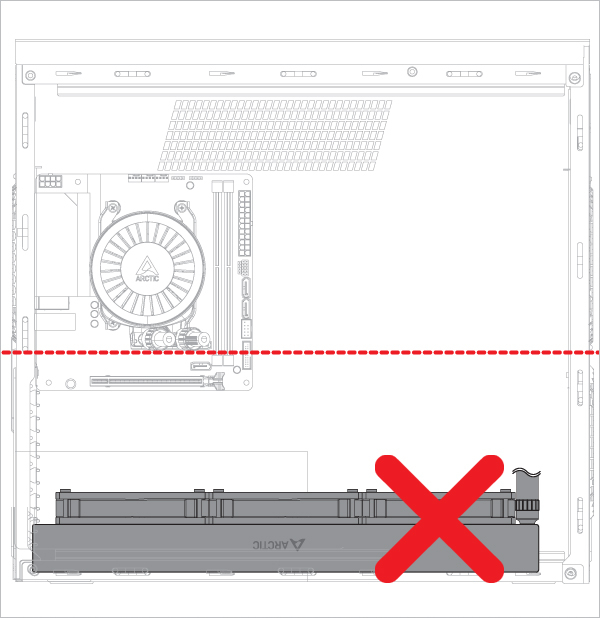
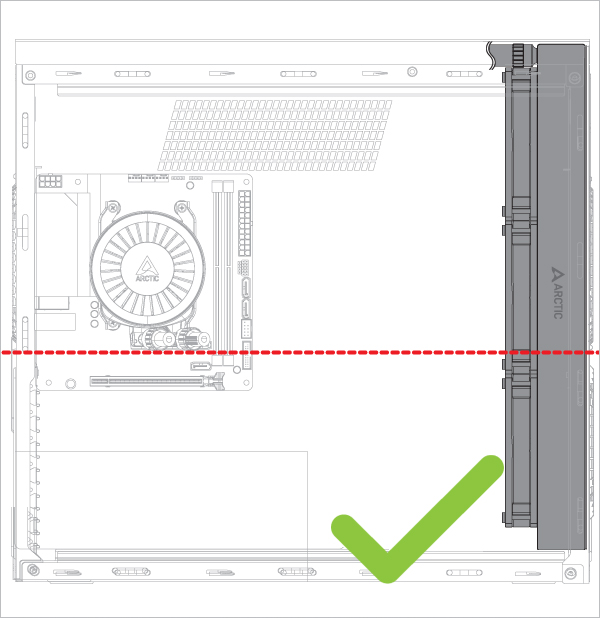
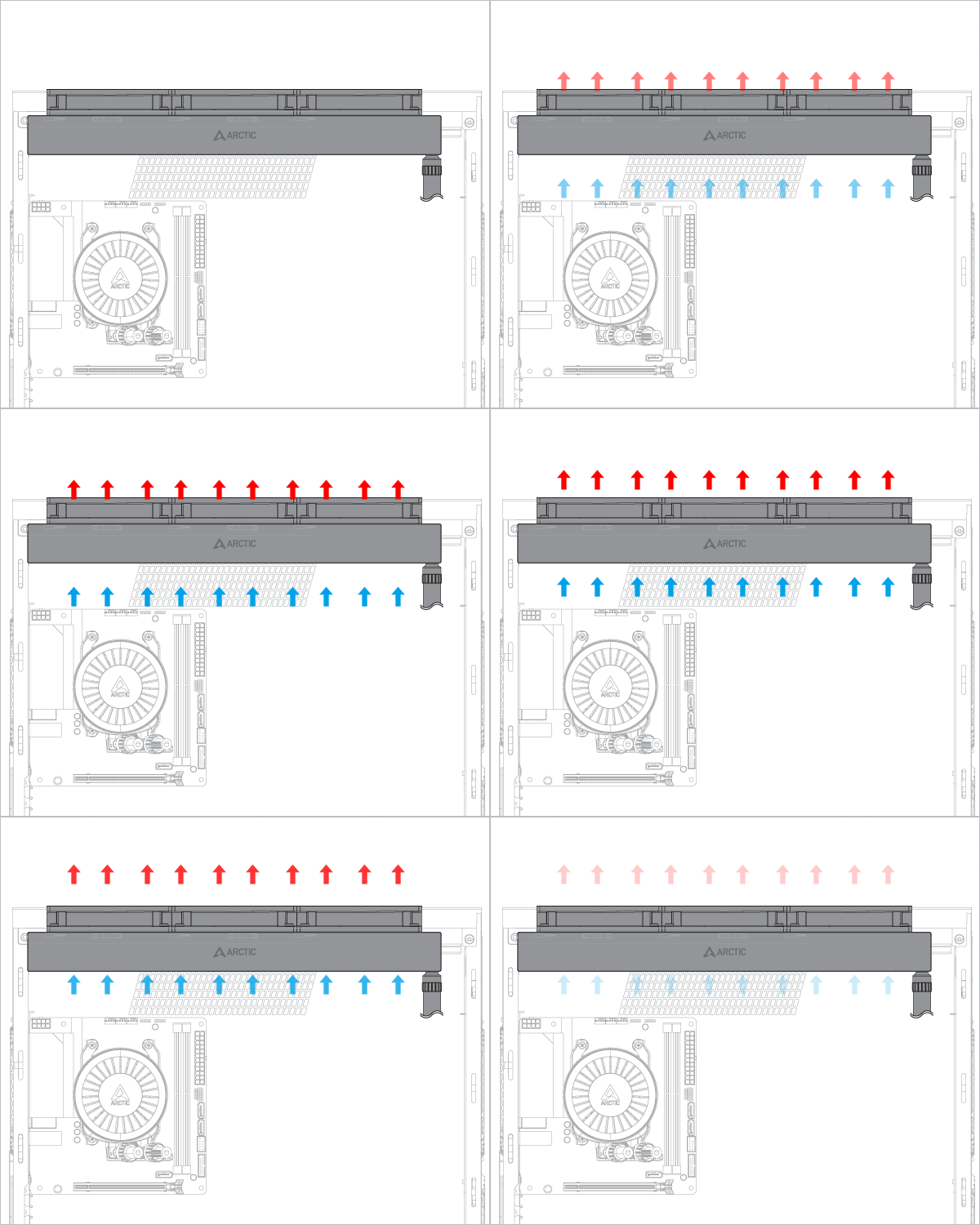
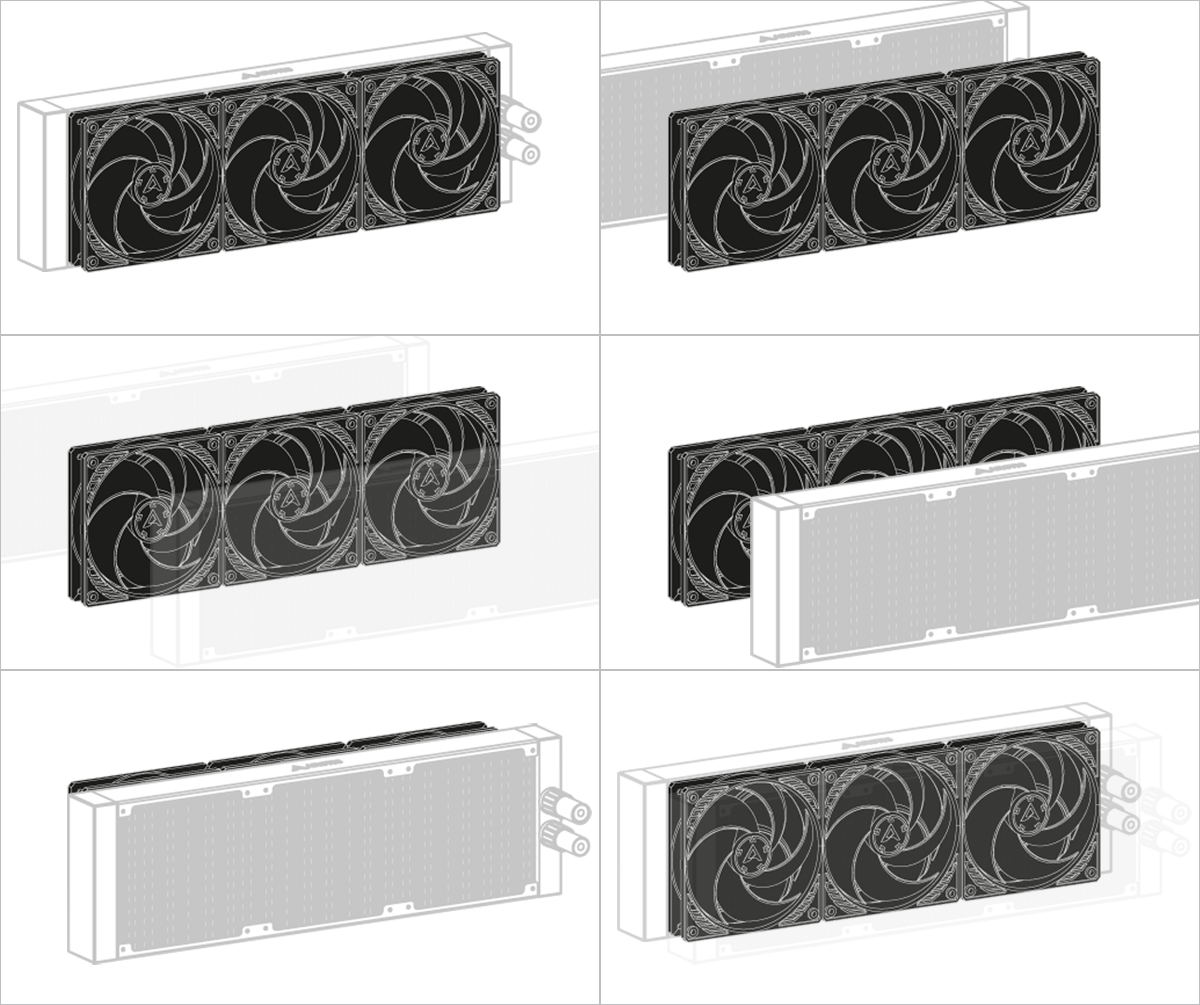
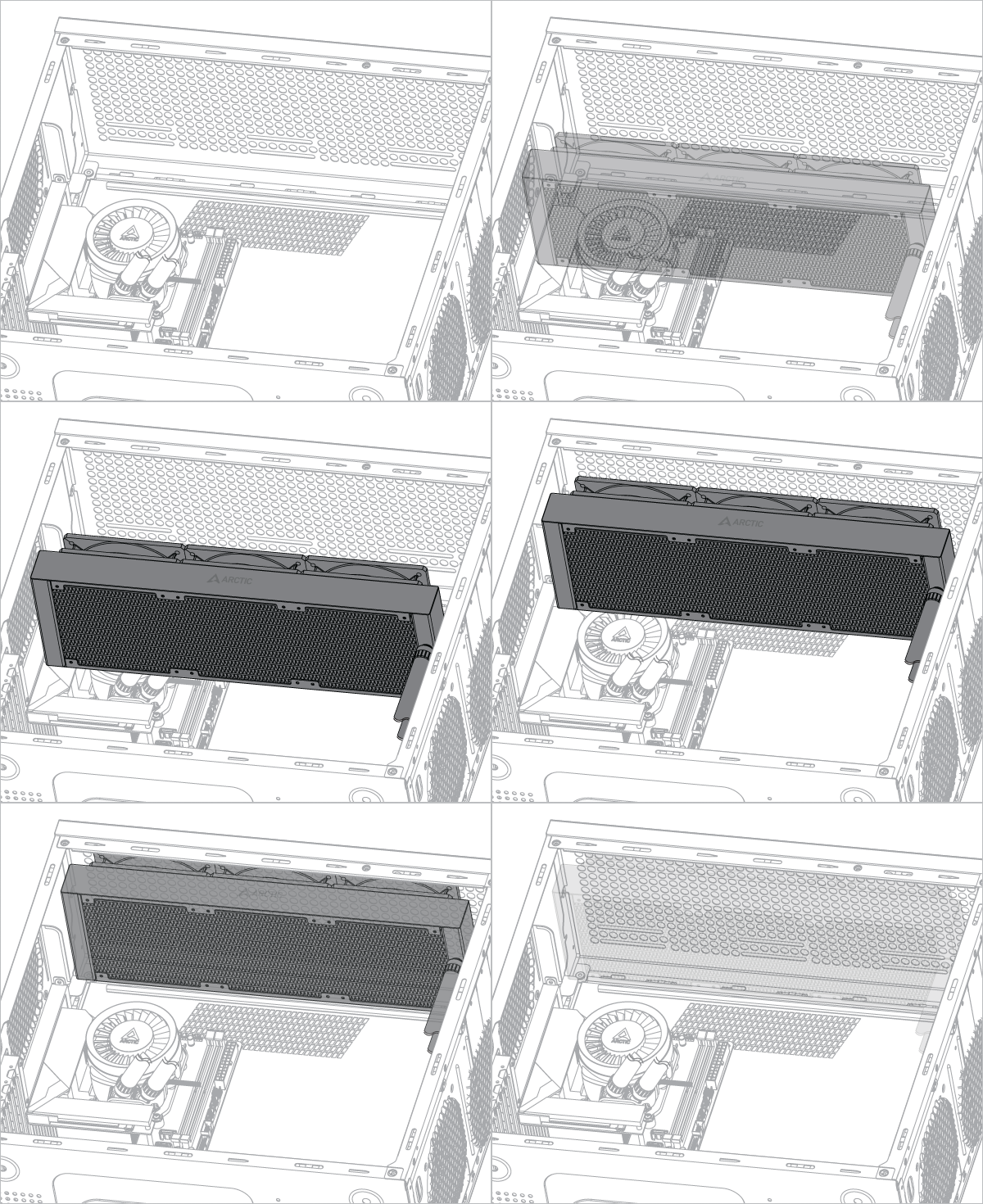
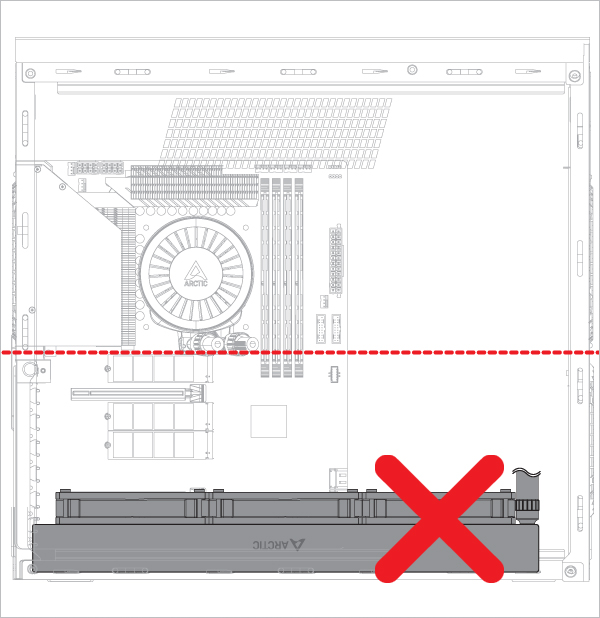
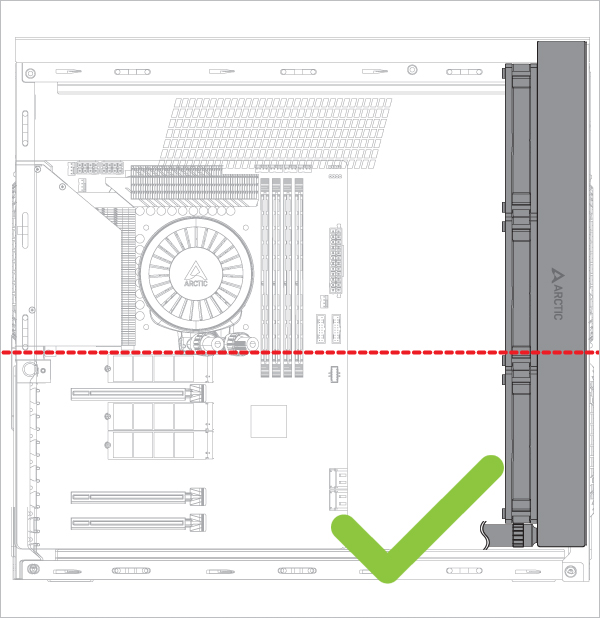
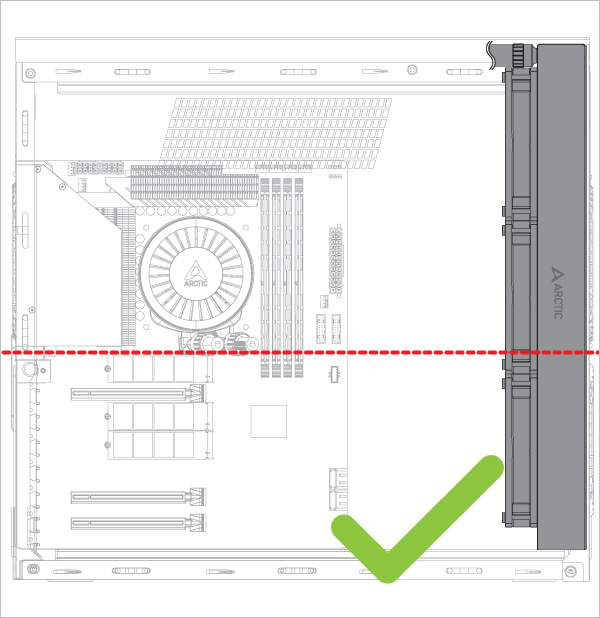
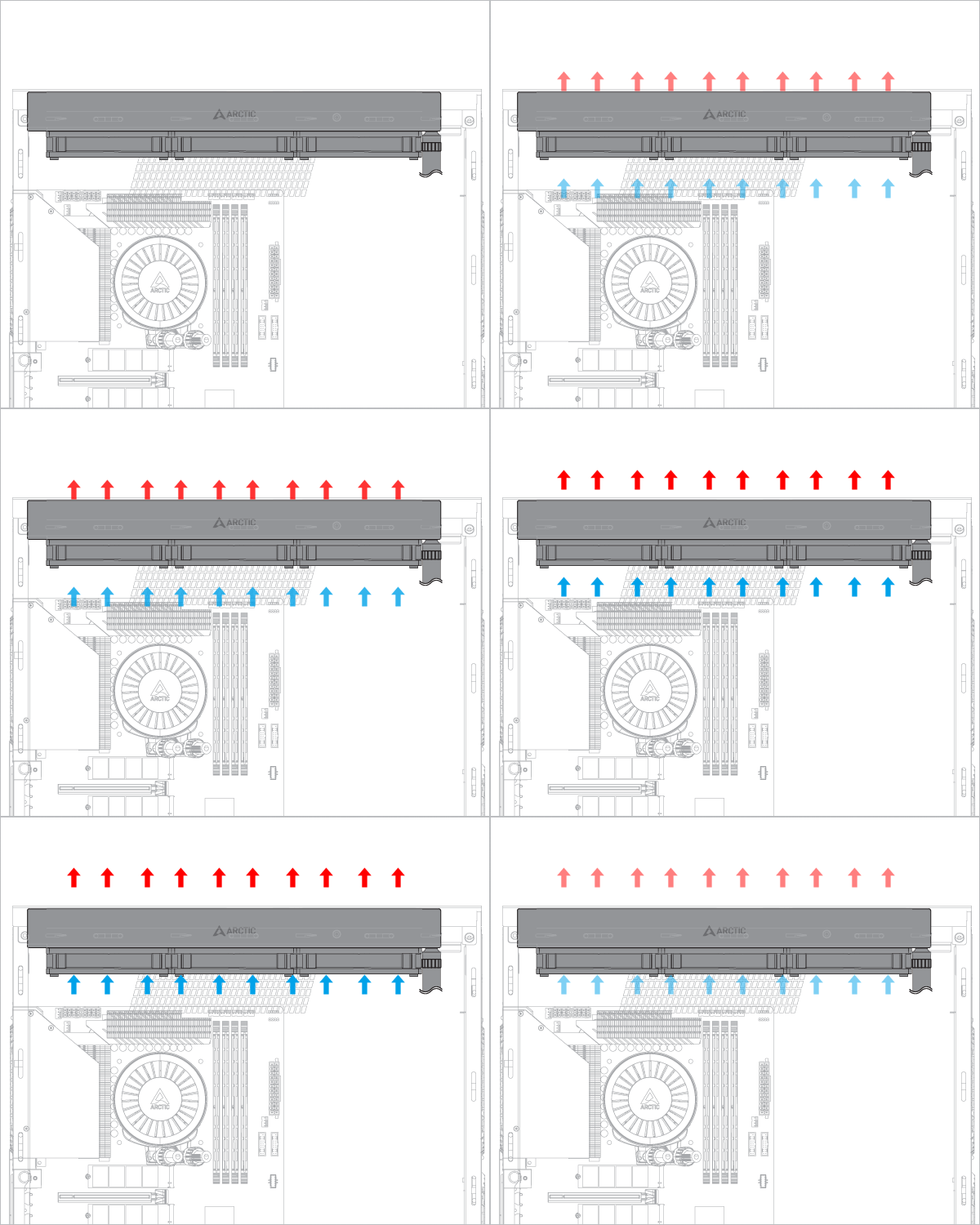
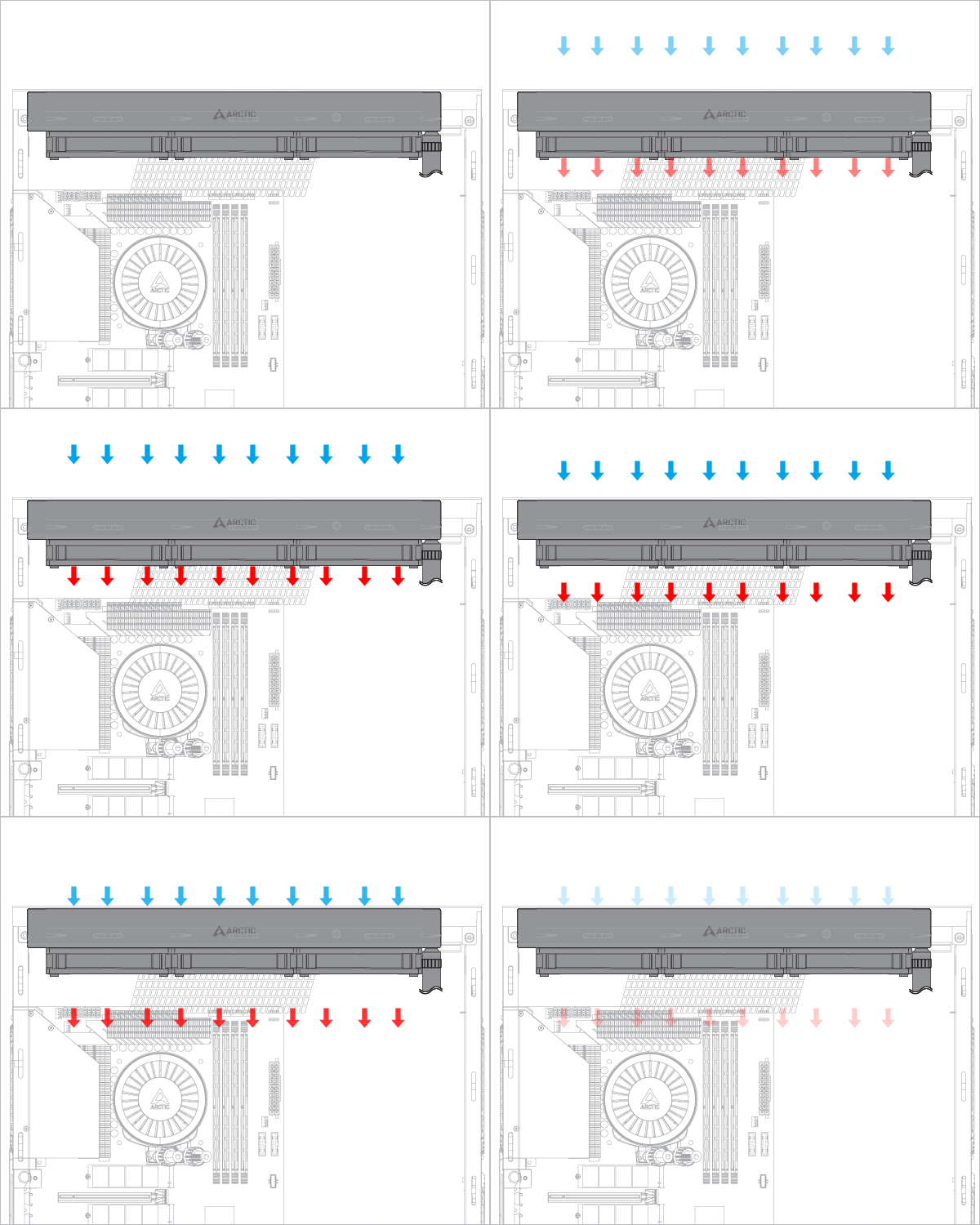
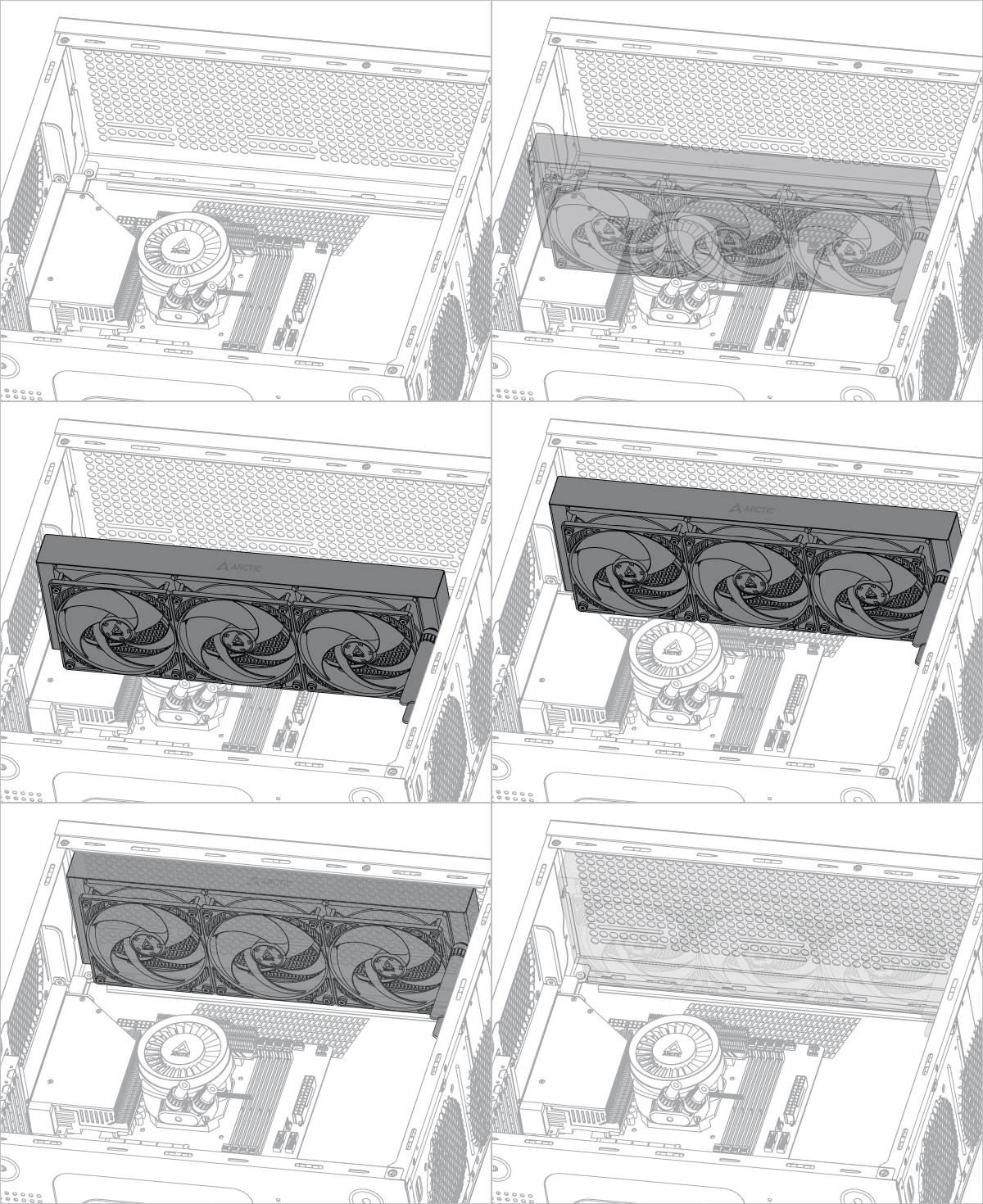
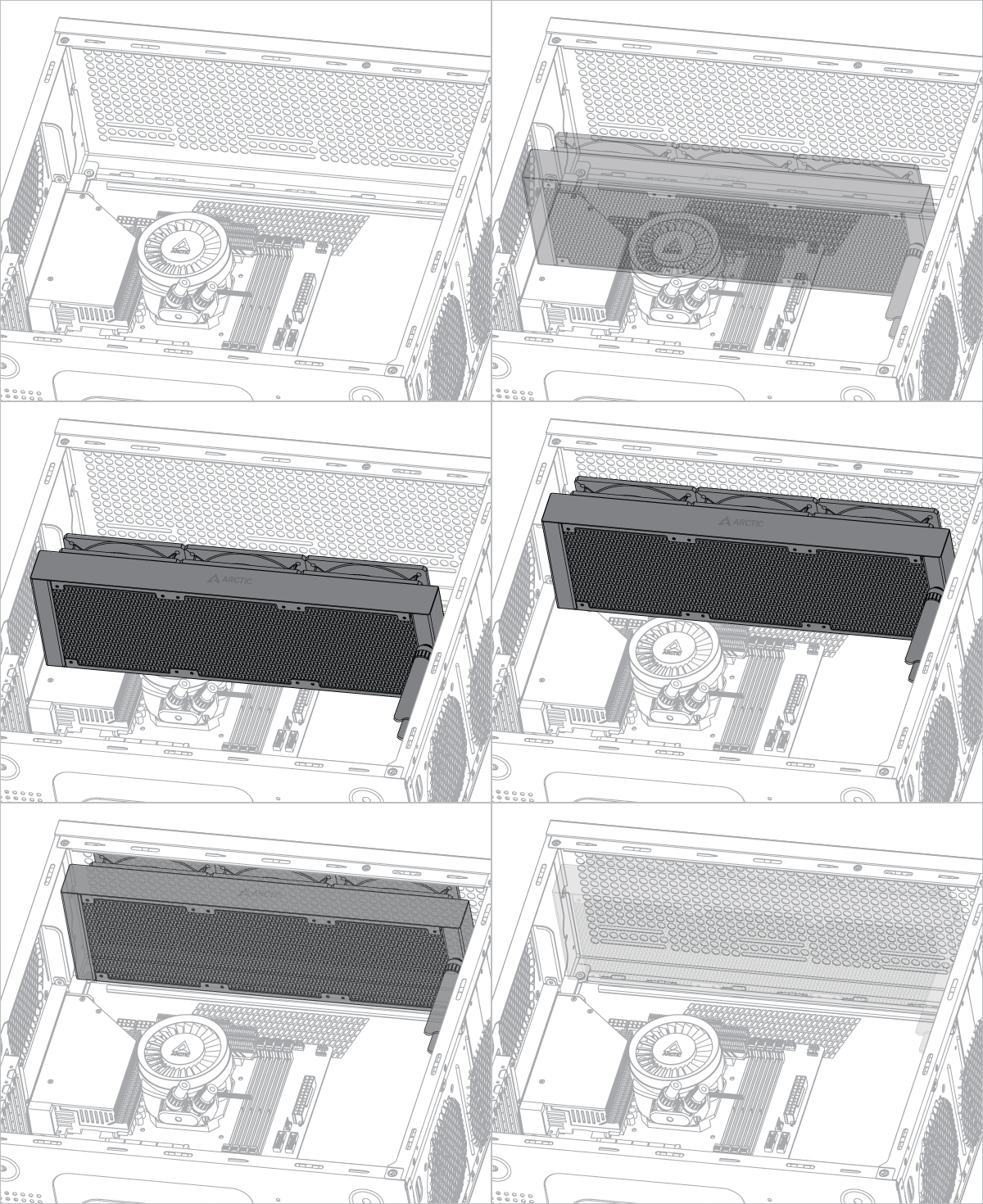
Radiator below pump

Liquid Freezer III Pro 420

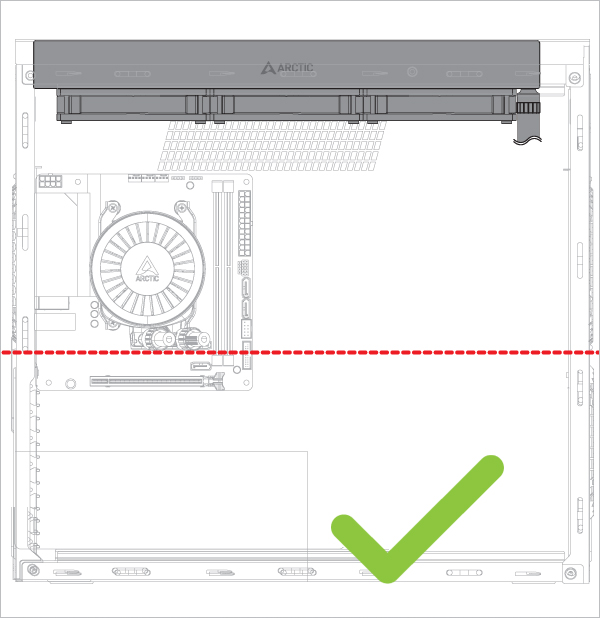
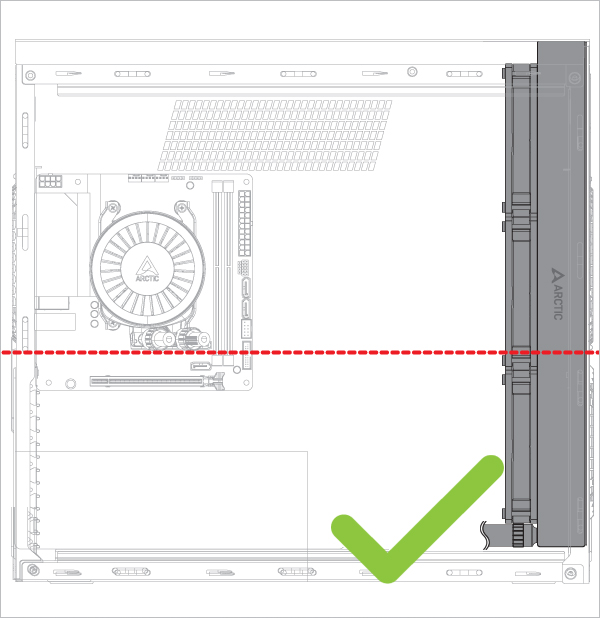
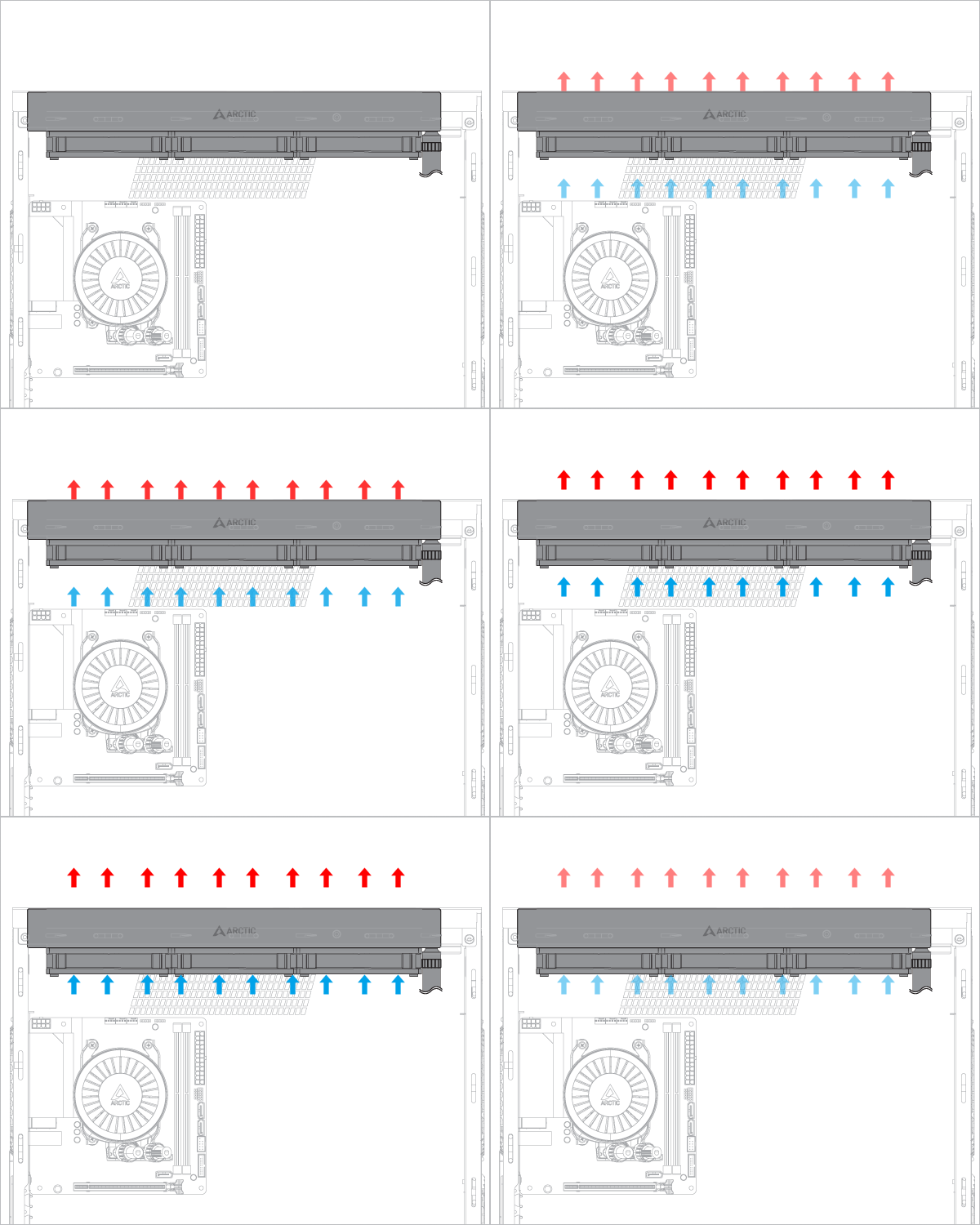
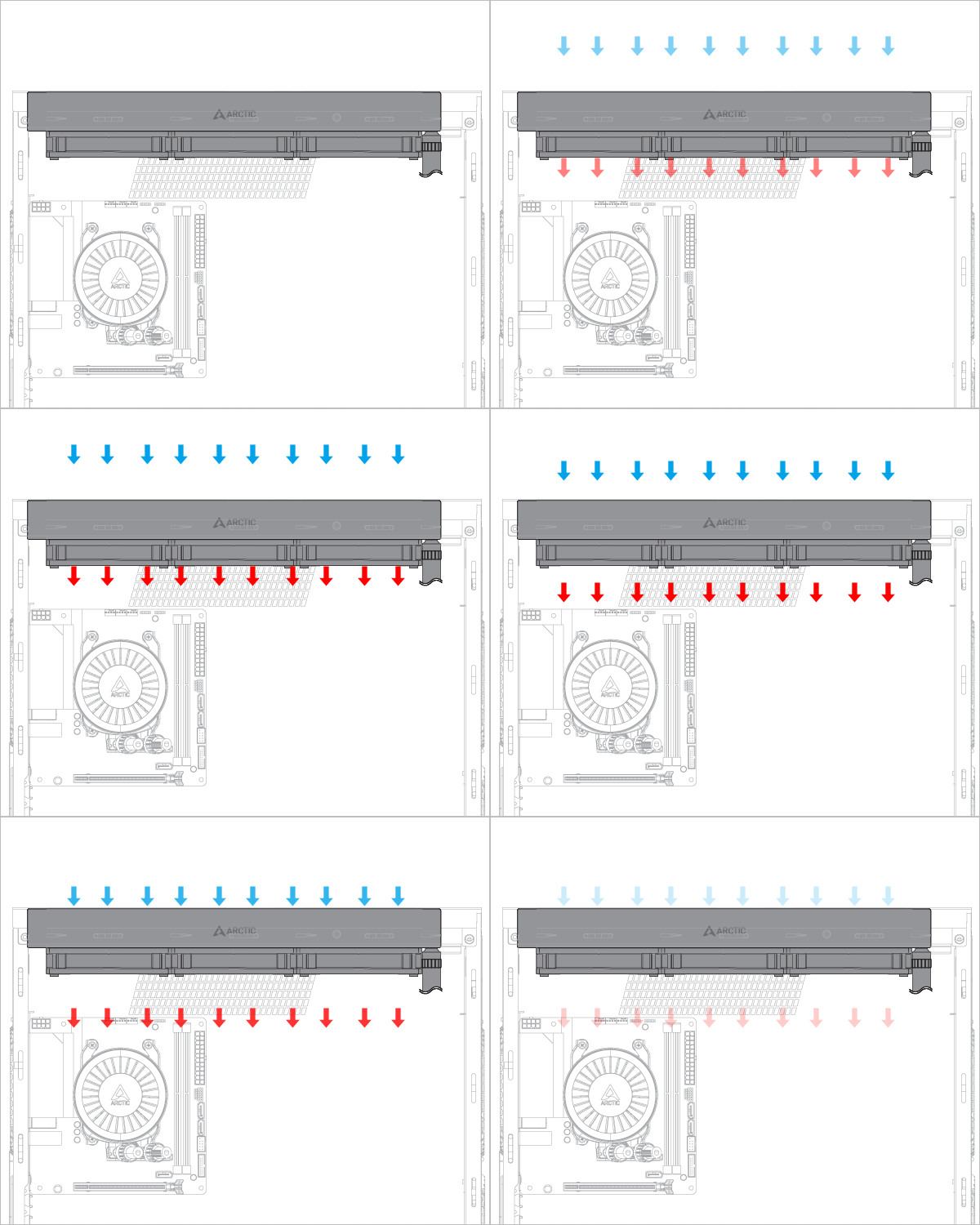
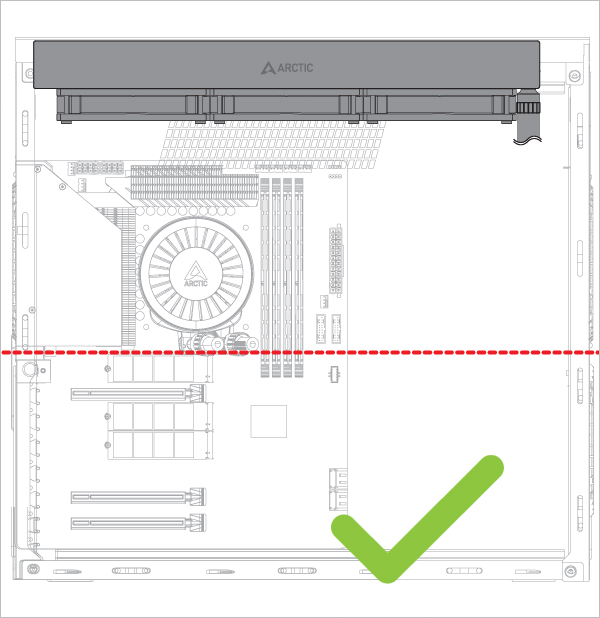
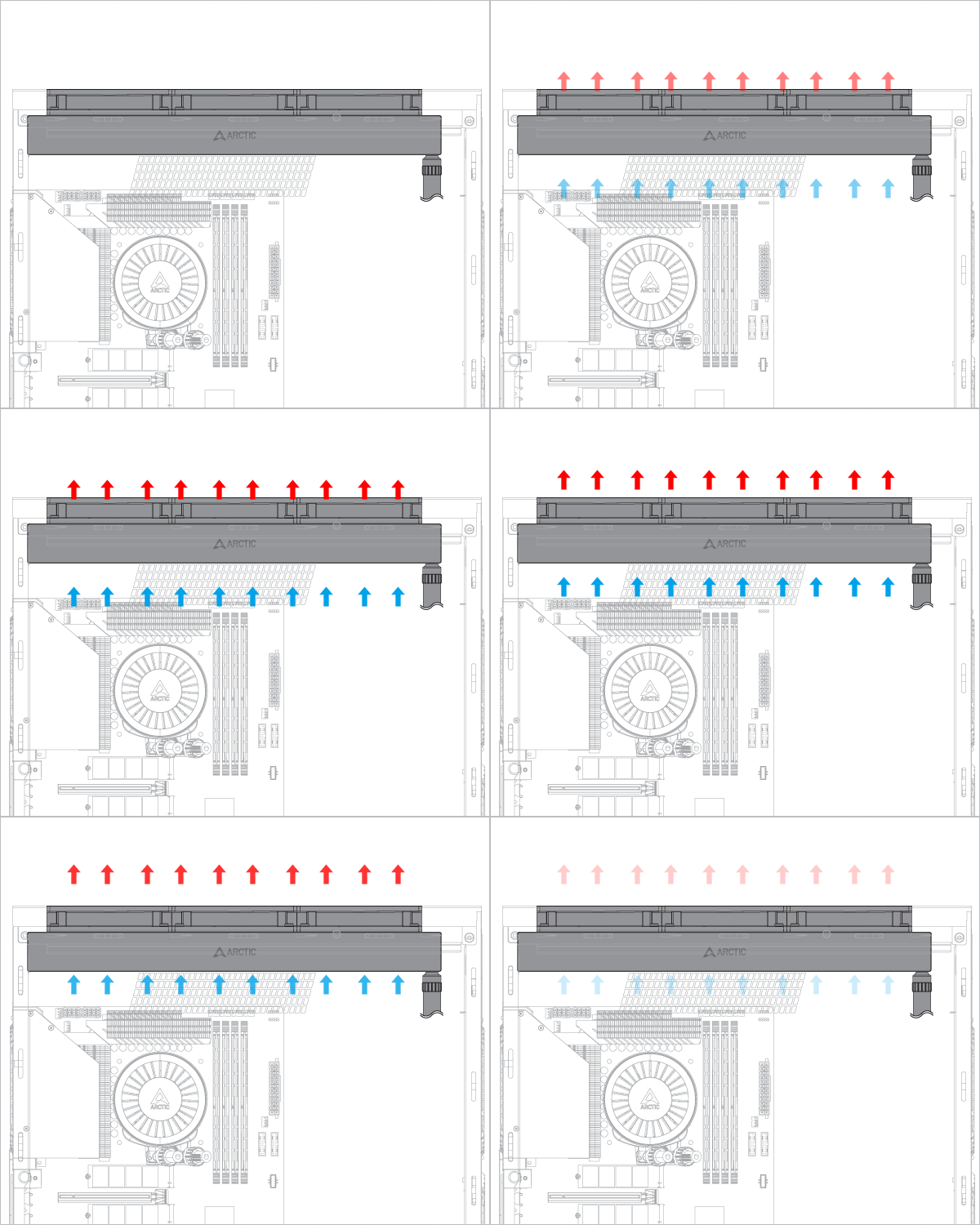
Radiator above pump

Liquid Freezer III Pro 420 Liquid Freezer III Pro 420 Liquid Freezer III Pro 420

Risk of bubbling noise

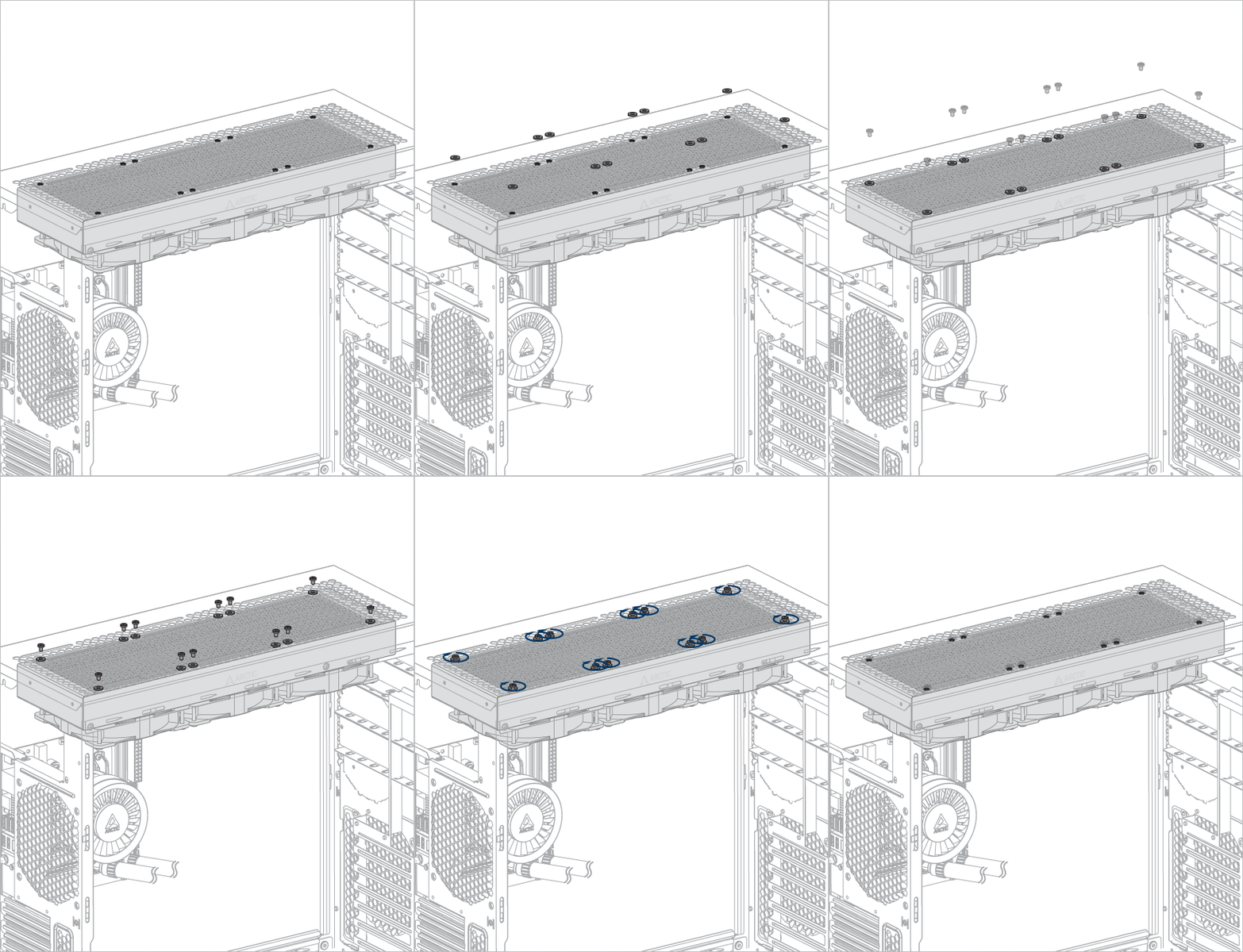
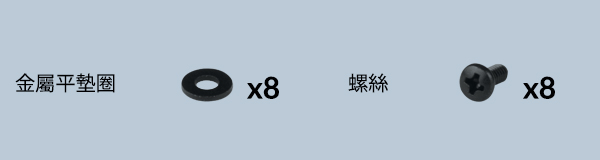
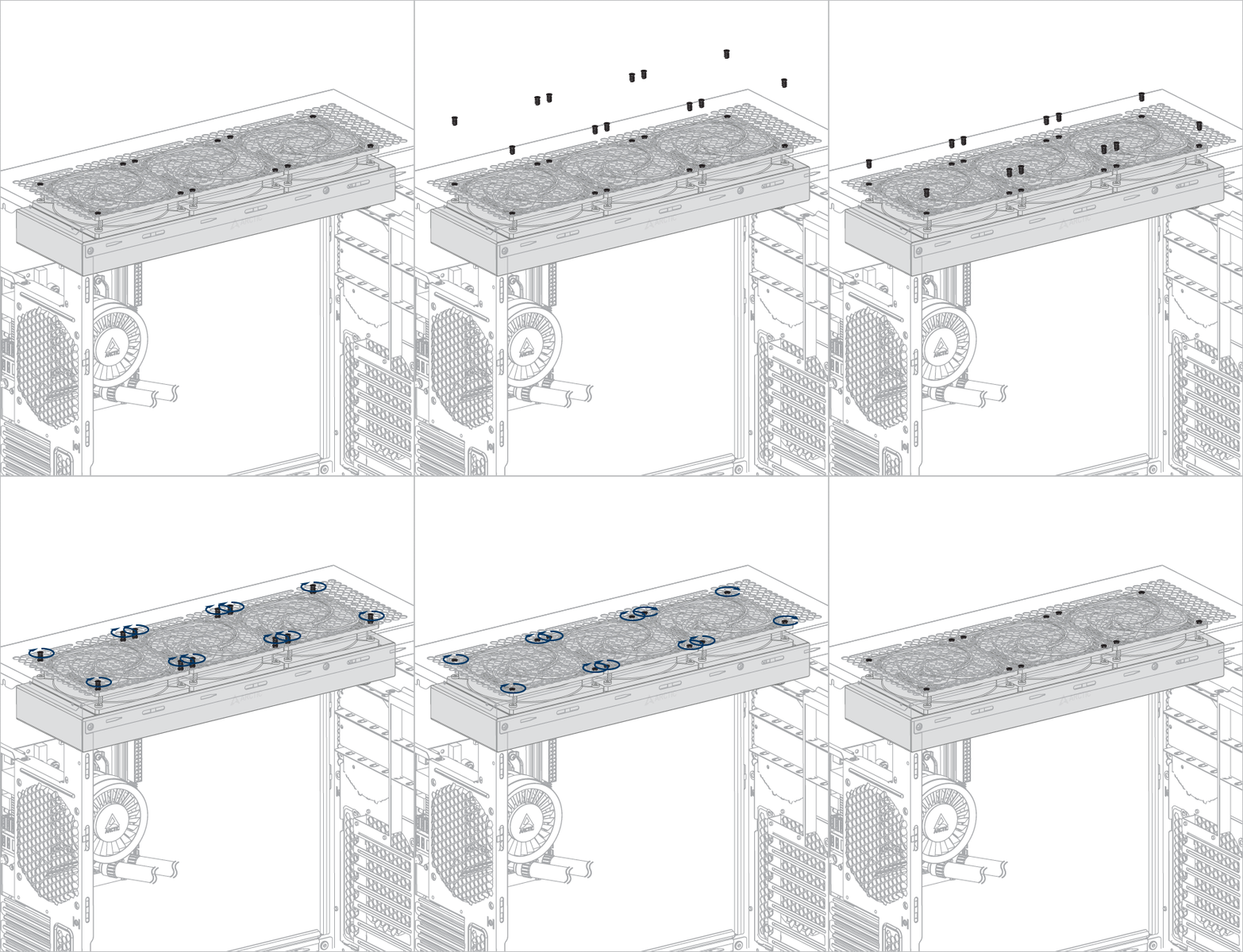
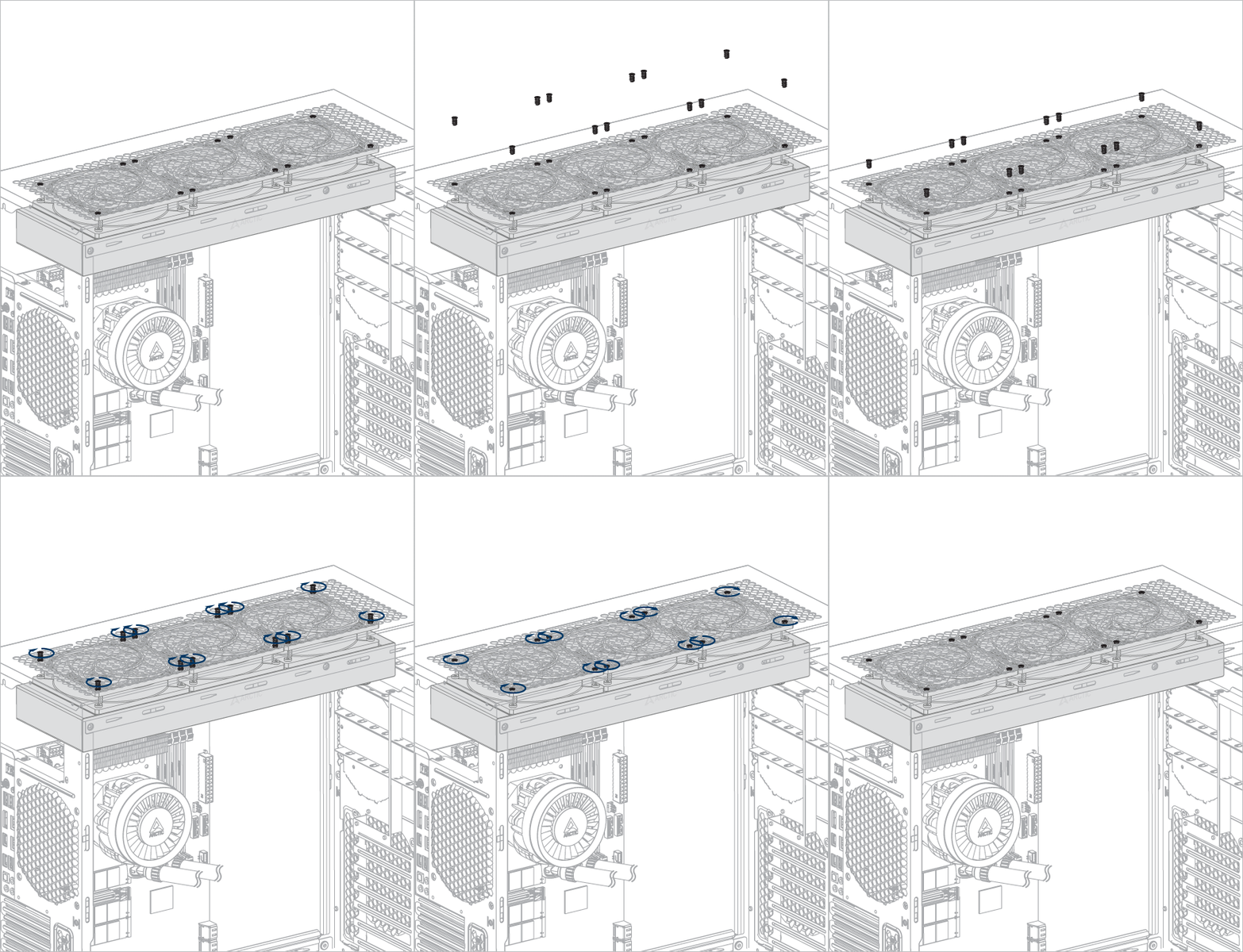
Installation
Liquid Freezer III Pro 420

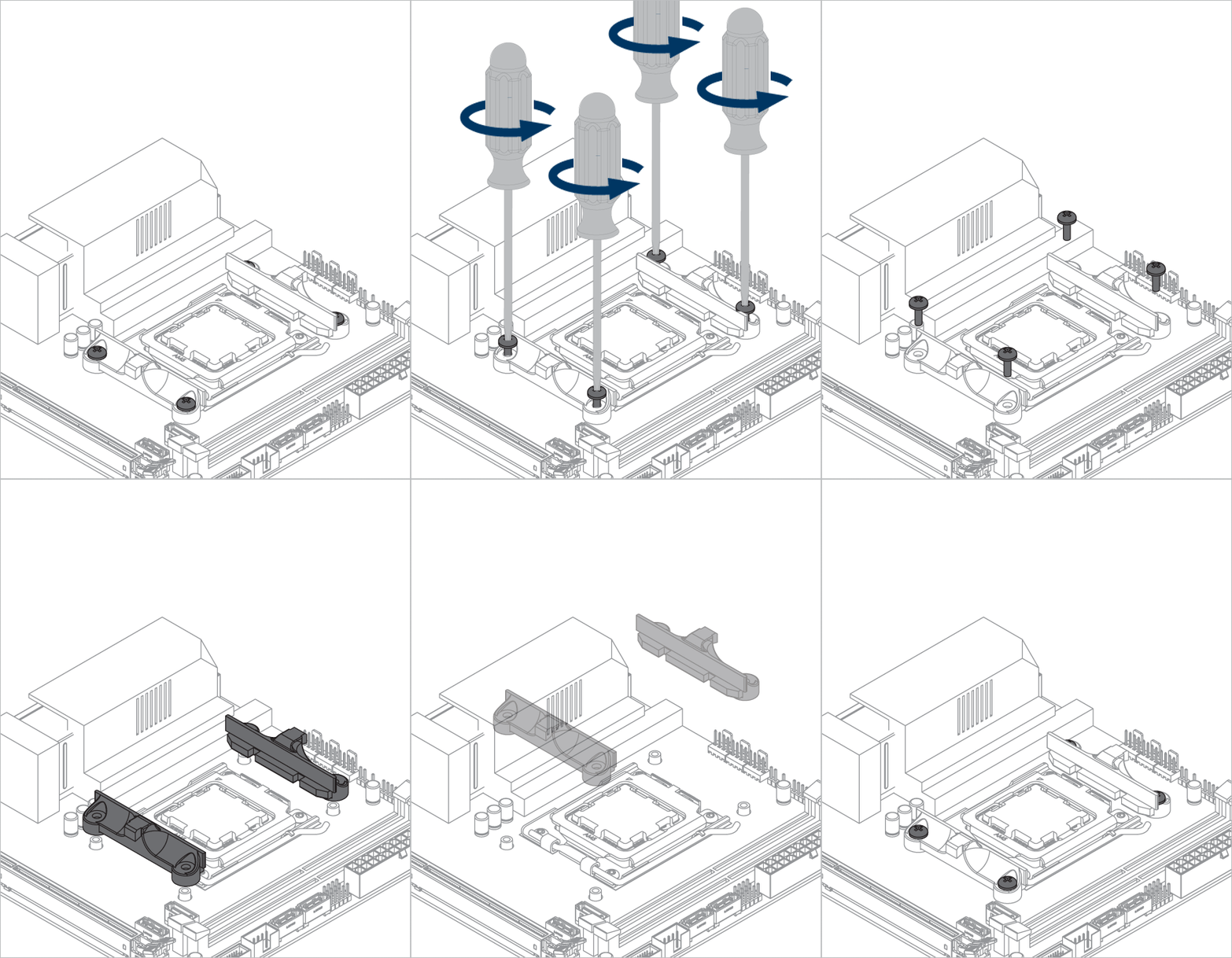
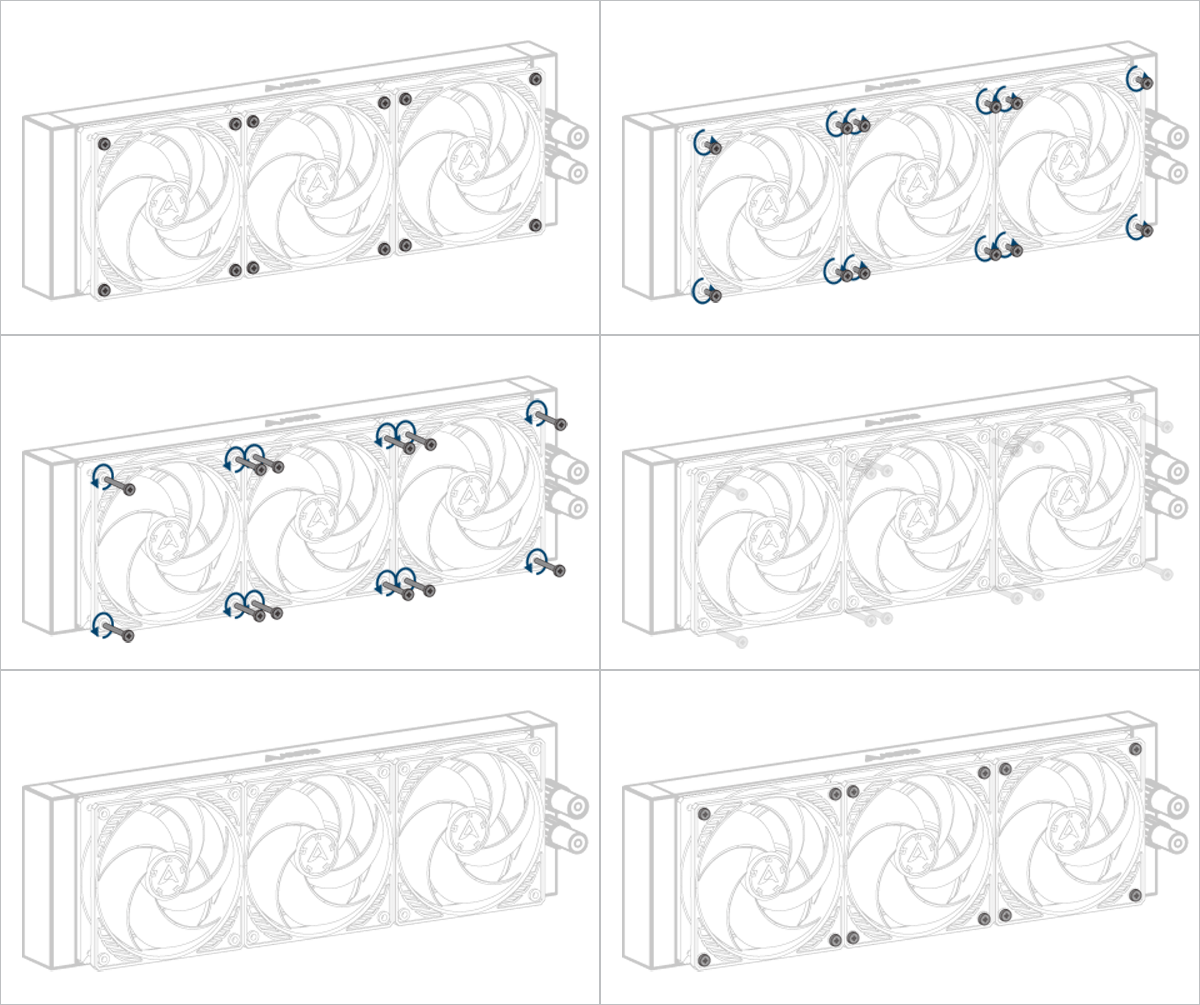
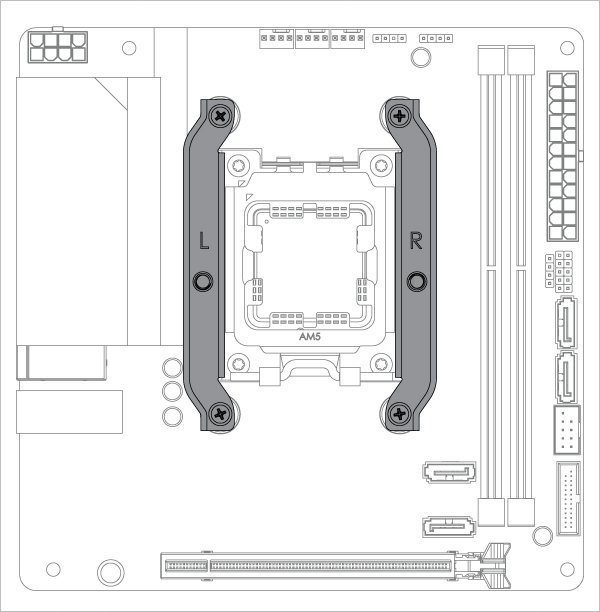
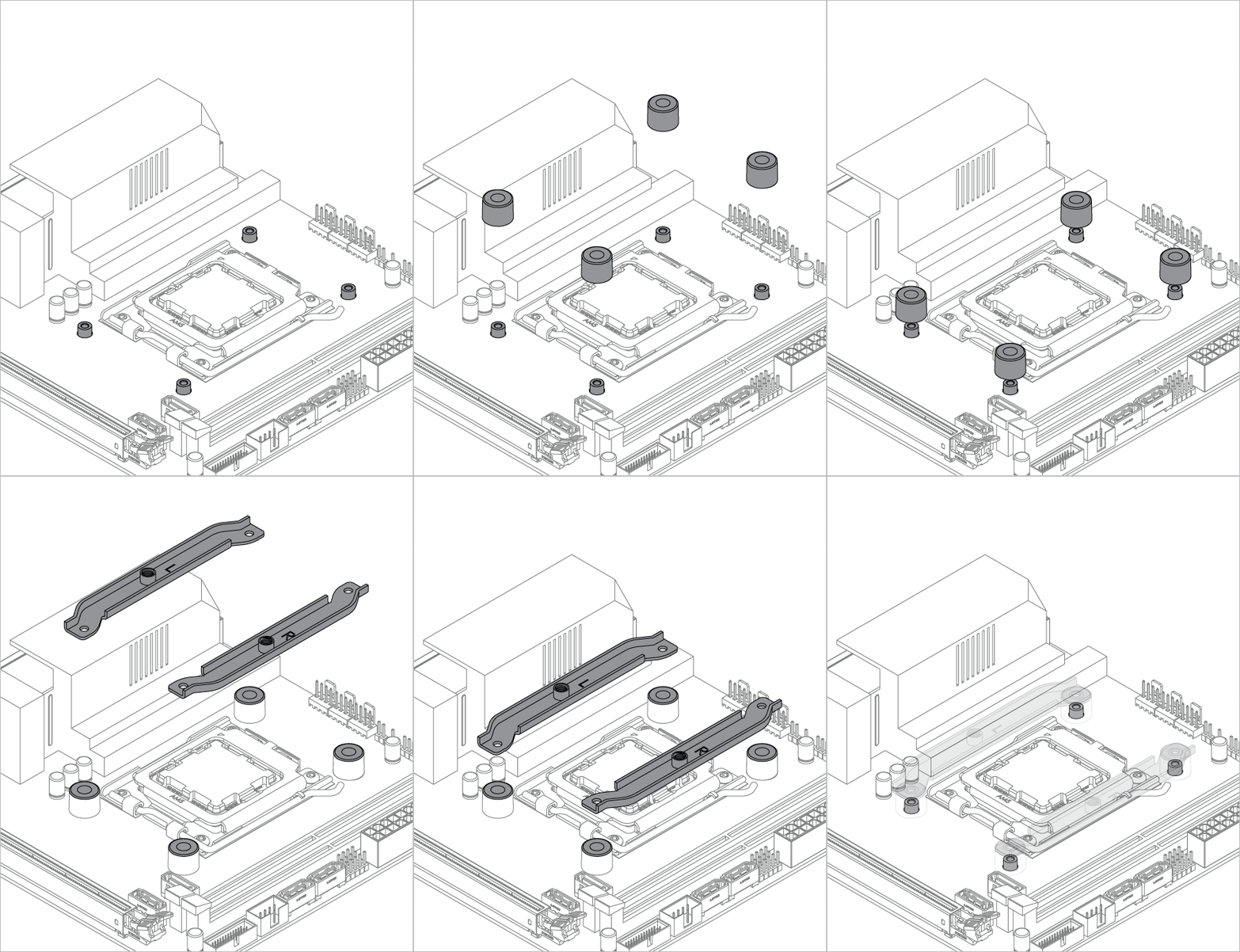
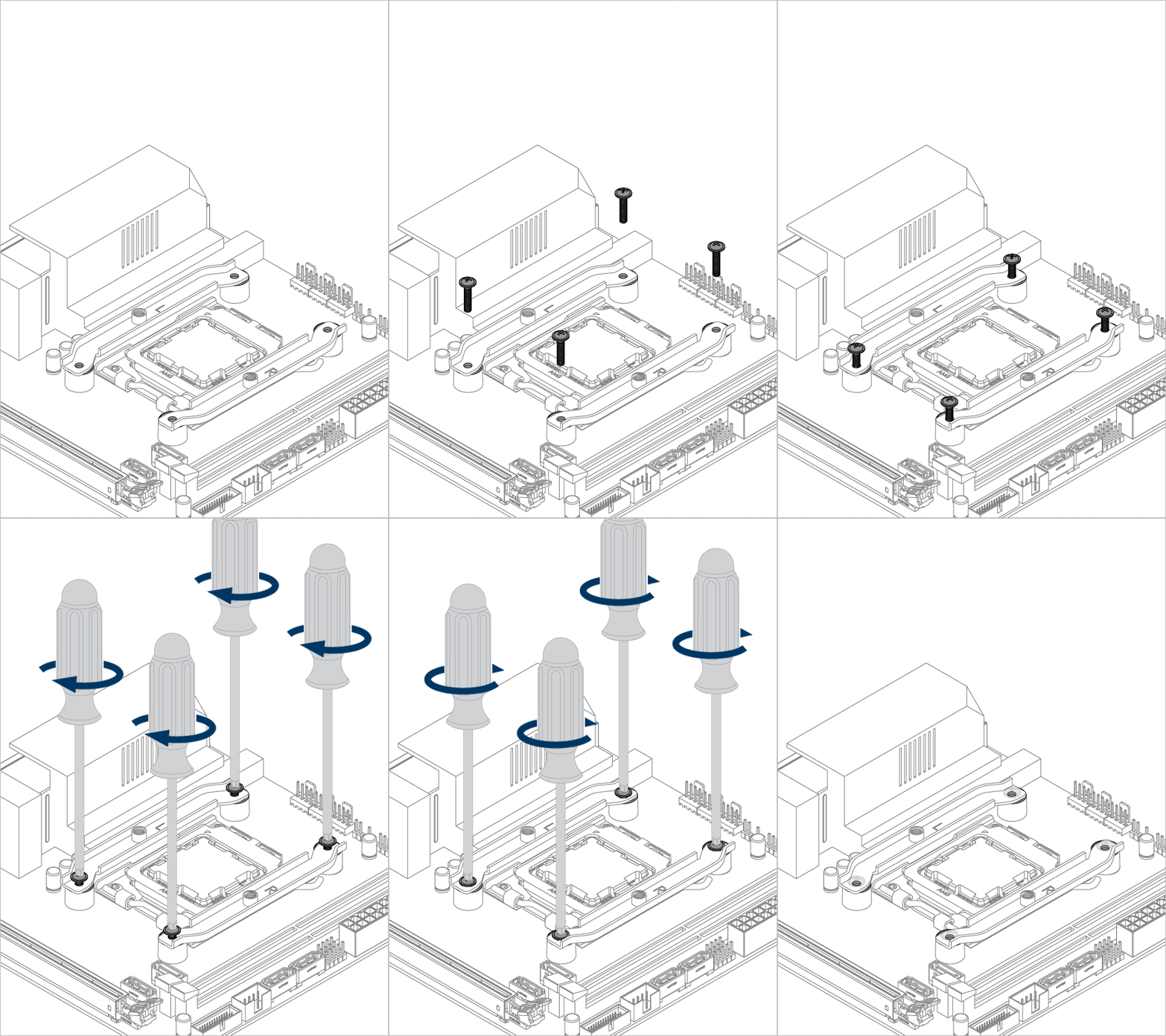
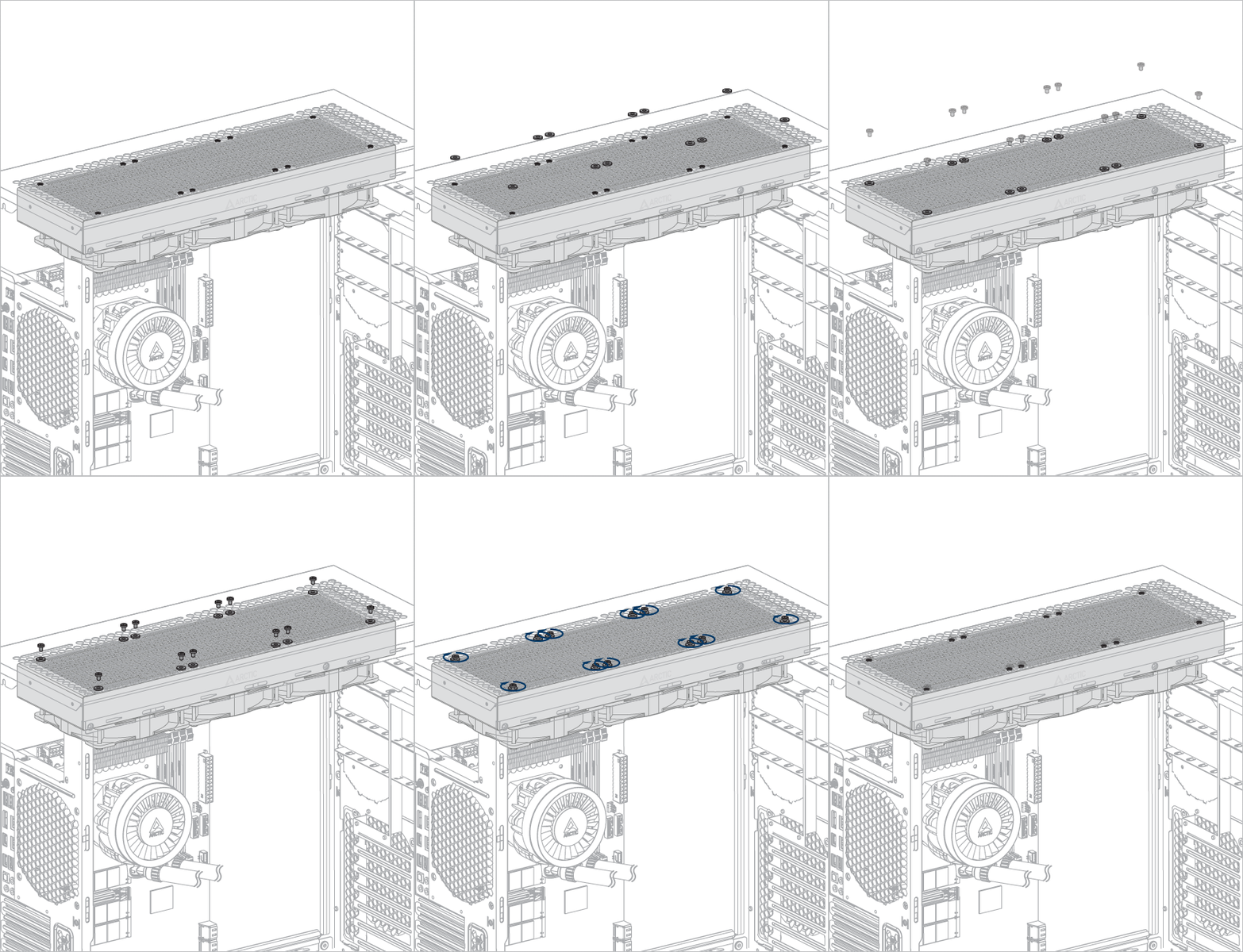
Only install the mounting modules in this orientation

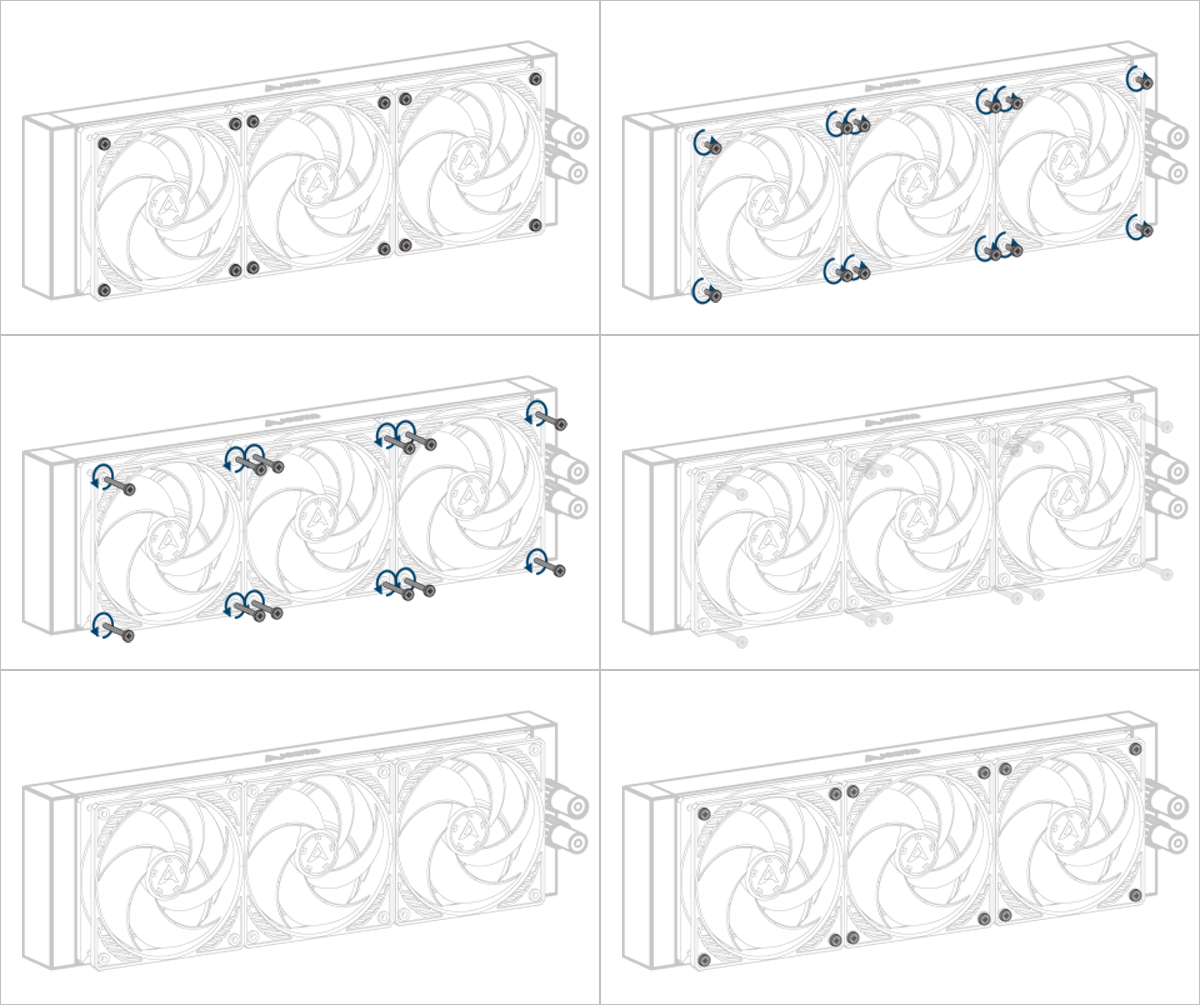
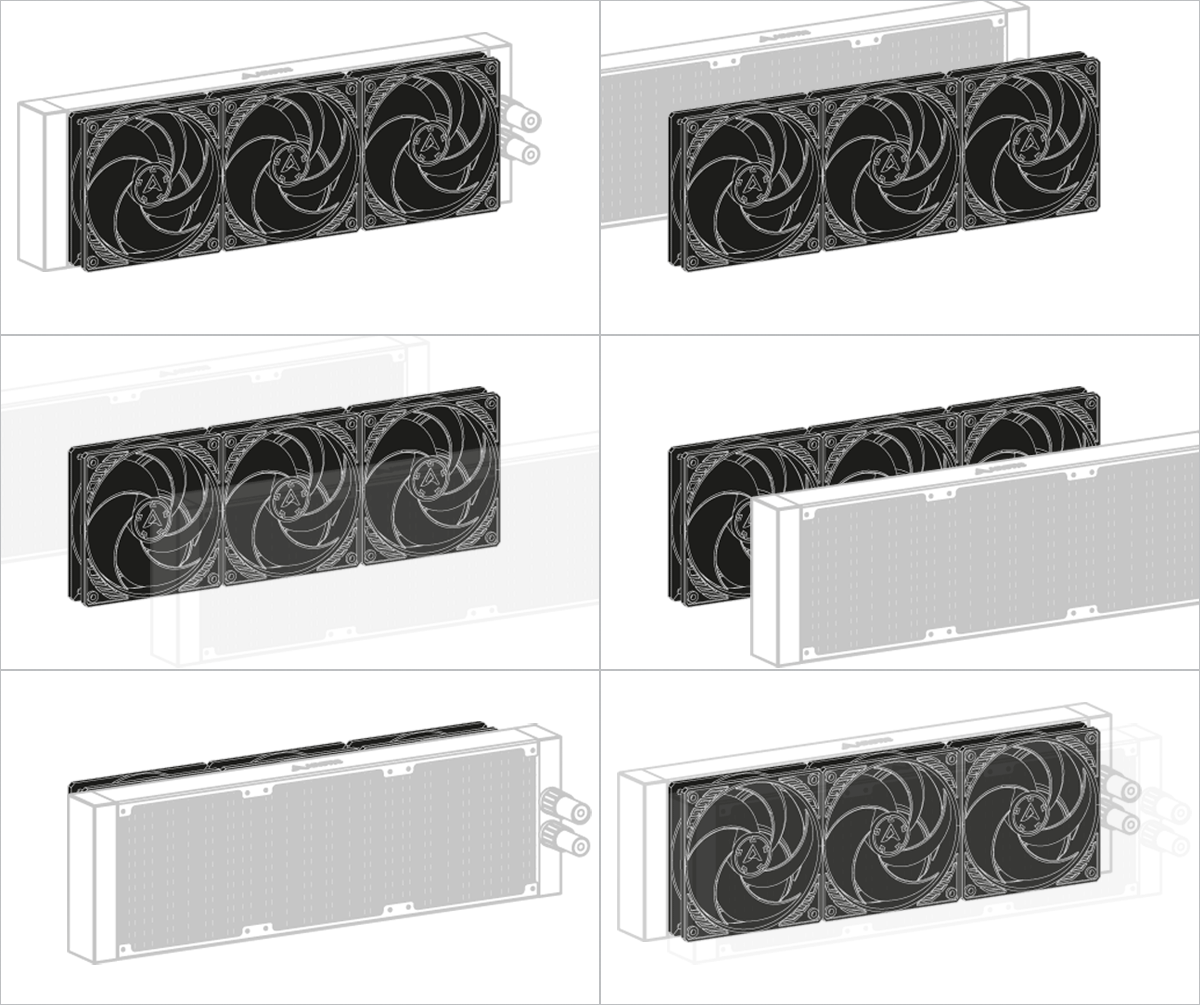
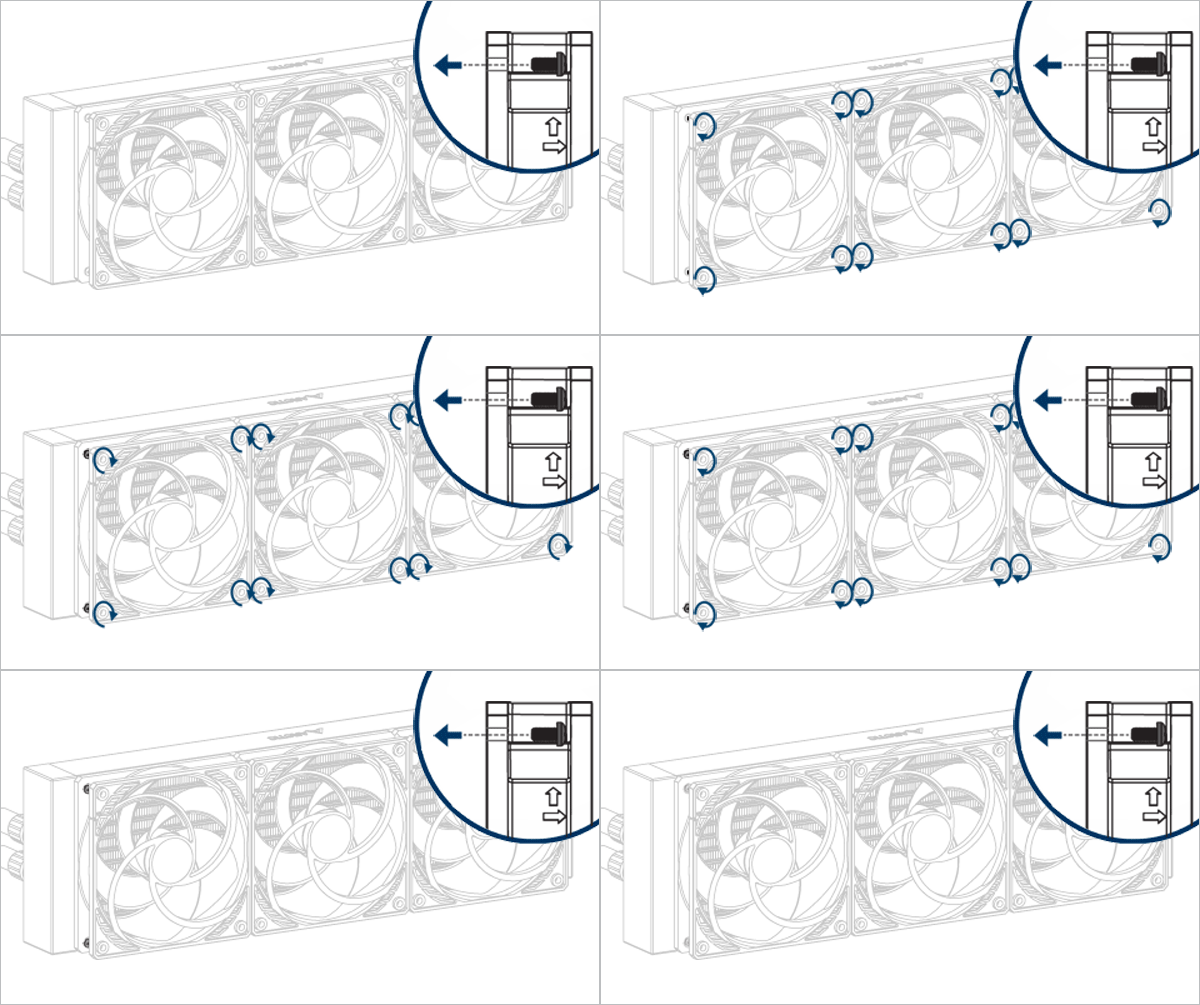
Liquid Freezer III Pro 420 Liquid Freezer III Pro 420 Liquid Freezer III Pro 420 Liquid Freezer III Pro 420 Liquid Freezer III Pro 420 Liquid Freezer III Pro 420

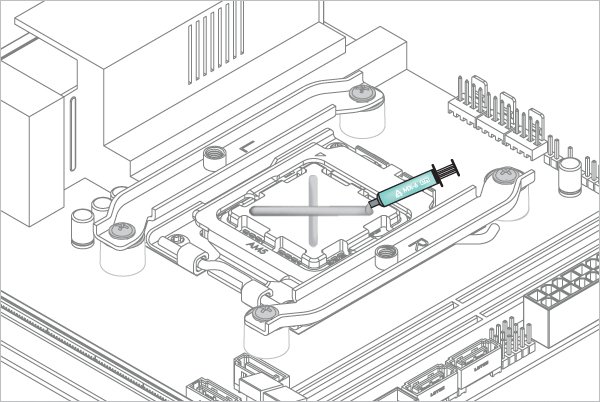
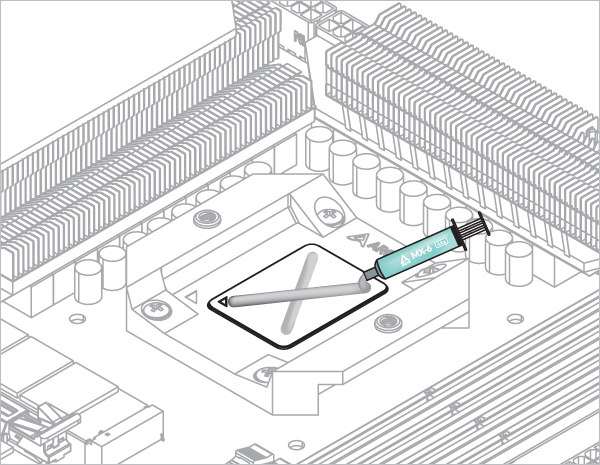
Refer here to learn more about how to apply thermal pastes.

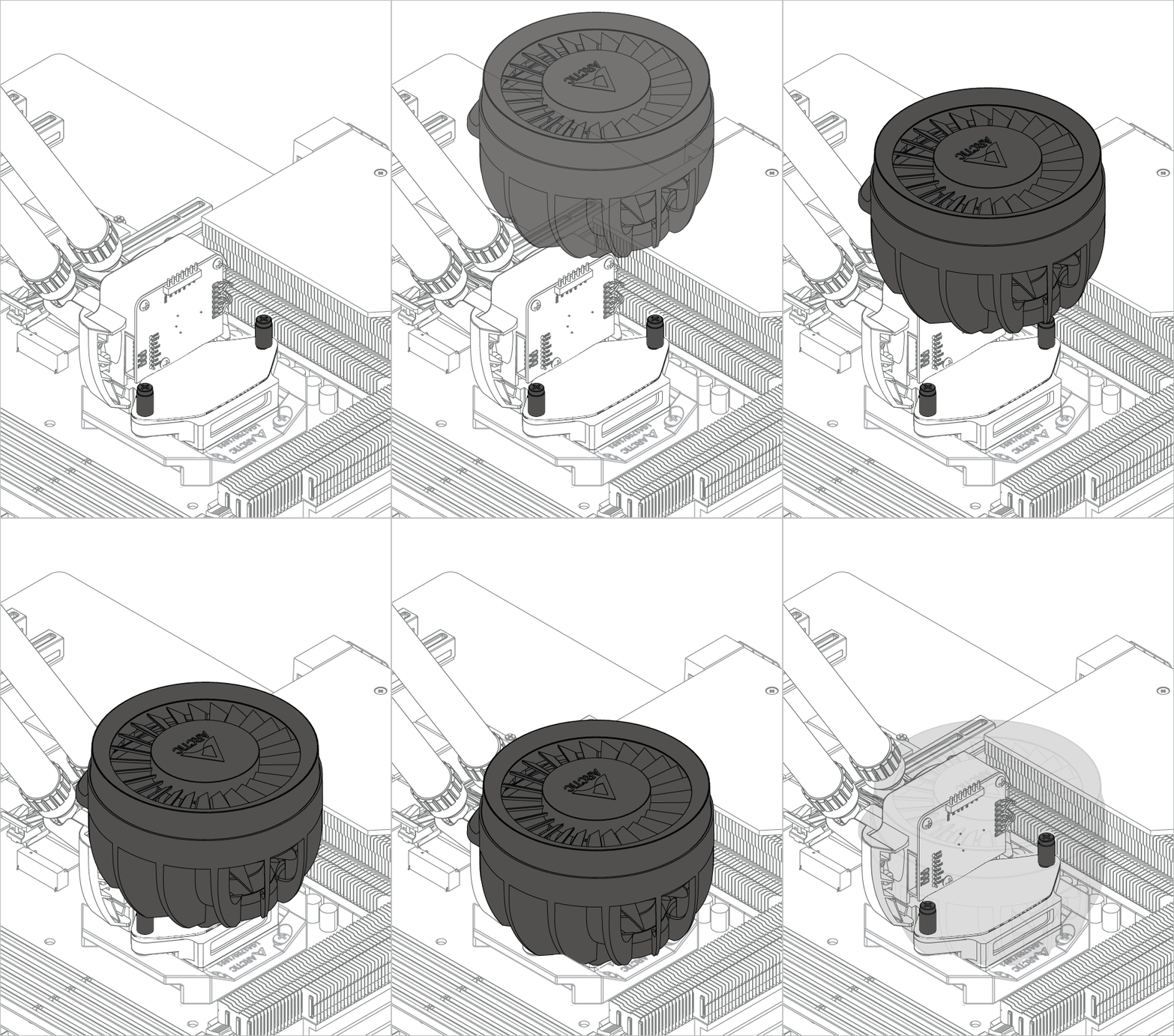
Liquid Freezer III Pro 420

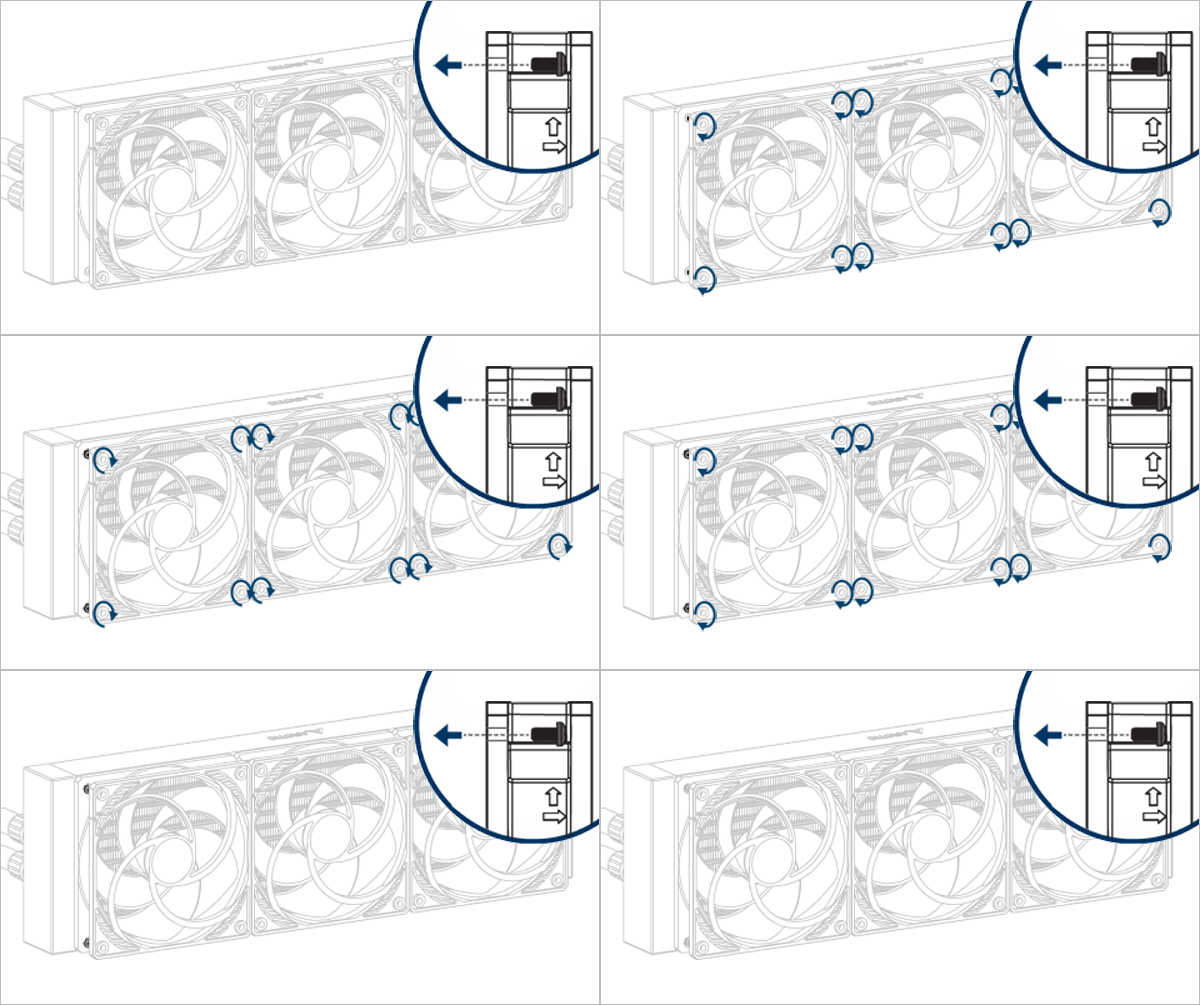
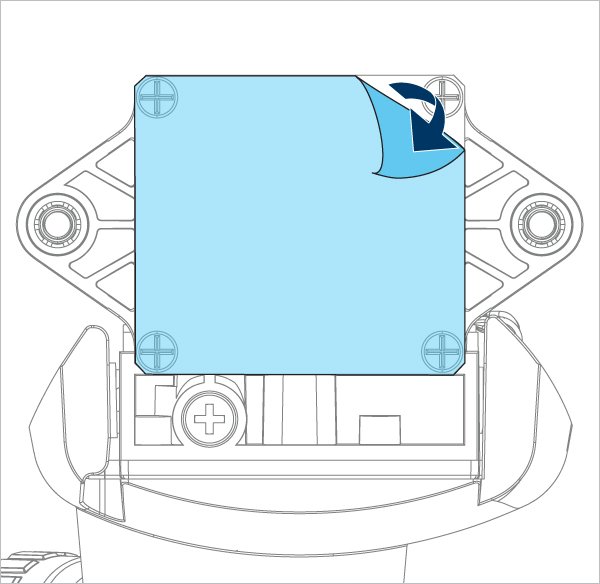
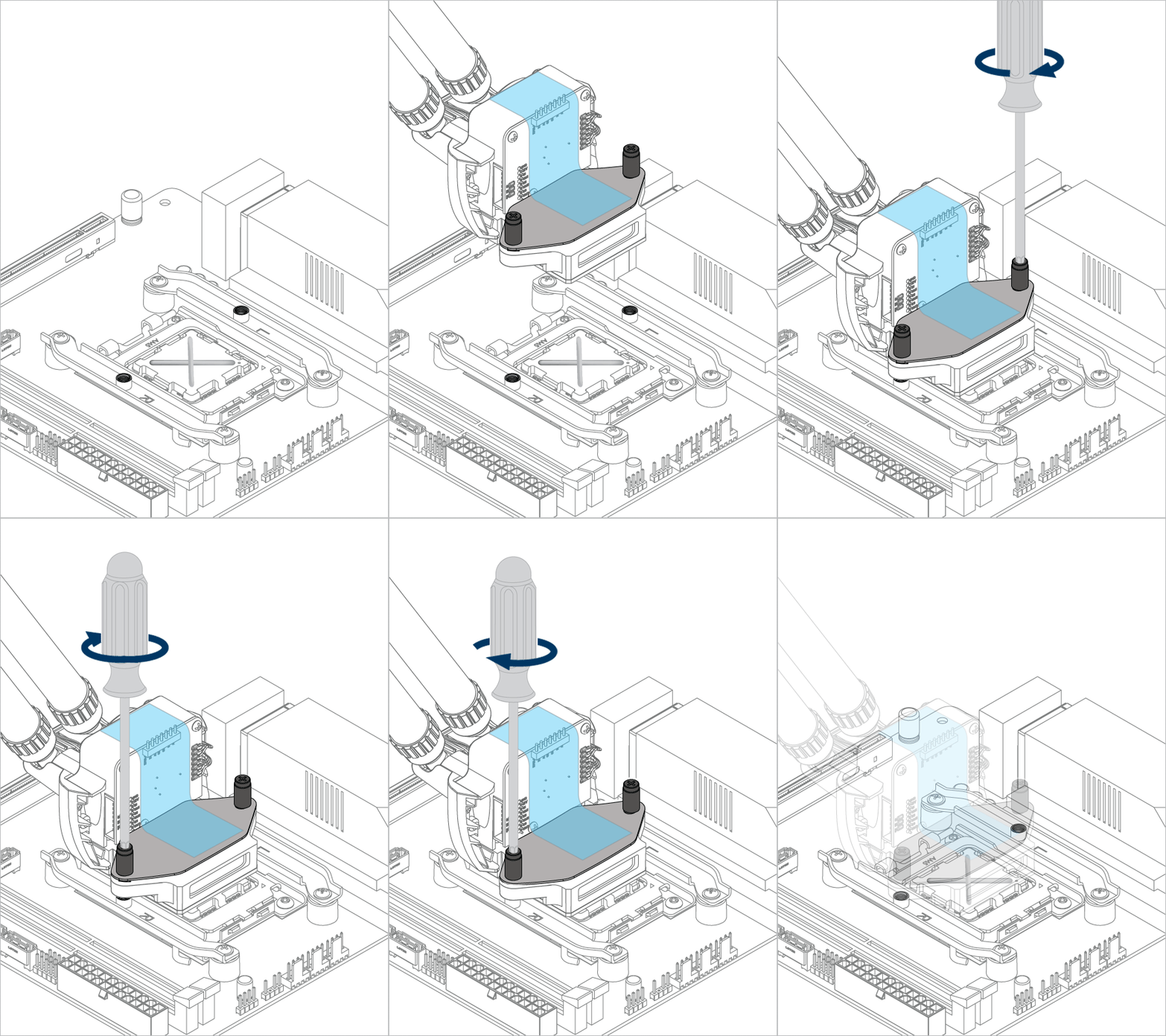
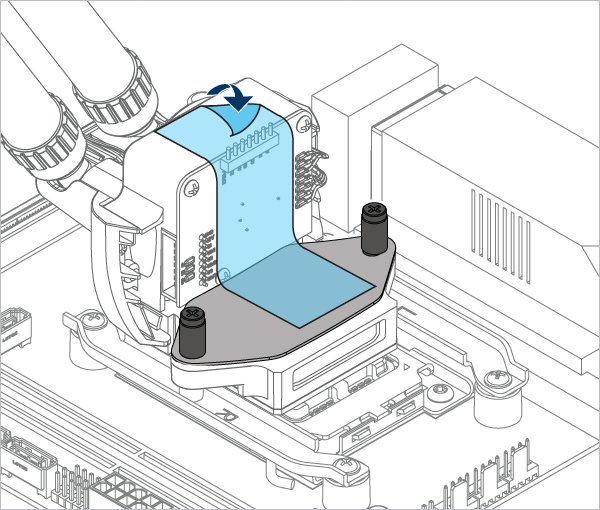
Tighten the screws gently until both engage with the threads, then fully tighten them alternately.

Liquid Freezer III Pro 420

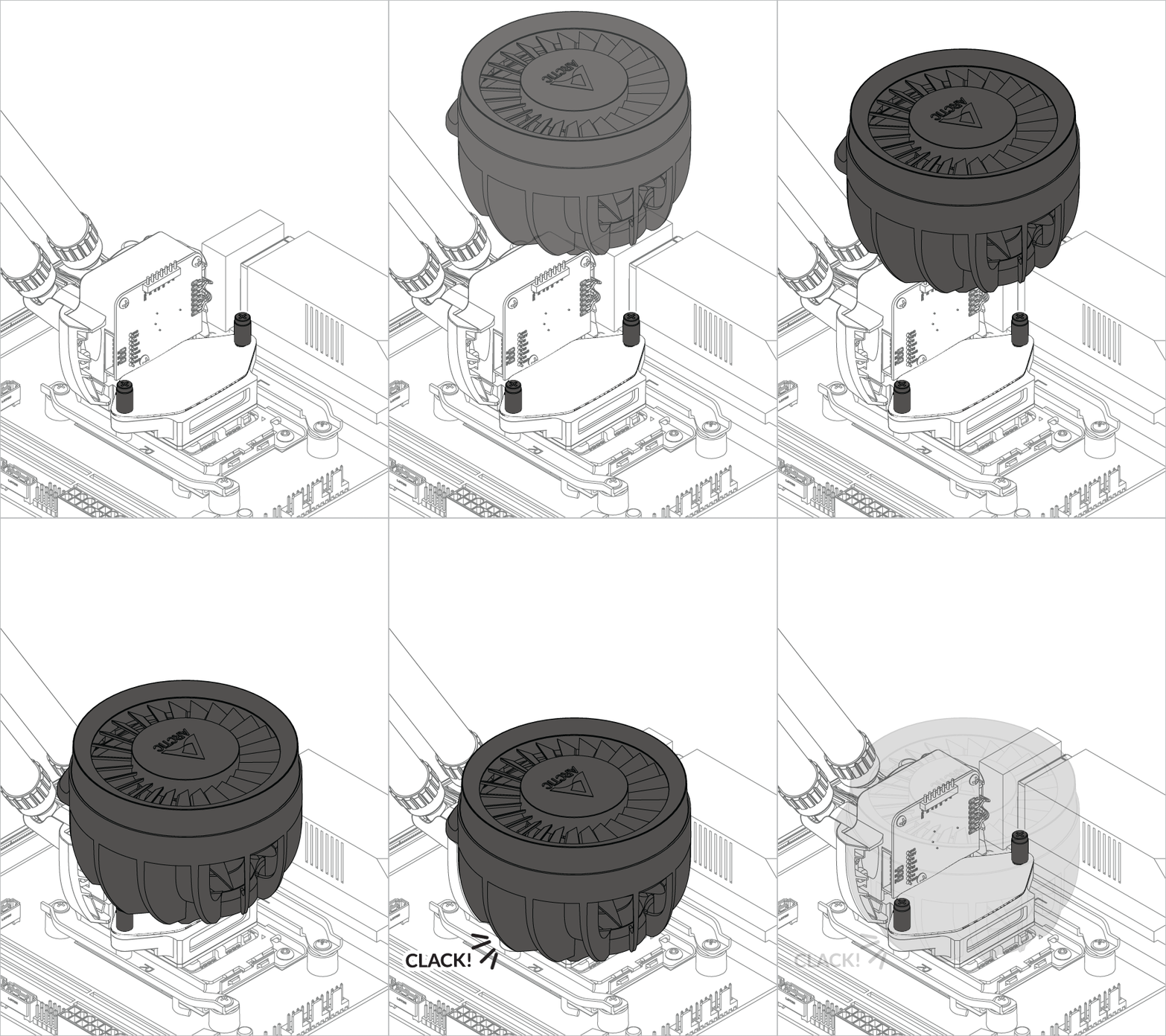
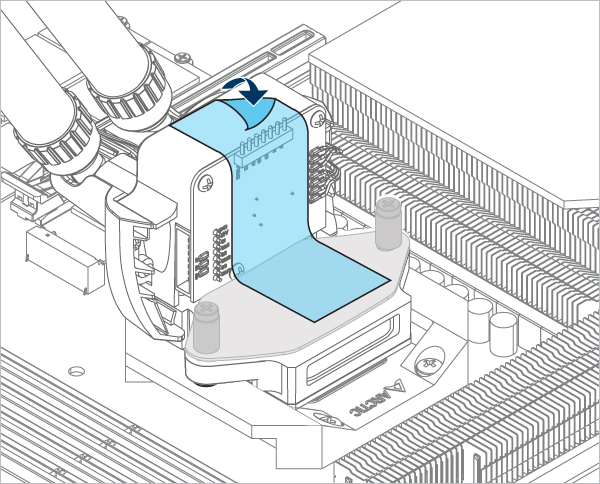
For AM4: The offset mounting leaves parts of the heatspread visible; this is intentional, as the CPU hotspot is off-centred, but perfectly covered.

Liquid Freezer III Pro 420 Liquid Freezer III Pro 420 Liquid Freezer III Pro 420

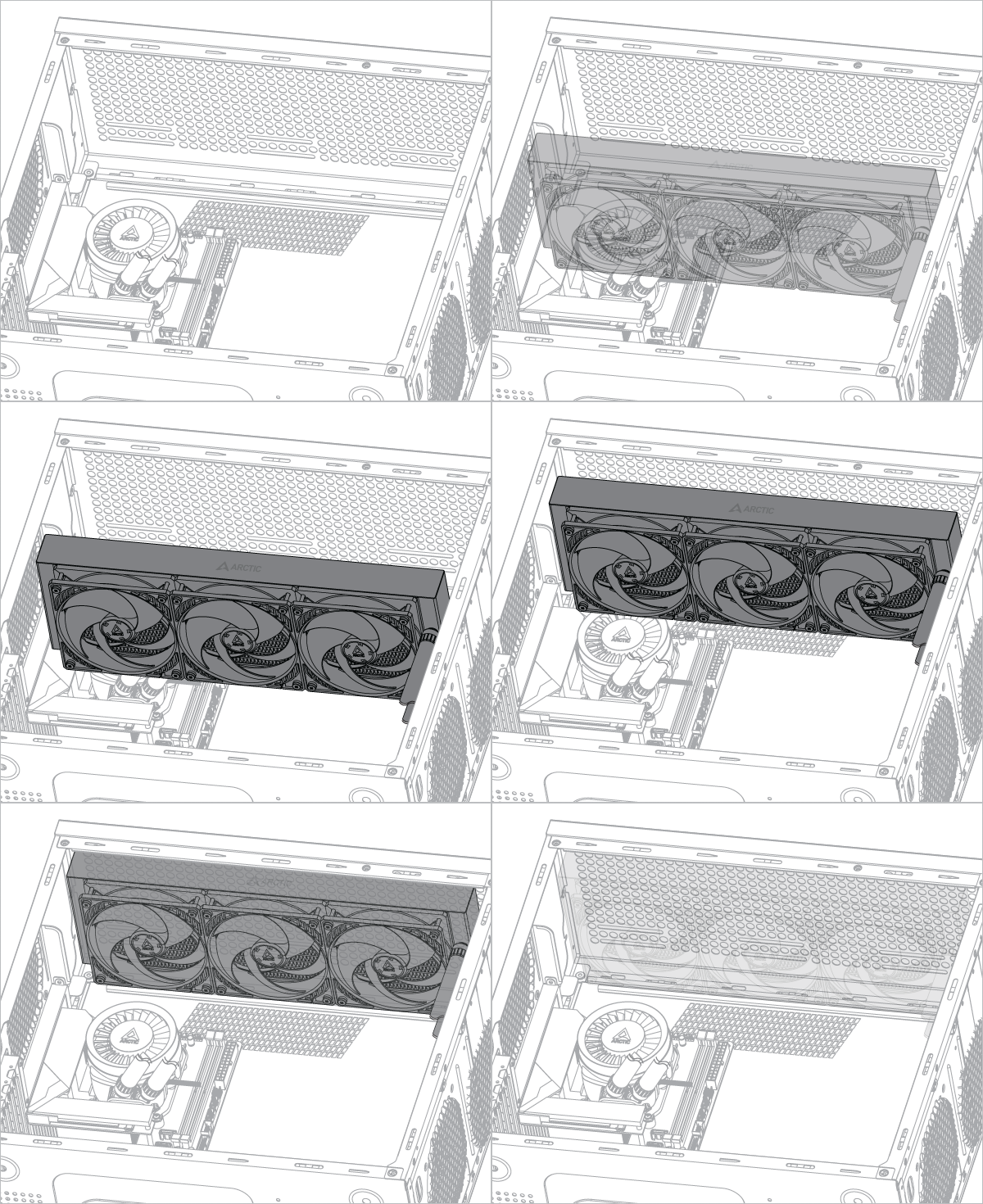
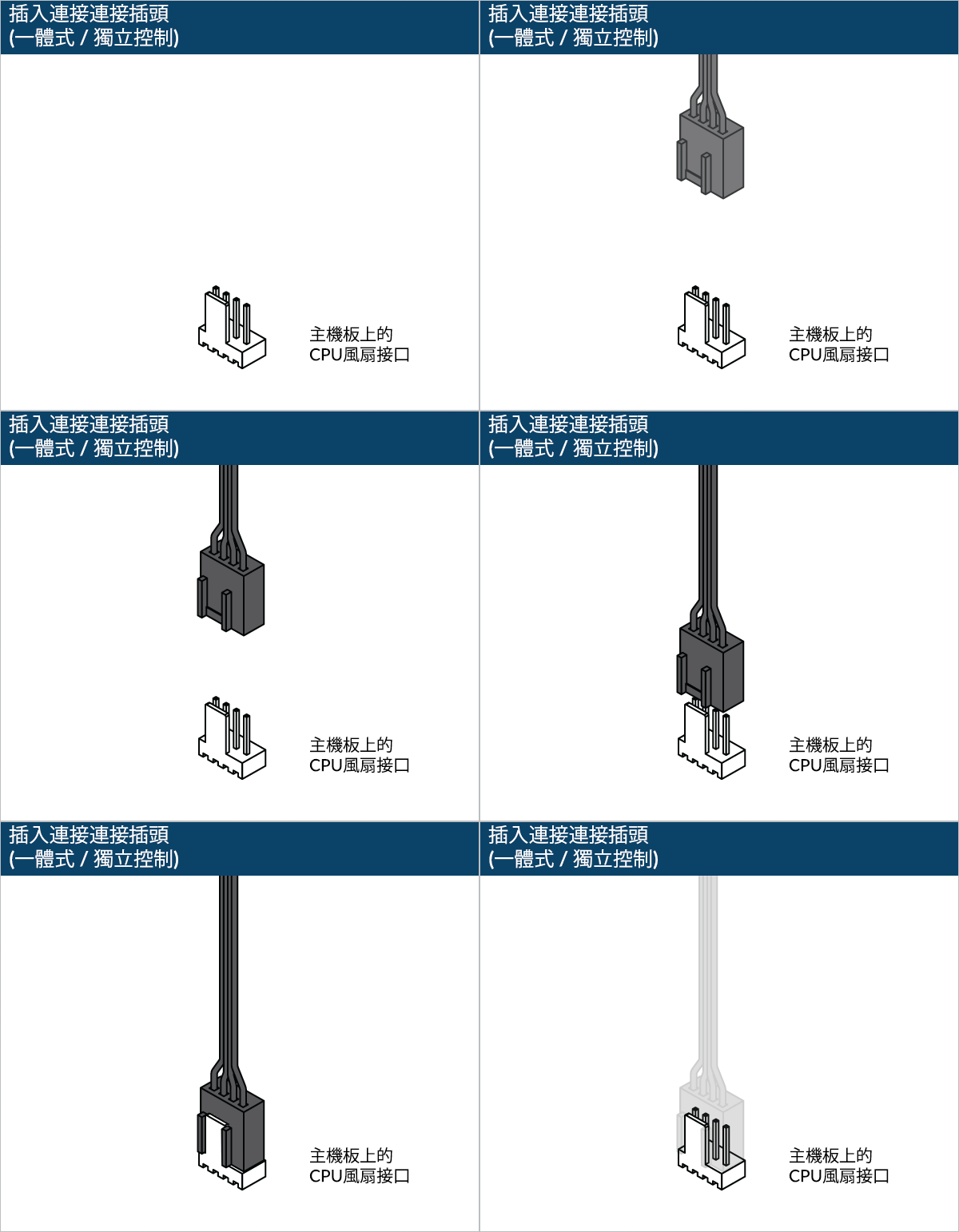
Please make sure that you plug all connectors on the motherboard,
For PWM cable (all-in-one) = 1 plug
For PWM cable (individual control) = 3 plug

Liquid Freezer III Pro 420 Liquid Freezer III Pro 420

Please make sure that the headers are set to PWM instead of DC control. For detailed instructions, please follow the BIOS configuration guide to adjust your PWM.

A printable quick start guide is available here.

Required Tools

PH2 Philips Head Screwdriver PH2 Philips Head Screwdriver

T20 Torx Screwdriver T20 Torx Screwdriver(included in packaging)

Packaging Content
Liquid Freezer III Pro 420
Choose Connector Cable

All-in-One

Single connector PWM cable for simultaneous control of pump, VRM and radiator fan speeds, as well as pump speed monitoring.

Liquid Freezer III Pro 420

Individual control

PWM cable with three connectors for individual control and monitoring of pump / VRM fan / radiator fan speed.

Liquid Freezer III Pro 420

3x 4-Pin Header on motherboard required

Connect the PWM control cable before mounting the cooler on the mainboard.

Liquid Freezer III Pro 420
Preparation

How (not) to mount your water cooling AIO?

Steve from GamersNexus explains you the mistakes to avoid while assembling your water cooling AIO in your PC case.

The featured video is independently produced by GamersNexus, ARCTIC has been authorized to use by GamersNexus.

Radiator below pump

Liquid Freezer III Pro 420

Radiator above pump

Liquid Freezer III Pro 420 Liquid Freezer III Pro 420 Liquid Freezer III Pro 420

Risk of bubbling noise

Contact Frame Installation

Attention

Secure the socket backplate in one of the 2 ways shown below depending on the status of your motherboard.

    Is the motherboard outside of the case?

  • Yes
  • No

Place a thick padding (e.g., packaging inner card) under the socket backplate to support the socket backplate on a flat, horizontal surface.

Liquid Freezer III Pro 420

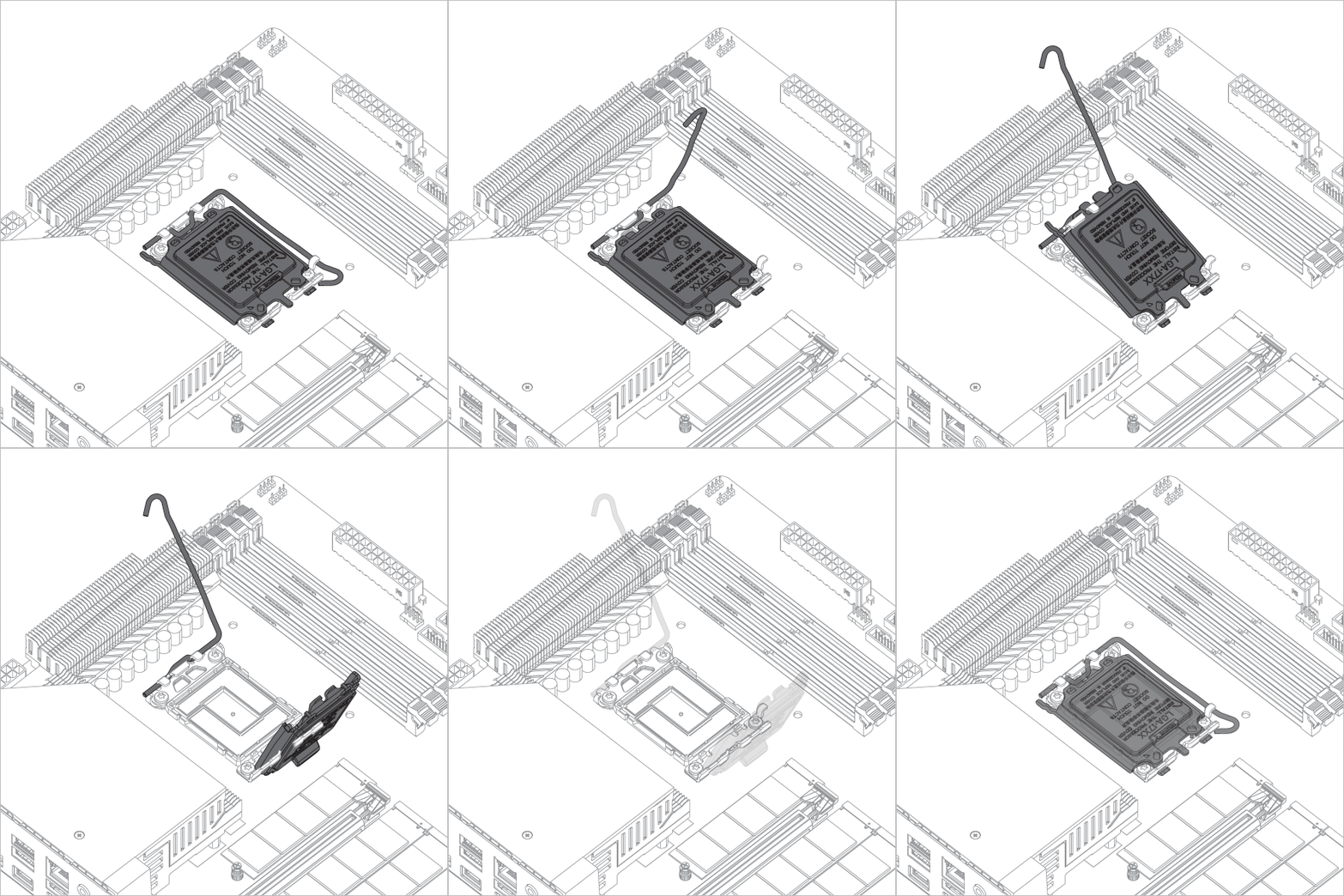
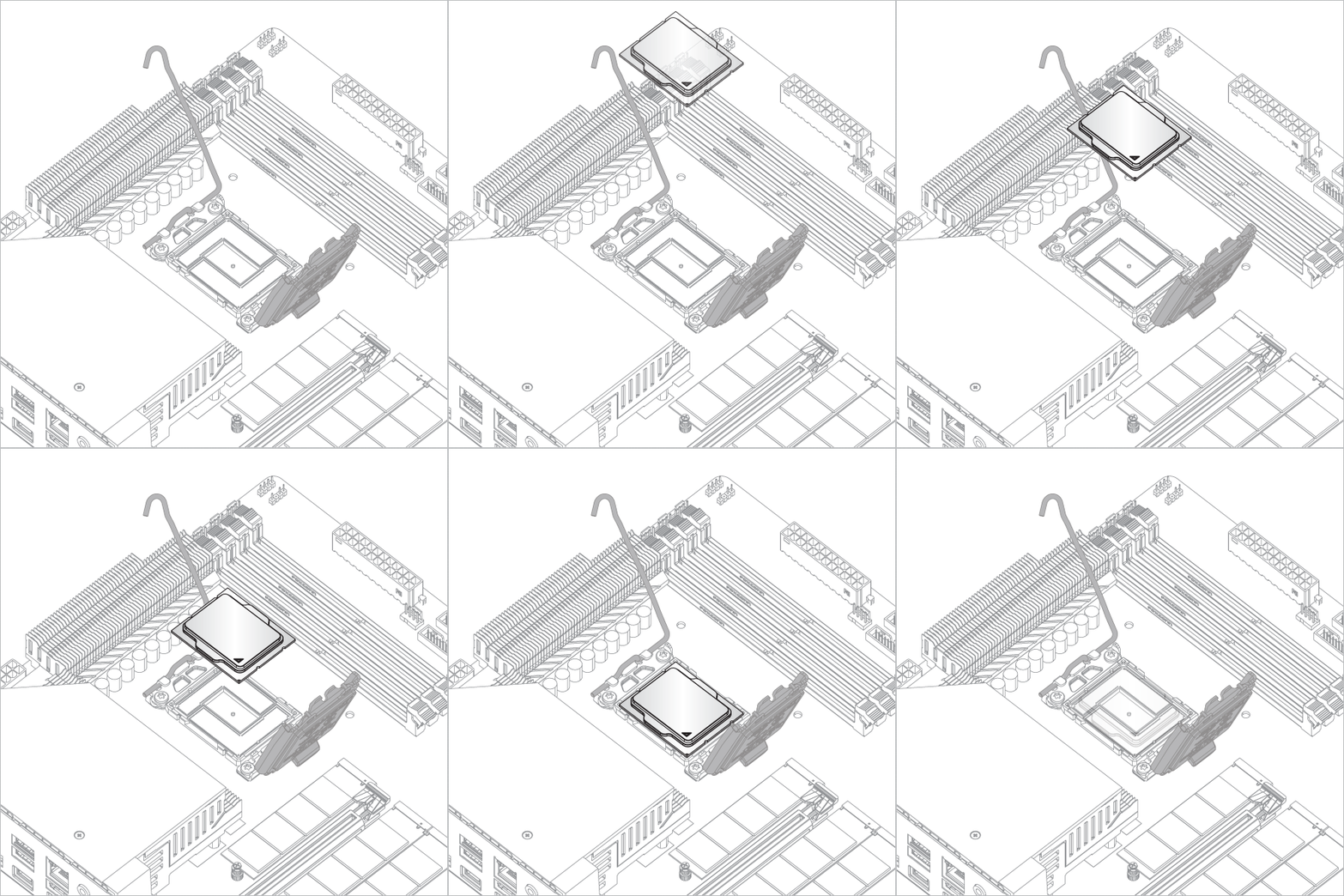
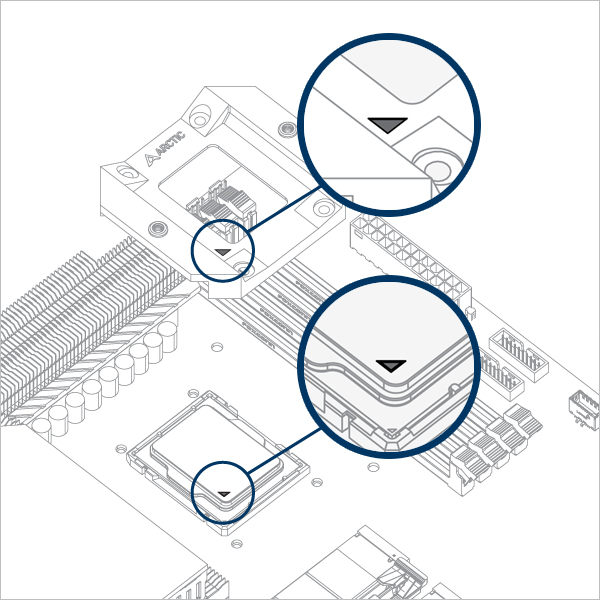
Open the Independent Loading Mechanism (ILM), align and place the CPU into the socket

Liquid Freezer III Pro 420 Liquid Freezer III Pro 420 Liquid Freezer III Pro 420

Attention

Keep the removed parts for reassembly in the future. The ILM must be reinstalled if the motherboard is to be returned for service or warranty.

Liquid Freezer III Pro 420 Liquid Freezer III Pro 420

Attention

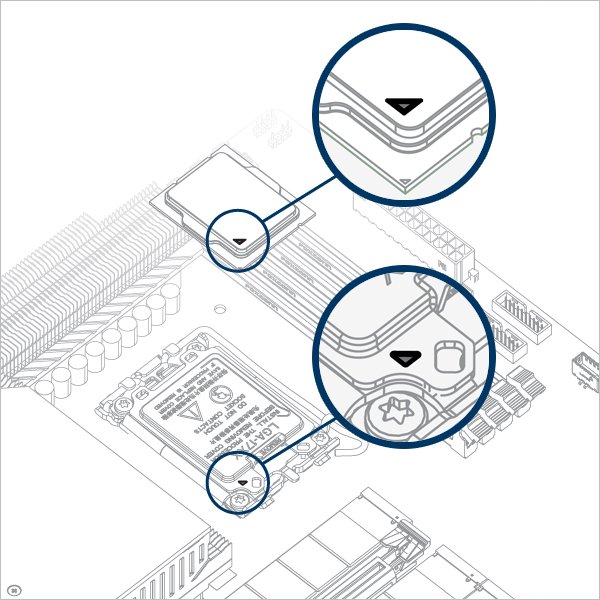
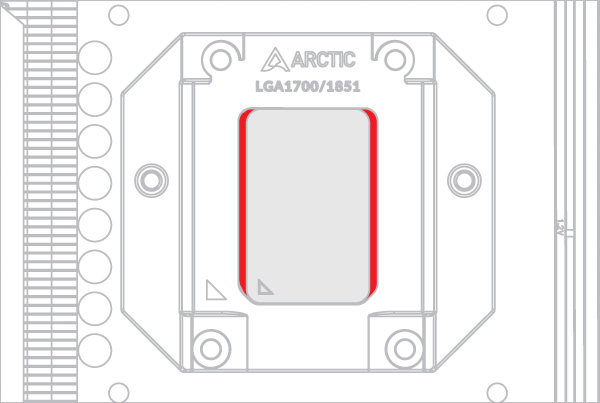
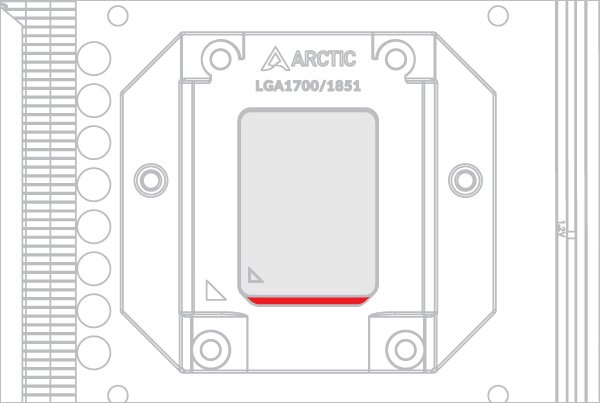
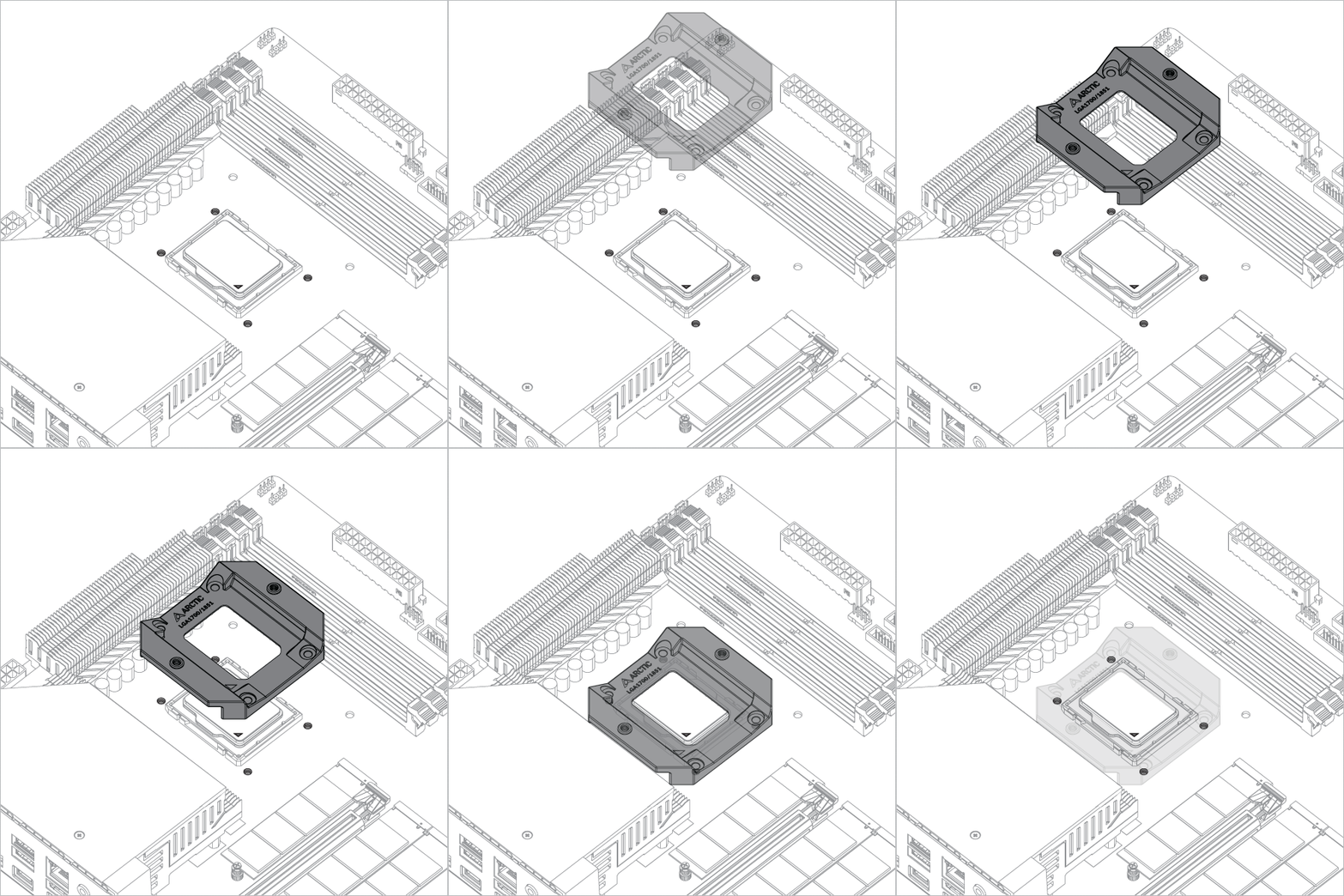
The CPU Contact Frame is made to be compatible with both LGA1851 and LGA1700 CPUs, select below to see your CPU fitment.

Align the CPU in the middle of the cutout on the CPU Contact Frame, there should be gaps (highlighted in red) on the left and right side of the CPU.

Liquid Freezer III Pro 420

Align the CPU to the top edge of the cutout on the CPU Contact Frame, there should be a gap (highlighted in red) below the CPU.

Liquid Freezer III Pro 420
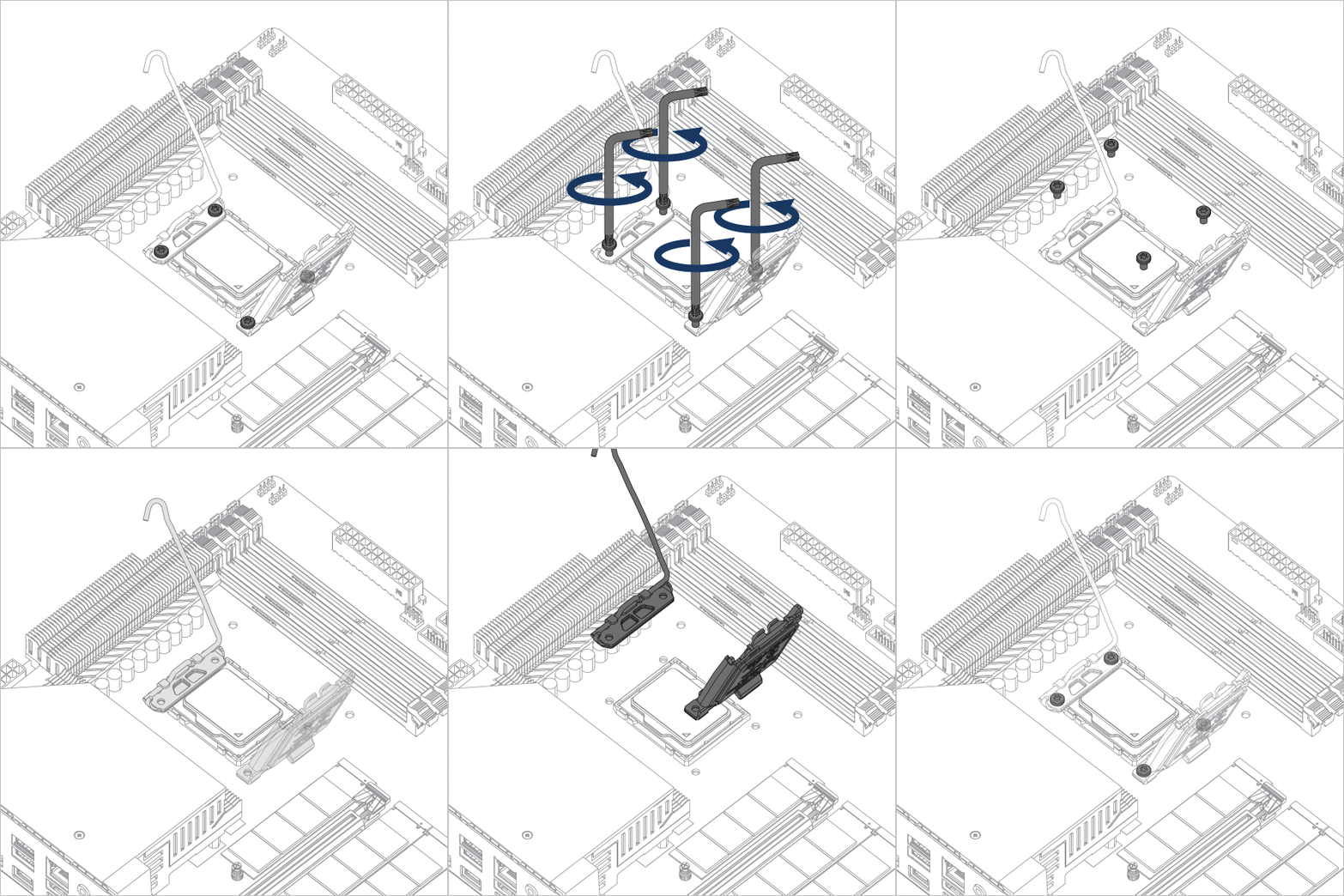
Liquid Freezer III Pro 420 Liquid Freezer III Pro 420 Liquid Freezer III Pro 420

Warning

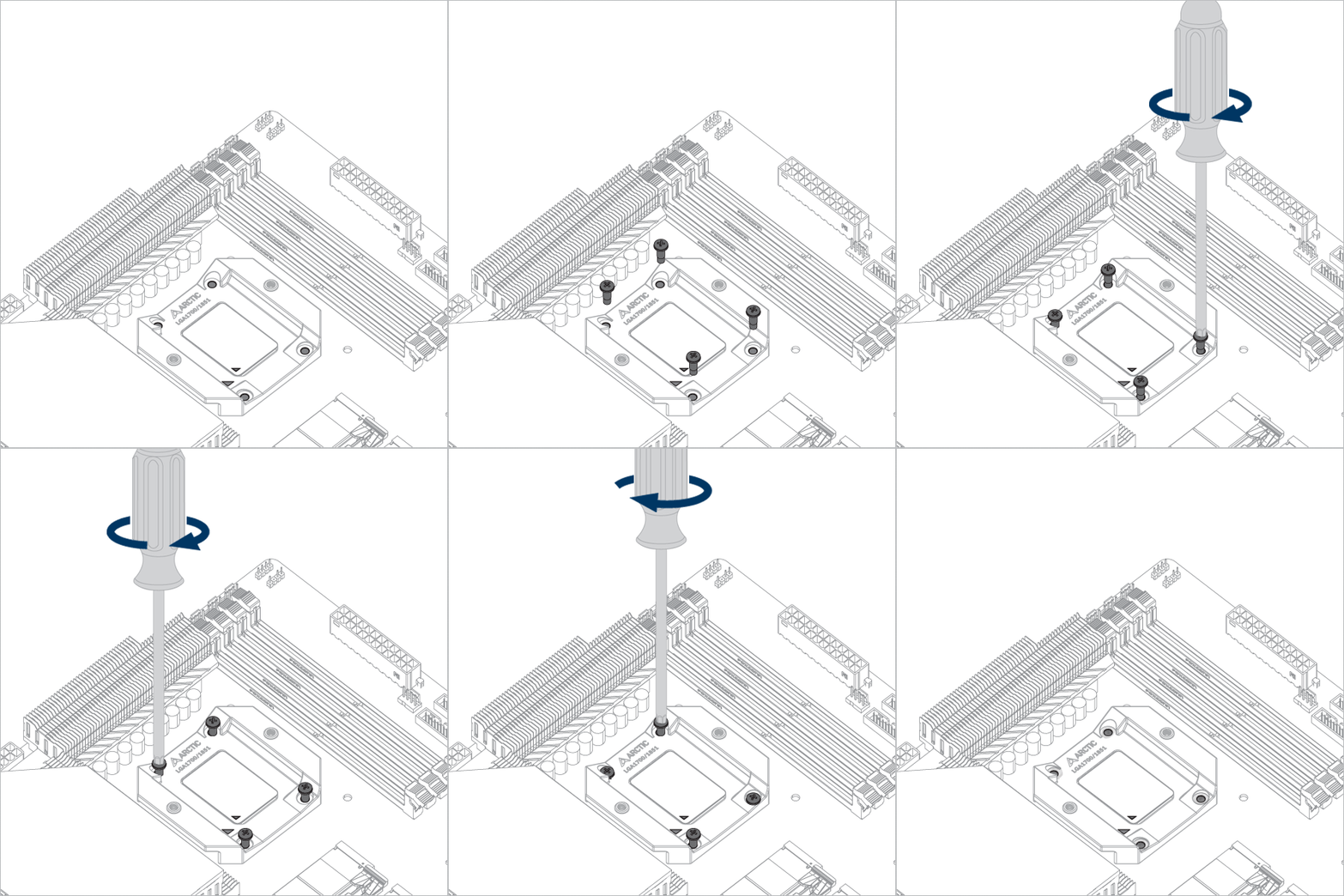
Loosely engage all 4 screws by 2 turns before tightening them in a cross pattern evenly to avoid damaging the CPU.

Liquid Freezer III Pro 420 Liquid Freezer III Pro 420

The thick padding can be removed after the CPU Contact Frame is tightened.

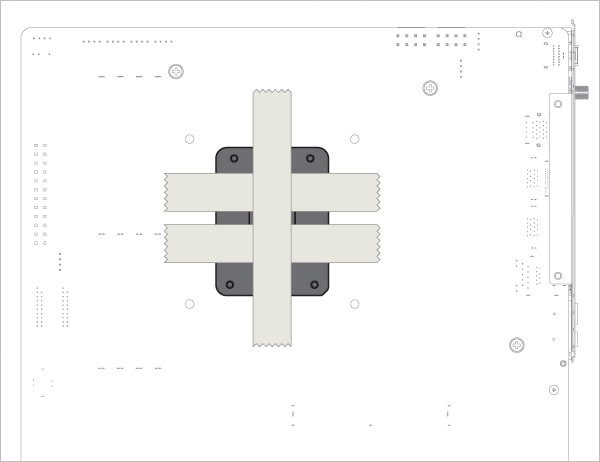
Apply painter’s tape on the backside of the motherboard to secure the socket backplate. Lay the motherboard flat on a horizontal surface.

Liquid Freezer III Pro 420

Open the Independent Loading Mechanism (ILM), align and place the CPU into the socket

Liquid Freezer III Pro 420 Liquid Freezer III Pro 420 Liquid Freezer III Pro 420

Attention

Keep the removed parts for reassembly in the future. The ILM must be reinstalled if the motherboard is to be returned for service or warranty.

Liquid Freezer III Pro 420 Liquid Freezer III Pro 420

Attention

The CPU Contact Frame is made to be compatible with both LGA1851 and LGA1700 CPUs, select below to see your CPU fitment.

Align the CPU in the middle of the cutout on the CPU Contact Frame, there should be gaps (highlighted in red) on the left and right side of the CPU.

Liquid Freezer III Pro 420

Align the CPU to the top edge of the cutout on the CPU Contact Frame, there should be a gap (highlighted in red) below the CPU.

Liquid Freezer III Pro 420
Liquid Freezer III Pro 420 Liquid Freezer III Pro 420 Liquid Freezer III Pro 420

Warning

Loosely engage all 4 screws by 2 turns before tightening them in a cross pattern evenly to avoid damaging the CPU.

Liquid Freezer III Pro 420 Liquid Freezer III Pro 420

The painter’s tape applied to the backplate can be removed after the CPU Contact Frame is tightened.

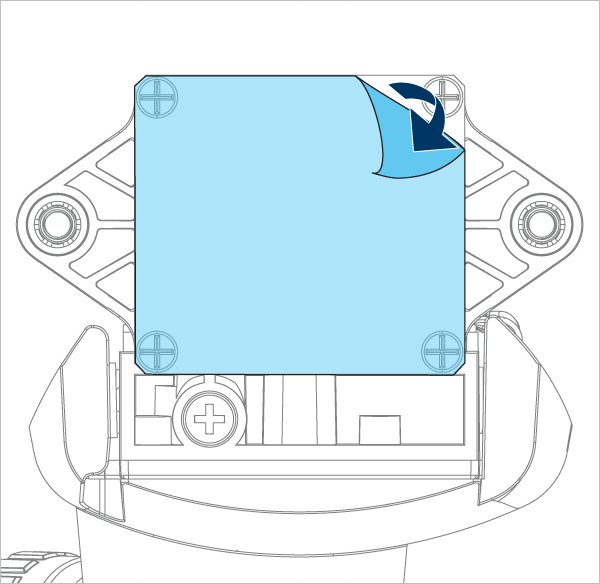
Installation
Liquid Freezer III Pro 420 Liquid Freezer III Pro 420

Refer here to learn more about how to apply thermal pastes.

Liquid Freezer III Pro 420

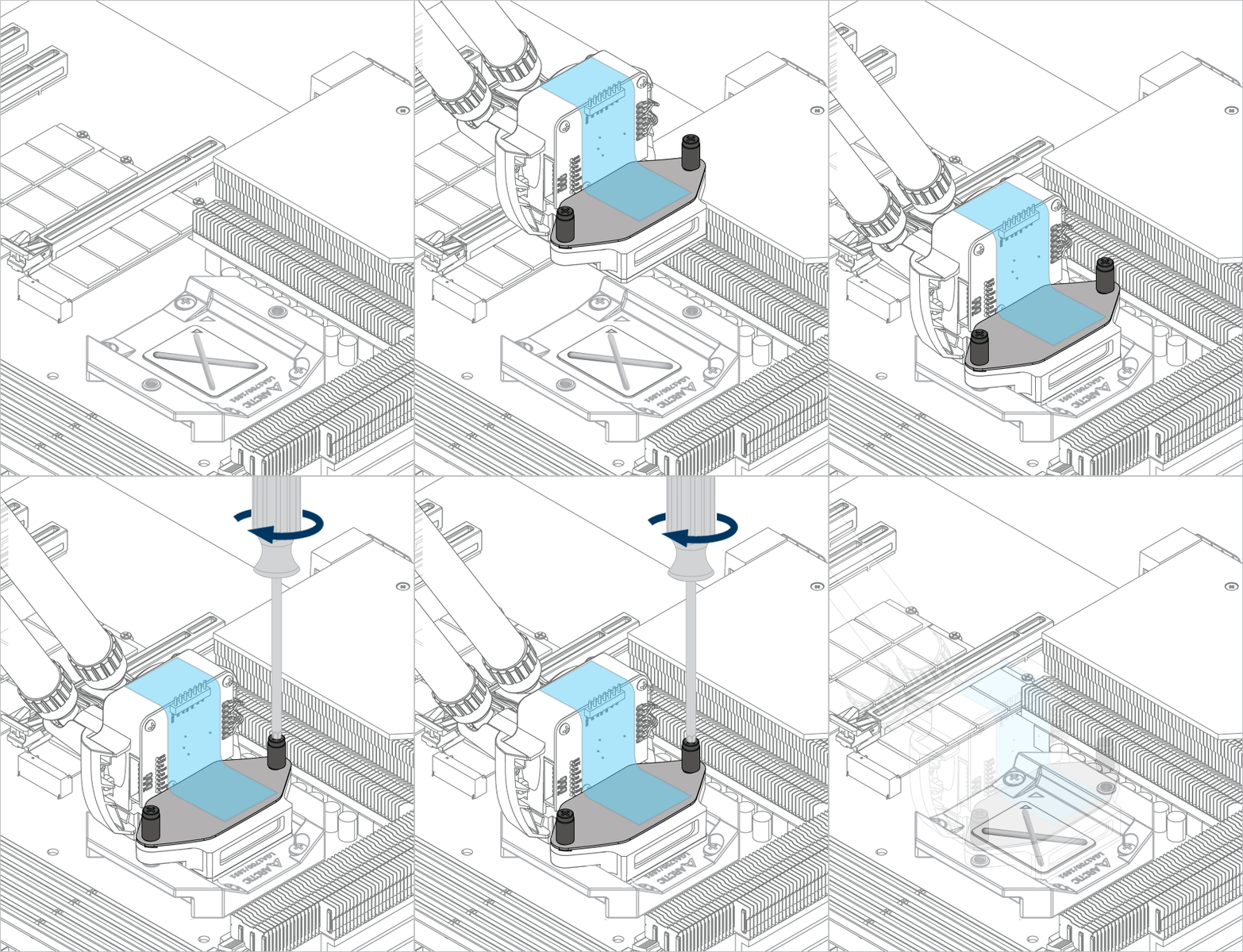
Tighten the screws gently until both engage with the threads, then fully tighten them alternately.

Liquid Freezer III Pro 420 Liquid Freezer III Pro 420 Liquid Freezer III Pro 420 Liquid Freezer III Pro 420
Liquid Freezer III Pro 420 Liquid Freezer III Pro 420 Liquid Freezer III Pro 420

Please make sure that you plug all connectors on the motherboard,
For PWM cable (all-in-one) = 1 plug
For PWM cable (individual control) = 3 plug

Liquid Freezer III Pro 420 Liquid Freezer III Pro 420

Please make sure that the headers are set to PWM instead of DC control. For detailed instructions, please follow the BIOS configuration guide to adjust your PWM.

support.arctic.de 使用 Cookie,旨在为读者提供最佳的网站体验。此外,一些 Cookie 也由第三方服务设置。更多信息,请参阅隐私政策.

我接受

如果您接受来自 ARCTIC 的 cookie,但不接受使用 Google Analytics 的跟踪,请点击此处接受。